
Session Workspace and Record Audio
How to use the appointment workspace for telehealth, audio recording, audio or video upload, transcripts, source material, and note review.
The Session Workspace is the appointment-specific page for the work that usually happens around a session. It keeps the appointment details, telehealth link, audio recording and upload tools, source material, and note review close together so the clinician does not have to move between several screens during or after the appointment.
Open an appointment from the calendar, then choose Open workspace when you want to prepare for the session, join telehealth, record audio, review source material, or work on the note.
What is on the Session Workspace
The workspace shows the appointment time, client or case name, appointment status, quick contact links, and same-day navigation for the previous or next appointment when available.
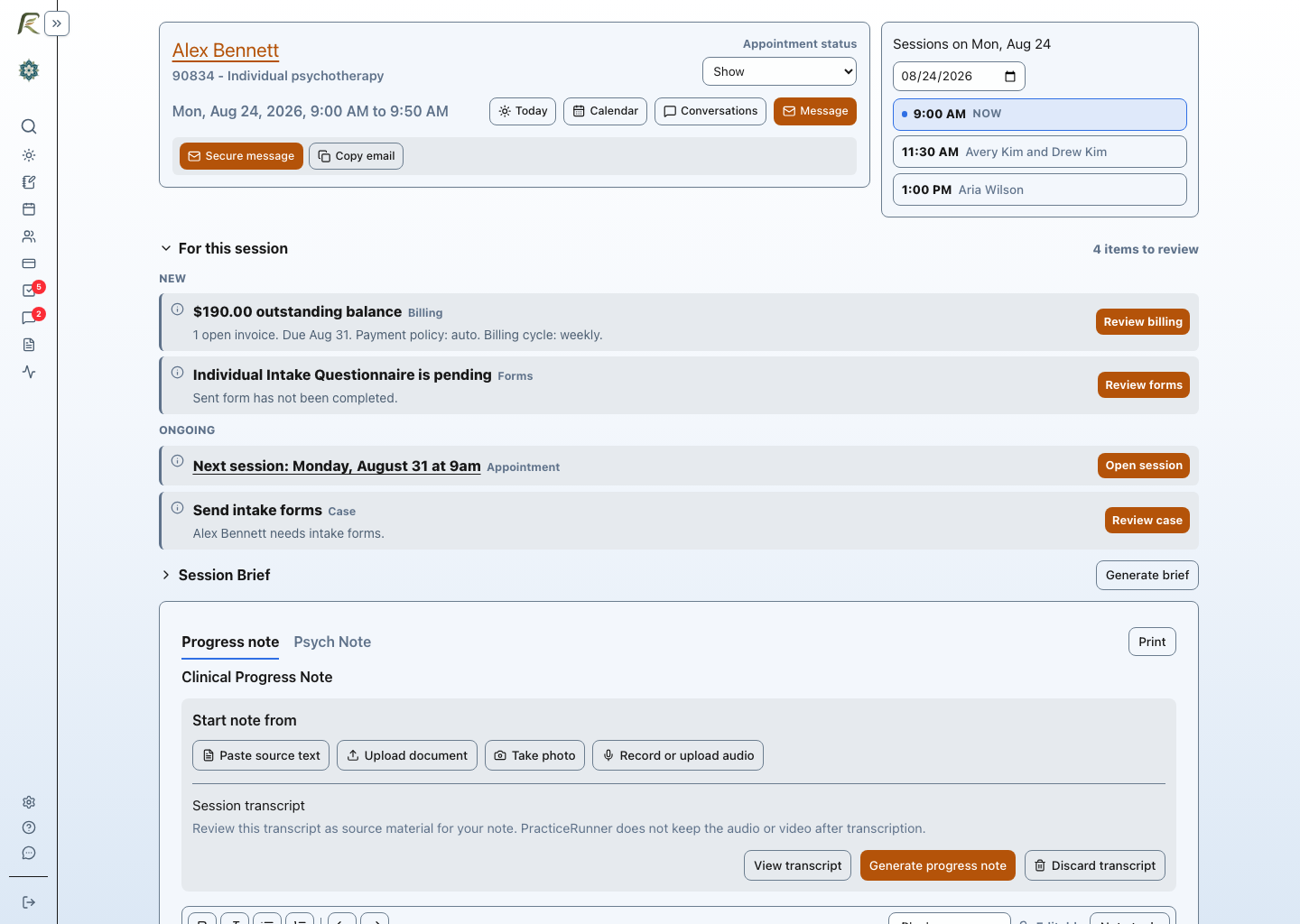
The Session Workspace keeps appointment context, session preparation, source material, and note work together.
Depending on your practice settings and subscription, the workspace can include:
- Join telehealth when the appointment, case, or provider has a meeting link.
- Collect payment for eligible sessions or existing session invoices.
- Session Brief when appointment preparation tools are enabled.
- Record audio or Upload audio or video from the note source options when transcription is enabled for the practice.
- Progress note, consultation note, group note, or other note areas depending on the case and appointment.
- Attachments and source material that can help with note drafting or review.
Session Brief
Session Brief can use saved notes before the appointment for the same case or client, including notes that have been saved but not signed yet. For eligible clinical cases, it also uses the active treatment plan. The brief is for appointment preparation only and is not part of the clinical note. Generated briefs are removed when the appointment note receives its final signature or become eligible for cleanup after 30 days. Your saved guidance and original notes are kept. See Session Brief for guidance, history coverage, and retention details.
Expand Session Brief and select Change beside Guidance to choose a preset, add directions, and select the last 3, 5, or 10 notes under History. Apply your choices to this session or, when available, your future sessions with the case. Your session choice takes priority over your saved case guidance and personal default.
Select Apply guidance, then Generate brief or Refresh brief. Changes do not regenerate the brief automatically. The generated brief shows how many notes were included and lets you expand their dates. Manage reusable defaults under Settings → Preferences → AI guidance → Session preparation. See Session Brief guidance and history for how to clear overrides or use no extra guidance.
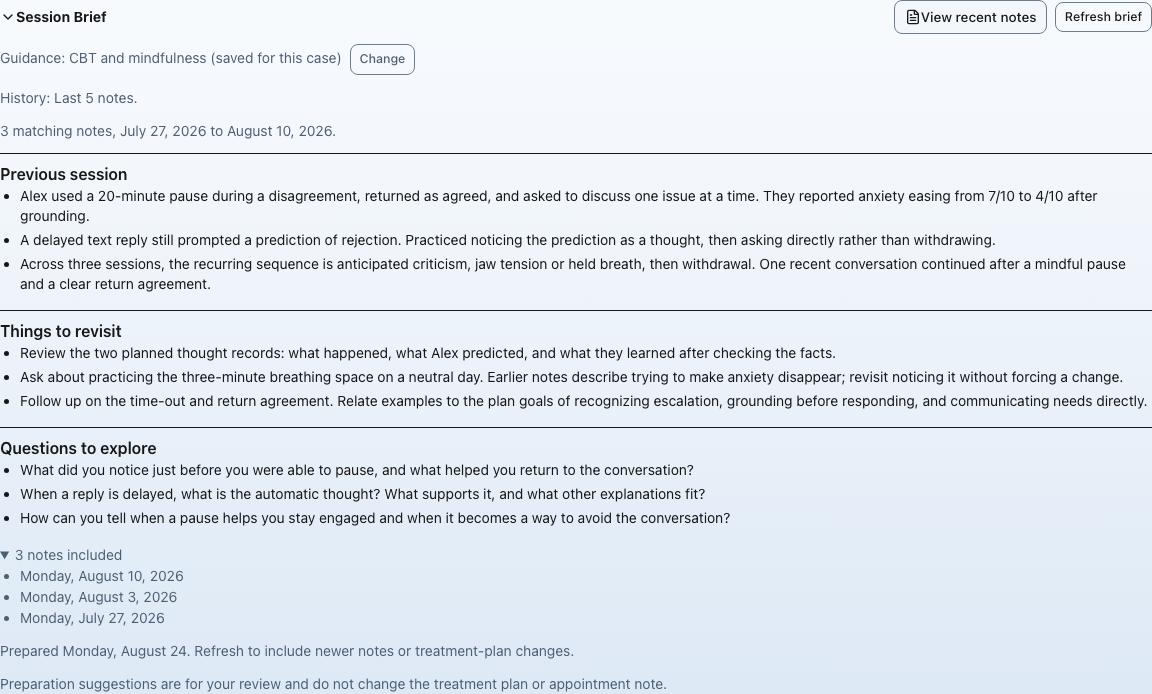
Session Brief shows the guidance and note history used for preparation. This example uses synthetic notes. Select the image to view it full size.
Collect payment for the session
Choose Collect payment beside the client’s contact actions to open payment collection for the session.
- For an existing invoice, the payment dialog opens for that invoice.
- For an eligible uninvoiced session on manual or daily billing, PracticeRunner creates the invoice and opens payment collection.
- For weekly or monthly billing, review Invoice this session now?. Confirm to create a separate invoice and exclude the session from its scheduled invoice, or choose Cancel to leave it on the usual schedule.
- Continue in the payment dialog using the available payment options. To let the client pay on their own phone, open Pay by Phone.
This is available before, during, or after a session when its fee, billing contact, and attendance meet the billing checks. Collecting payment does not confirm attendance or change the service. Keep those details accurate for the session.
Simply opening the workspace does not create an invoice or take payment. If you close the payment dialog, the invoice remains; choose Collect payment again to reopen it.
Therapist collection does not depend on the optional client portal setting. To let clients initiate payment themselves, see Let clients pay before an invoice is scheduled.
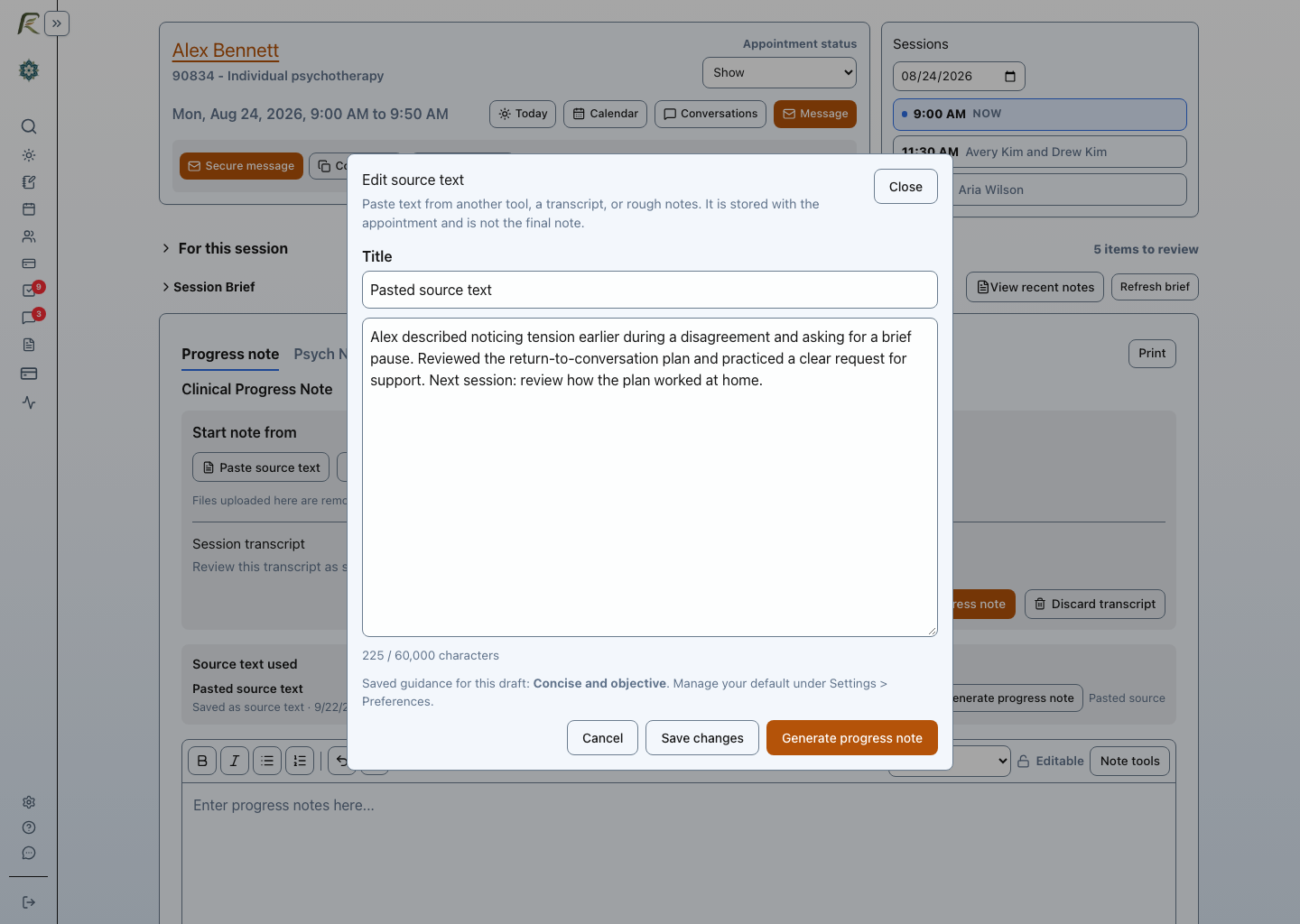
Edit pasted source text
After saving pasted source text, choose Edit source text beside it to make a correction. Select Save changes to update that source.
Treatment plans
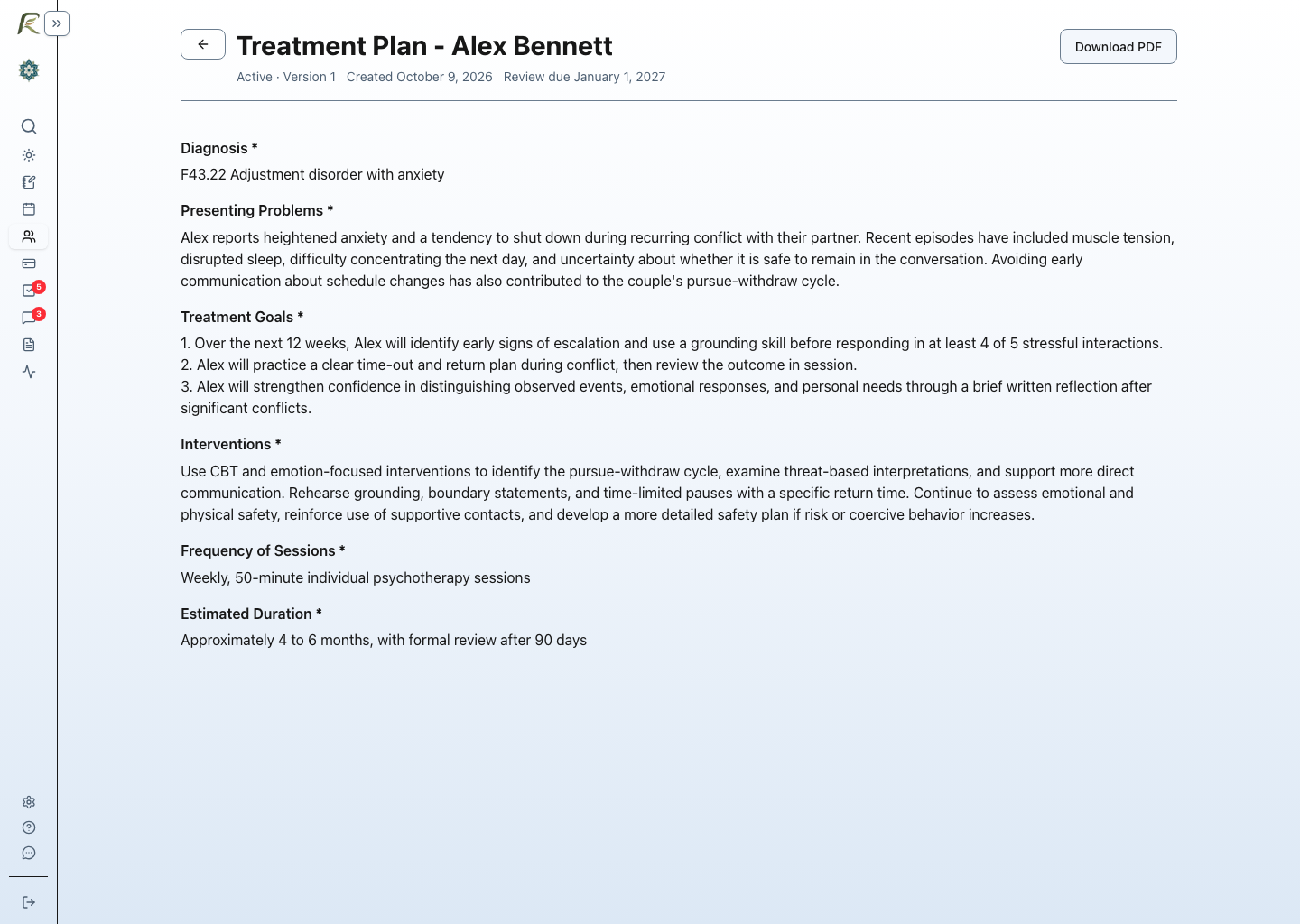
Open Treatment plans from the case to review an active plan and its review date. Open the plan to read its goals, interventions, and session frequency. Use Draft revision in the plan history when the plan needs updating. Therapy groups can have a shared plan plus participant addenda or full participant plans, each with its own review. See Treatment Plans for group plans, AI proposals, supervision, and PDF downloads.
Enable AI Assistant tools
An owner or authorized admin can manage Session Brief and clinician-reviewed note drafting from Settings -> General -> AI Assistant.
- Open Settings.
- Go to General.
- Find AI Assistant.
- Turn on Session Brief or the note-drafting features the practice wants to make available.
- Select Save Settings.
See AI Assistant Settings for a description of every option.
Enable Record audio
An owner or authorized admin can turn on Record audio from Settings -> General.
- Open Settings.
- Go to General.
- Find AI Assistant, then locate Record audio.
- Turn on Enable audio recording and media upload in the Session Workspace.
- Save the settings.
Recording and transcription are included during PracticeRunner’s early stage, with no separate transcription charge today. PracticeRunner will explain any future allowance or charge before it applies. If the option is unavailable, go to Settings → General → AI Assistant and select Review membership options.
Record appointment audio
Use Record audio only when it is appropriate for the appointment and your practice has obtained the consent required by your policies, laws, professional rules, and client agreements.
- Open the appointment’s Session Workspace.
- In Start note from, choose Record or upload audio, then confirm that you have obtained appropriate consent.
- Choose the audio source you want to use, if you do not want the browser’s default microphone.
- Use Test microphone if you want to confirm the live spectrum responds before recording.
- Select Start recording.
- Keep PracticeRunner open while the recording is running. PracticeRunner will try to keep the screen awake when the browser supports it, but the device should stay unlocked.
- Return to the Session Workspace if you need to switch audio inputs during the recording.
- Select Stop recording when the session or recorded portion is complete.
After you stop recording, PracticeRunner sends the audio for transcription. When transcription finishes, the transcript is stored with the appointment as source material.
PracticeRunner deletes recorded or uploaded audio and video after transcription. Temporary transcripts are removed when the appointment note receives its final signature or become eligible for cleanup after 30 days. Review any needed details before signing. You can also select Discard transcript and confirm to remove it sooner.
If transcription is taking longer than expected and you do not want to keep waiting, select Cancel transcription. Canceling stops the current upload/transcription request and discards the browser recording instead of storing a transcript.
Choose an audio source
PracticeRunner records the audio that your browser receives from the selected input. The audio source menu can include the built-in microphone, USB microphones, USB headsets, wireless headsets, audio interfaces, Continuity Camera microphones, or virtual audio devices that your operating system exposes to the browser.
Choose the input that includes the voices you want transcribed. Use Test microphone, then say a few words and watch the live spectrum to confirm that PracticeRunner is receiving sound before you continue with the session.
If you need to change inputs during a recording, return to the Session Workspace, choose the new source, use Test to confirm the live spectrum responds, then select Switch input. PracticeRunner keeps the recording together for transcription.
If a device is missing from the list:
- make sure the device is connected and allowed in the operating system’s privacy settings
- refresh the audio source list
- allow microphone access in the browser
- check whether another app has exclusive control of the device
Headsets usually capture the clinician’s microphone clearly. If the client or caller audio is playing only through the headset speakers, the selected headset microphone may not capture that other side of the conversation.
Phone and video-call audio
For phone calls, PracticeRunner can record the call only when the call audio reaches the selected browser input. Common workable setups include speakerphone near the computer microphone, a phone or softphone routed through an audio interface, or a virtual audio input that combines call audio with the clinician’s microphone.
For video sessions, browser recording usually captures the selected microphone. It does not automatically capture another app’s output audio, especially when the clinician is wearing headphones. If both sides of the session are not present in the selected input, use the video app’s recording or export workflow, or another recorder, then upload the audio or video file to PracticeRunner afterward.
Before relying on a phone, headset, or video-call setup for clinical use, test the same device and app combination your practice plans to use.
Upload audio or video from another recorder
If you recorded the session in another app or on another device, use Record or upload audio under Start note from, then choose Upload audio or video. This is different from uploading an attachment to the chart. The uploaded file is used temporarily to create a transcript, then PracticeRunner stores the transcript and does not keep the uploaded media.
For video files, PracticeRunner uses the audio track for transcription. It does not analyze the visual content of the video.
- Open the appointment’s Session Workspace.
- In Start note from, choose Record or upload audio, then confirm that you have obtained appropriate consent.
- Select Upload audio or video.
- Choose the audio or video file from your device.
- Keep the browser window open while PracticeRunner transcribes the file. You can keep using PracticeRunner during transcription.
Supported uploads include common audio formats such as M4A, MP3, WAV, WebM, OGG, and MP4 audio, plus common video formats such as MP4, M4V, and WebM. Video files are usually larger than audio-only files, so they may take longer to upload and transcribe or may exceed the upload limit. When possible, upload an audio-only file for the most efficient workflow.
After transcription, review the transcript before using it for documentation. If your practice policy requires removing the original recording from the recording app, phone, or external device, delete it there too. PracticeRunner cannot delete the copy stored outside PracticeRunner.
Privacy, retention, and therapist control
PracticeRunner keeps the recording and documentation workflow under the therapist’s control.
- Audio and video are temporary. PracticeRunner uses recorded or uploaded media to create the transcript, then deletes the media after transcription. PracticeRunner does not keep it as a session recording.
- Transcripts are temporary drafting sources. You can choose Discard transcript before signing. Otherwise, transcripts are removed after the final therapist signature or become eligible for cleanup after 30 days. To preserve remaining sources, open the case, expand Temporary source cleanup, and select Pause source cleanup. This pauses cleanup across all appointments in the case, including future appointments. A pause cannot restore deleted material and does not retain audio or video.
- Client information is not used for shared AI training. PracticeRunner does not use client recordings, uploaded media, transcripts, notes, or other client information to train shared AI models or improve AI for other practices.
- All AI-assisted features are disabled by default. The practice decides whether to enable them and can turn them off at the practice level. A therapist decides whether to use an enabled feature in a supported workflow.
- The therapist remains responsible for the note. The therapist chooses when to record or upload media, whether to generate a draft, what to keep, what to edit, and whether the final documentation is ready to save or sign.
- Processing uses PracticeRunner’s HIPAA and BAA safeguards. When a practice enables these tools, supported processing runs within the safeguards and contractual framework PracticeRunner uses for protected health information.
These commitments apply to media recorded or uploaded through PracticeRunner. If a session was recorded in another app or on another device, delete that external copy according to your practice policy. PracticeRunner cannot remove files stored outside PracticeRunner.
PracticeRunner may offer optional practice-specific AI personalization in the future. Any such capability would remain isolated to the practice and under its control.
For more about the reasons behind these commitments, see How PracticeRunner Uses AI Without Training Shared Models on Client Information.
Using other pages while recording
When recording starts, PracticeRunner shows a recording bar at the bottom of the app. The bar stays visible as you move around PracticeRunner, so you can open the calendar, review scheduling details, or check another in-app page without stopping the recording.
Use the recording bar to return to the session workspace or stop the recording. PracticeRunner also warns if you try to close or refresh the browser tab while recording or transcription is still in progress.
When supported by the browser, PracticeRunner requests a screen wake lock while recording or transcribing. This can reduce accidental lock-screen interruptions, but it is not guaranteed on every device, browser, battery mode, or operating-system setting.
Browser and mobile limits
Browser-based recording depends on the browser and operating system keeping microphone access active.
Recording is expected to work best when:
- the PracticeRunner browser tab stays open
- the device stays awake
- the device remains unlocked
- you move between pages inside PracticeRunner instead of leaving the browser
- you stop the recording before closing, refreshing, or navigating away from the tab
Recording may stop, pause, or fail if:
- the screen locks
- the browser tab is closed or refreshed
- the device loses microphone permission
- a mobile browser is moved to the background
- you switch to another mobile app or another website
- the operating system suspends the browser to save battery or memory
This is especially important on phones and tablets. Mobile Safari, mobile Chrome, and in-app browsers can limit microphone capture when the browser is not the active foreground app. For clinical use, treat mobile background recording as unsupported unless you have tested the exact device and browser workflow your practice plans to use.
Review the transcript
Select View transcript to read the transcript before using it for documentation.
Transcripts can include errors, missing context, speaker-label mistakes, or details that should not be included in the final clinical record. Review the transcript the same way you would review any other source material before using it in a note.
If the transcript should not be kept, select Discard transcript. This removes the transcript from the appointment’s active source material.
Prepare a draft from the transcript
When clinician-controlled note drafting tools are enabled, you can select Prepare draft from transcript after the transcript is ready. PracticeRunner creates a draft from the transcript and opens it in the normal note review flow.
All AI-assisted features are disabled by default and fully optional. The practice can enable or turn them off at the practice level. If your practice enables transcript-based drafting, processing runs under PracticeRunner’s HIPAA and BAA safeguards. Client information is used only to provide the requested feature and is not used to train shared AI models or improve AI for other practices.
The generated note is a draft. Edit it before saving or signing. The clinician remains responsible for confirming that the note is accurate, clinically appropriate, and limited to what belongs in the record.
For consultation cases, review the draft in the context of the consultation note workflow. Consultation notes should describe the professional consultation service and should not add therapy-specific diagnoses, treatment-plan language, or insurance-claim framing unless your practice has explicitly configured a workflow that supports that use.