
Clients, Cases, and Appointments
A practical guide to managing clients, cases, relationships, billing details, and appointments.
Clients, cases, and appointments sit at the center of most day-to-day work in PracticeRunner.
1. The Client List
Open Clients from the main menu to see your client list.
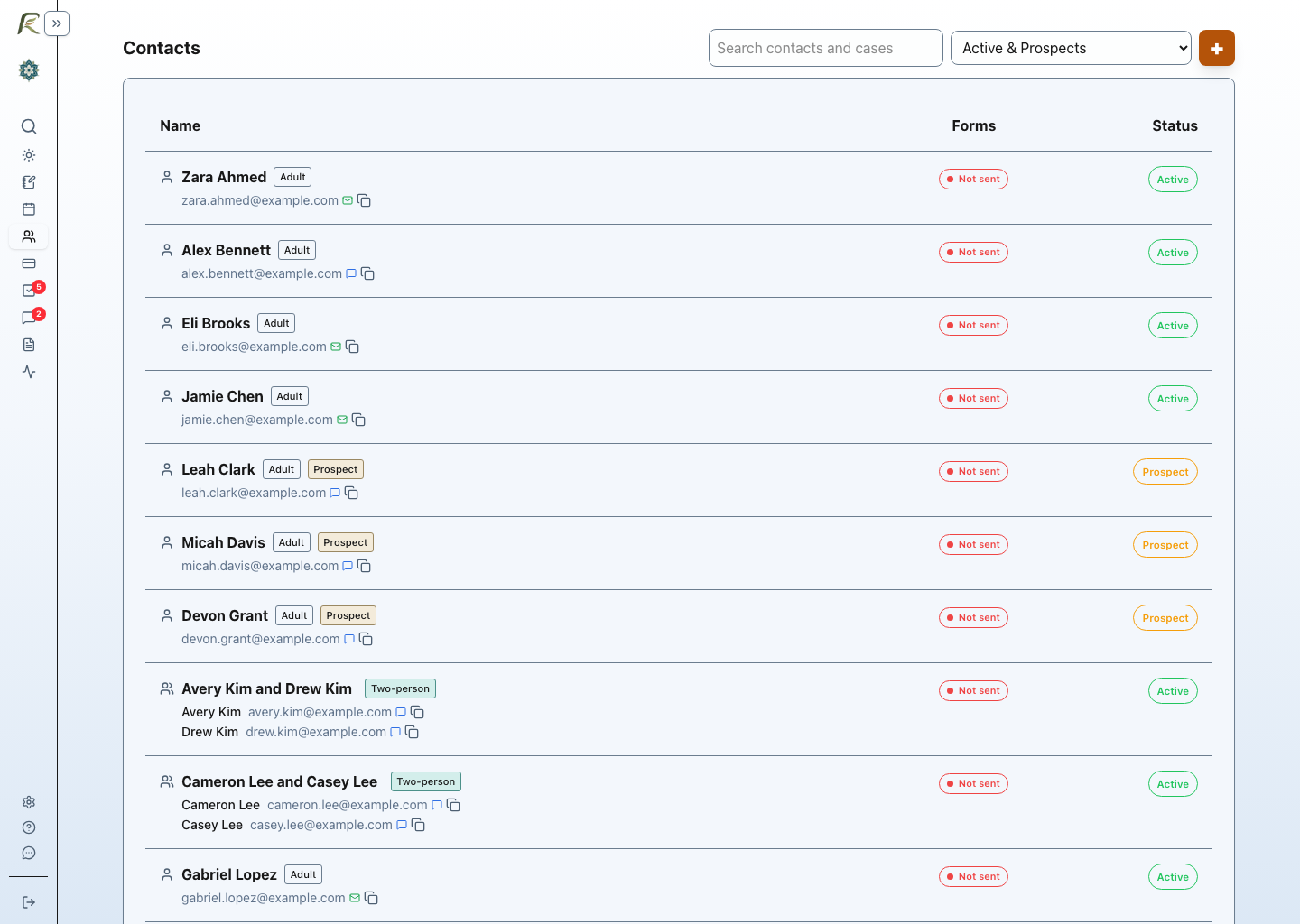
- Status indicators help you spot who is active, a prospect, or archived.
- Filters let you switch between active and prospect clients, archived clients, or everyone.
- Two-person cases can be shown together when they are connected in the record. This includes couples and other two-person clinical work, such as co-parents, siblings, roommates, or business partners.
2. Client Details
When you open a client or case, the page is organized into sections that keep clinical, scheduling, and billing details together.
Overview
- Contact information such as phone numbers and email addresses
- Upcoming appointments
- Quick actions for scheduling, billing, and portal-related tasks
- Workflow summary for lifecycle status, next steps, onboarding checklist items, billing arrangements, and open attention items
Clinical
- Diagnoses for current clinical coding
- Documents and notes for uploaded records and written clinical documentation
- Client forms for completed questionnaires, signed documents, and submitted responses
Billing
- Invoices for paid and unpaid balances
- Superbills for insurance reimbursement
- Payment methods for saved cards or bank accounts when available
Relationships
- Emergency contacts
- Links to other clients, such as spouse, partner, parent, or child
- Representatives or approved helpers, such as a parent, guardian, dependent-adult representative, personal assistant, or care coordinator
To add a relationship, click + Relationship, choose the relationship type, and search for the existing client.
Use relationships to keep access clear when someone acts for the client. A verified representative may sign forms for a child or dependent adult when appropriate. An approved helper may manage appointments for a client when the practice allows that access. Keep each access decision specific to the role, such as forms, scheduling, billing, portal access, or messages.
3. Choosing a Case Type
Use Individual when the work belongs to one client.
Use Couple / two-person case when the work belongs to exactly two people. The relationship does not need to be romantic. Choose the relationship label that best fits the case, such as spouses, partners, co-parents, siblings, roommates, colleagues, or business partners.
Use Family when the work involves a family system or more than two people in the same case.
Use Therapy group when the service is a psychotherapy group. Therapy groups usually have participant-level attendance and billing rather than one shared two-person or family case.
Use Consultation group when several consultation clients receive professional consultation together. Consultation groups support scheduling, attendance, billing, communication, and consultation notes without diagnosis, treatment plan, insurance claim, or superbill workflows by default.
Use Workshop / skills group for trainings, coaching groups, relationship skills workshops, therapy business workshops, or other group services that are not billed as psychotherapy. Workshop members can include existing clients, consultation clients, or workshop-only participants, but the workshop case itself is not treated as psychotherapy. Workshop groups can use Workshop, class, or non-clinical service and support invoices, receipts, attendance, messages, shared forms, and group notes.
Managing case members
Open a case member’s details to update the relationship label and the dates when that person participates in the case. Relationship labels can use a suggested option or a short custom description that fits the work. An end date preserves the membership history while removing the person from the active member list. Clear the end date to restore that person as an active member.
The case header includes Conversations for reviewing communication connected to the case. Select Message to write to the active members who have an eligible email address. With secure portal messaging enabled, PracticeRunner sends the message as a separate secure conversation to each eligible member rather than creating a shared group thread.
For couple and family cases that use superbills, select an Identified patient in the case settings. This is required before Make superbills available for this case can be enabled. The identified patient provides the patient context for the reimbursement document and may be different from the person responsible for billing.
4. Creating Appointments
You can schedule from the Calendar or from the client or case page.
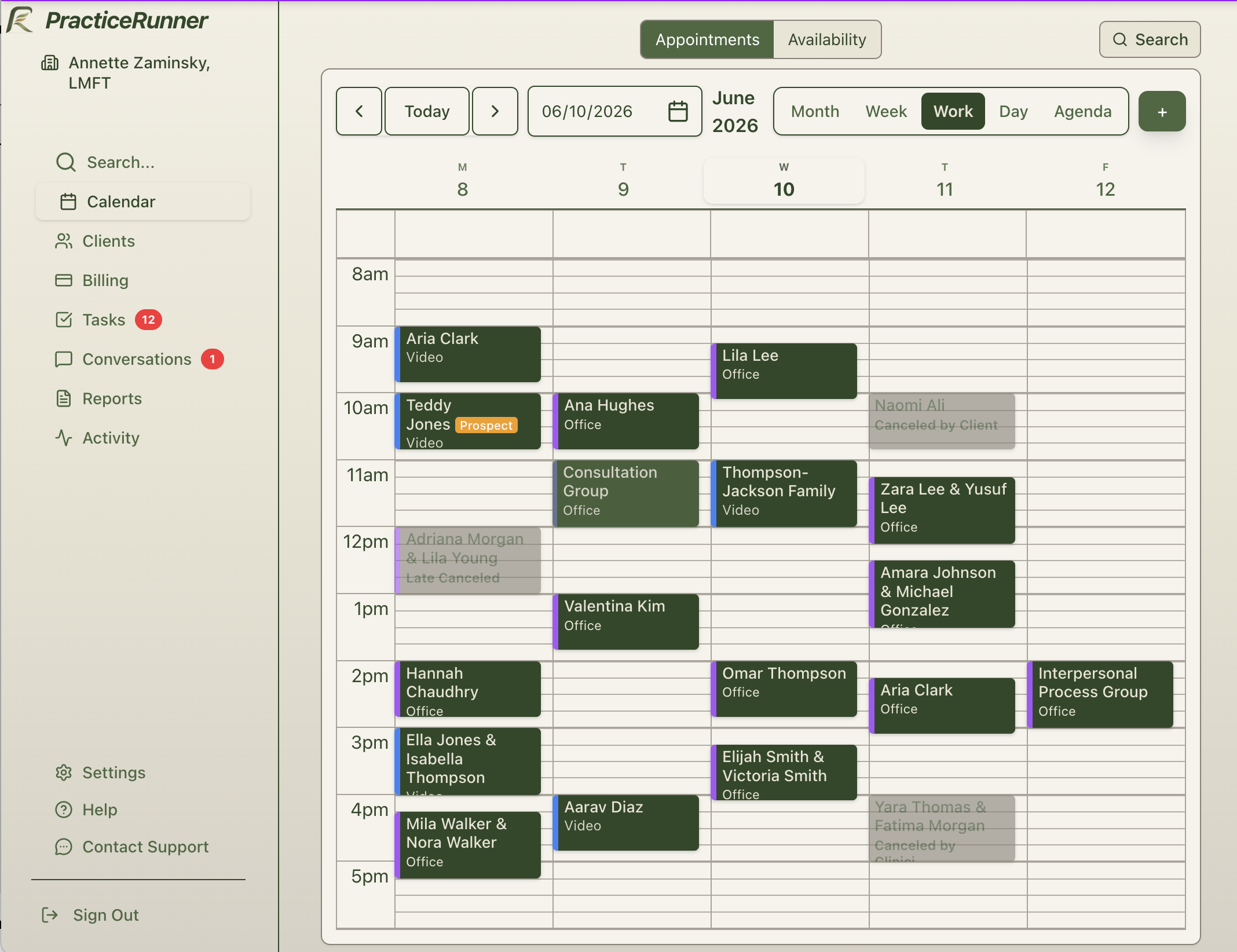
- Click a time slot on the calendar.
- Choose the client or relationship.
- Pick the service. This can fill in the usual duration and fee.
- Confirm the location or session format.
- Set up a recurring series if needed.
When you create an appointment without choosing a location explicitly, PracticeRunner uses the most specific available default:
- the case’s preferred location
- the selected provider’s default appointment location
- the practice default location
An appointment-specific location always takes priority. Set your own provider default under Settings → Account → Profile → Scheduling Defaults. Owners and authorized admins can also set a clinician’s default appointment location from Settings → Administration → Staff. Use the case’s Preferred location setting when that case usually meets somewhere different from the provider’s default.
Recurring series
When a series uses Never (1 year) as its end option, PracticeRunner keeps it scheduled about one year ahead by default. The appointment dialog shows the date through which sessions have been created.
A series with a fixed number of sessions or an On date end remains fixed. It is not automatically extended.
If you delete one appointment, only that occurrence is removed. If you delete an appointment and all future sessions, PracticeRunner ends automatic extension for that series so those sessions are not recreated. Practice owners can turn automatic extension on or off in Settings → Practice → Scheduling → Appointment Series.
After the appointment
Once the appointment exists, you can use it as the home base for:
- attendance and status updates
- notes that fit the type of work, such as progress notes, consultation notes, group notes, psychotherapy notes, or internal appointment memos
- billing actions such as creating an invoice
Choose Open workspace from the appointment for the usual session workflow, including direct note writing, telehealth, source material, attachments, and recording when enabled. The focused notes page or note dialog remains available from documentation tasks and client appointment history when you want to review, edit, save, sign, or print a note without reopening the rest of the workspace. For a full walkthrough, see Notes and Source Material. For appointment-specific telehealth, recording, transcript, and note review workflows, see Session Workspace and Record Audio.
5. Billing Integration
Appointments connect directly to billing.
- Invoices can be created from appointments and usually pull the fee from the selected service.
- Superbills can be created for a date range and include service and diagnosis detail when insurance reimbursement applies.
- Statements summarize billing activity over time.
- Good Faith Estimates can be shared for self-pay care that will not use insurance claims.
Selecting participants for a session
For a case with several people, review who is receiving the service and who will attend each appointment. The selected service may require one identified service client, the identified client with others, others without the identified client, or multiple participants. Resolve any attendance warning before saving. The case roster and that appointment’s participants serve different purposes.
Closing a case
Choose Close case and review the reason. If future appointments remain, follow the calendar link and cancel or remove the appropriate sessions before returning to close the case. Closing a case does not cancel the series automatically. Review linked invoices separately if the schedule change affects charges.