
Managing Invoices, Payments, and Flexible Billing
How PracticeRunner supports invoices, portal express payments, pay-by-phone handoff, bank transfers, AutoPay, statements, superbills, and CMS-1500 claims.
Getting paid should be clear and workable for the way your practice actually runs. PracticeRunner supports manual and automated billing workflows, including credit card payments, Apple Pay and Google Pay as eligible portal express options, pay-by-phone handoff, lower-cost bank transfers, saved payment methods, AutoPay, invoices, statements, superbills, CMS-1500 claims, manual payer responses, and recorded outside payments such as check, cash, Zelle, or other manual payments.
Payment settings work across the practice, case, and billing-contact levels:
- Practice-level defaults determine which payment methods and billing options are generally available.
- Reusable payment profiles define the payment methods, discounts, and instructions offered for a case.
- Each case can use the inherited practice or provider collection schedule, or have its own schedule for invoicing and AutoPay.
- Saved cards and bank accounts belong to the billing contact responsible for payment.
- Billing collection can stay manual, run through automatic invoicing, or use AutoPay with a saved payment method.
- Practices can also use per-session discounted pricing for bank transfers or recorded manual payments to share part of the savings from avoiding credit-card processing when that fits the practice policy.
For a diagram of manual billing, scheduled invoices, AutoPay, and payment outcomes, see Invoice Flows, from Appointment to Payment.
For automatic invoice and receipt emails, client opt-outs, and portal-only delivery, see Choose Which Billing Emails Clients Receive. Email delivery depends on both the practice settings and the recipient’s preferences.
Creating Invoices
Invoices are typically generated from appointments.
- From Calendar: Open an appointment and choose Create Invoice.
- From Client Profile: Go to the Billing tab and choose New Invoice.
Invoices can be emailed directly to clients, who can pay them online via a secure link.
Collect payment for a session
Open the appointment’s Session Workspace and choose Collect payment beside the client’s contact actions. You can also collect payment for eligible uninvoiced sessions from the case’s Billing tab.
- If the workspace already has an invoice for that client and session, Collect payment opens it for payment.
- On manual or daily billing, an eligible session without an invoice gets an invoice when you choose Collect payment. The payment dialog then opens.
- On weekly or monthly billing, review Invoice this session now? before continuing. Confirming creates a separate invoice for this session and leaves it out of the scheduled invoice. Choose Cancel to keep it on the usual schedule.
You can collect before, during, or after the session when the session meets the billing checks. The session fee, billing contact, and attendance must be valid for the selected service. Payment does not confirm or change attendance, so update attendance and the service when needed.
Opening the workspace does not create an invoice. Creating an invoice does not itself send an email or take payment; continue through the payment dialog to collect it. If you close the dialog, the invoice remains and Collect payment reopens it without creating another.
If the action is unavailable, check the session fee, attendance, and billing contact. Imported appointments, older historical balances, and arrangements where one payer covers multiple separately billed participants may require the full invoice workflow.
Let clients pay before an invoice is scheduled
To make session payments available in the portal:
- Open Settings → Billing → Billing Schedule.
- Turn on Allow clients to create an invoice and pay for a session.
- Save your settings.
This setting is off by default. When enabled, clients with billing access can open portal Billing, find Session payments, and choose Pay now for an eligible session on manual or daily billing. They can do this before, during, or after the session, including while waiting for their appointment. The case’s effective billing schedule still applies when it differs from the practice default.
Weekly and monthly sessions stay on their scheduled invoice cycle. Clients can pay those invoices once they are available. Therapists can still choose to invoice a session separately using the confirmation described above.
Turning the setting off stops clients from creating session invoices through the portal. It does not prevent therapist collection or payment of invoices that already exist. If a client leaves checkout before paying, they can return to the invoice from portal billing.
See Session Workspace and Record Audio for the workspace steps and Using the Client Portal for the client view.
Appointment descriptions on invoices and statements
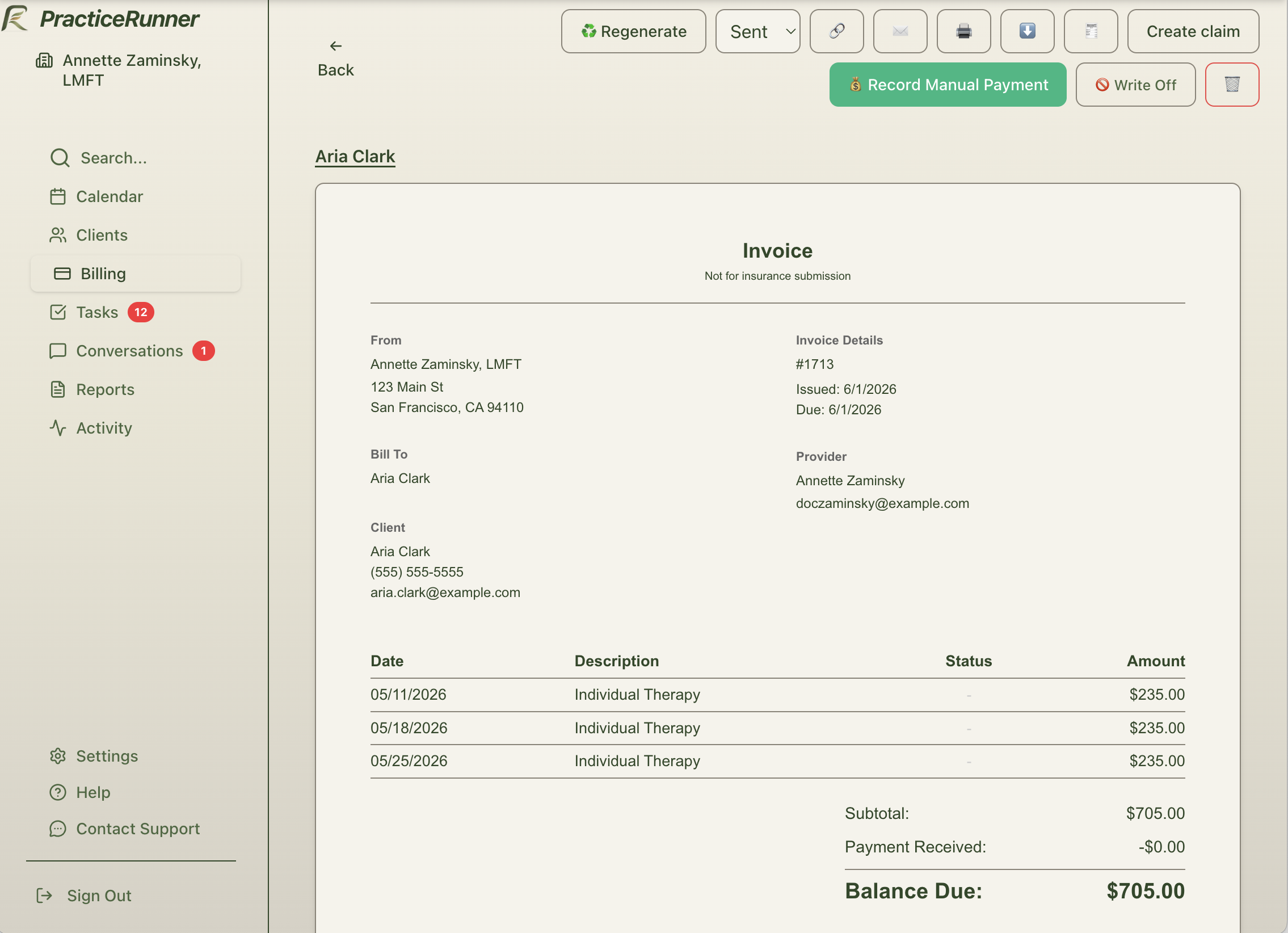
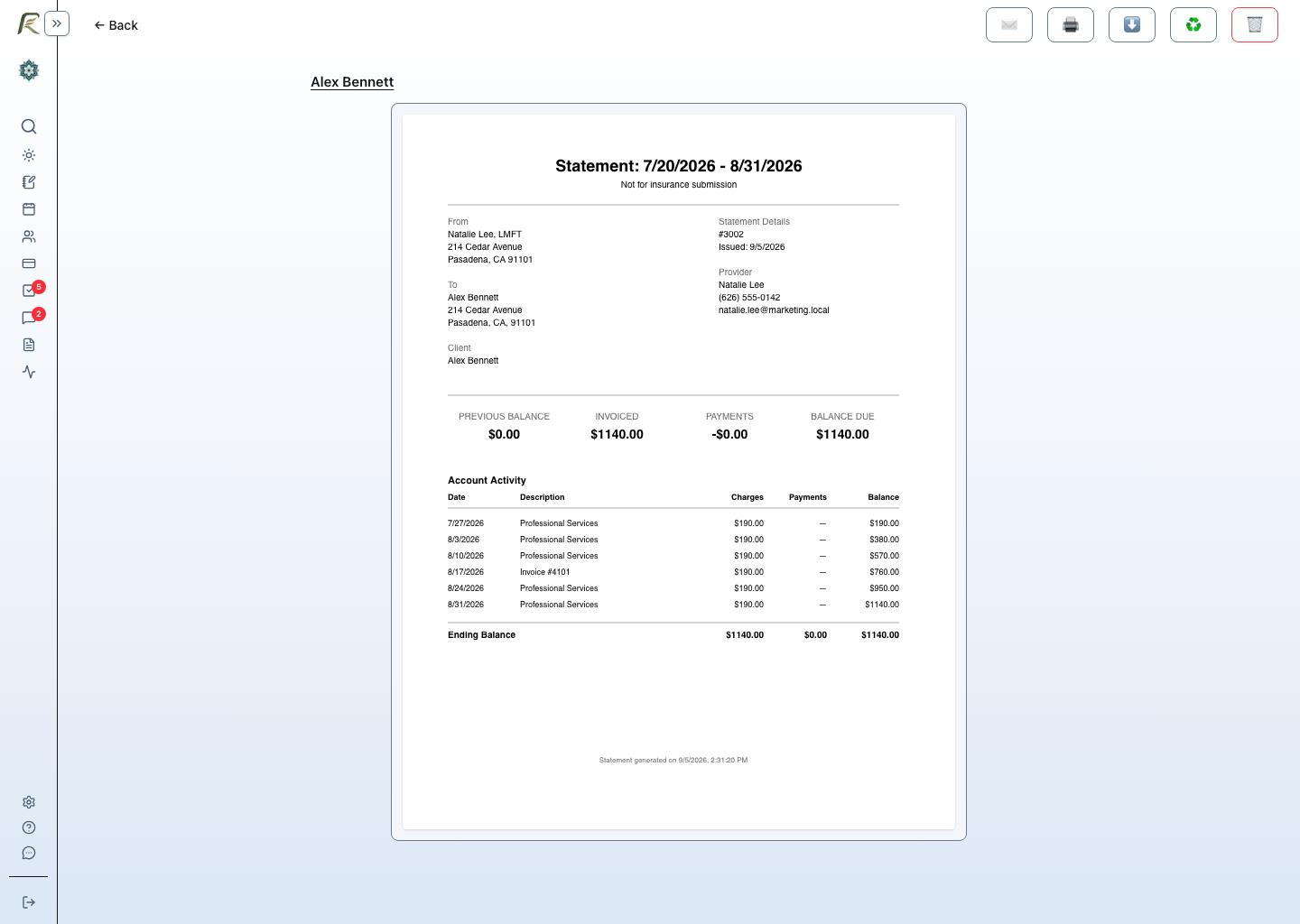
In Settings → Billing → Invoices, use Appointment descriptions on invoices and statements to choose service names or a general description such as Professional Services. Provider and case settings can override the practice choice where applicable.
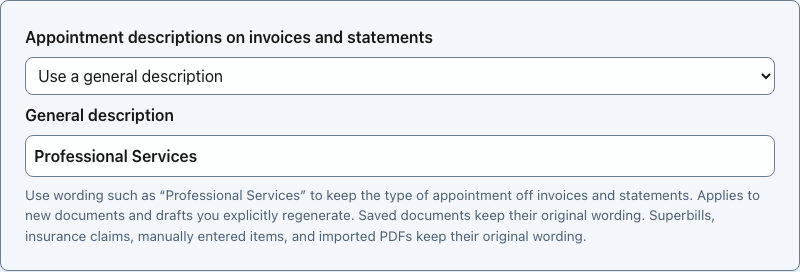
The wording applies to new documents and drafts you explicitly regenerate. Saved documents keep their original wording. Superbills, insurance claims, manually entered items, and imported PDFs keep their original wording.
Accepting Payments
PracticeRunner supports both integrated payment collection and externally recorded payments.
To connect Stripe or confirm the correct Stripe payment-method setting, see Setting Up Stripe for Card and Bank Transfer Payments. PracticeRunner uses Stripe’s ACH Direct Debit payment method for bank-account payments, not Stripe’s separate Bank Transfers product.
Credit and Debit Cards
Clients can pay invoices securely by card through Stripe. If your billing settings enable it, you can also save a card on file for future automatic charges.
One-time payments and saved payment methods
For an ordinary invoice payment, the client can keep Make a one-time payment selected. The card or bank account is used for that invoice and is not saved for future invoices. If the client clears that choice, the payment method they enter is saved as their preferred method. Saving a method does not by itself turn on automatic billing.
When the case’s collection schedule uses automatic charges, a new payment method must be saved and authorized according to that policy. In that situation, the invoice page explains that the method will be stored rather than offering the one-time choice. Existing saved methods remain available when they are eligible for the invoice and connected Stripe account.
Apple Pay and Google Pay in the portal
When card payments are enabled, Apple Pay or Google Pay may appear above the usual payment form on the portal invoice-payment page and the portal saved-payment-method page. Stripe decides which express options are available based on the connected account, portal domain, device, browser, and wallets the client has already set up.
- Apple Pay requires an eligible Apple device and browser with Apple Pay configured.
- Google Pay requires an eligible device and browser with Google Pay configured.
- If no eligible wallet is available, the express section stays hidden and the client can continue with the card or bank-transfer options available for the invoice.
- Wallet payments are processed as card payments. They do not receive bank-transfer pricing or settlement behavior.
Express options are shown to clients in the portal, not in staff-entered card or bank forms. This keeps the client’s wallet authentication on the client’s own device.
Handing payment to the client’s phone
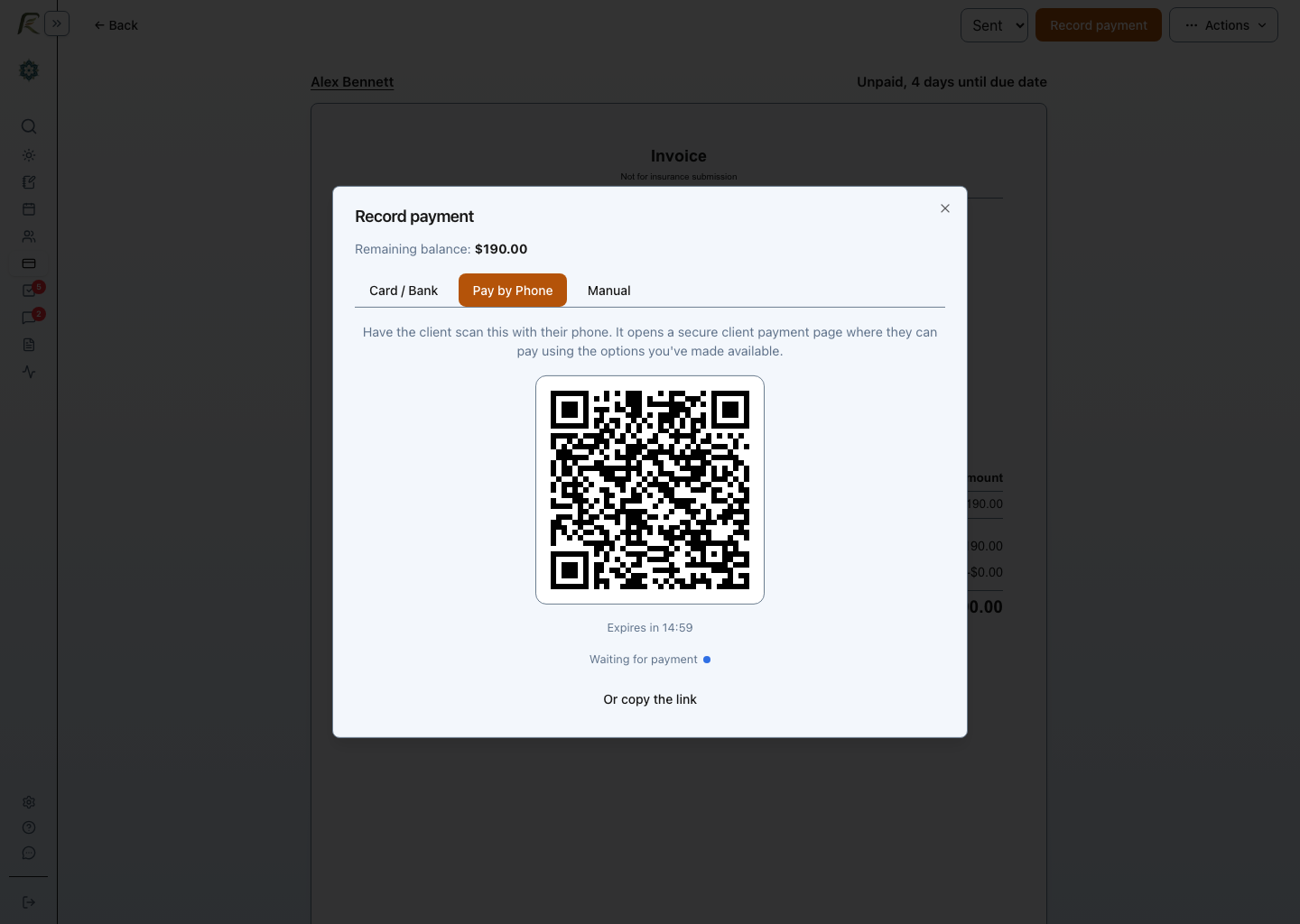
When a client is present and wants to pay on their own phone:
- Open the unpaid invoice.
- Choose Record payment.
- Open Pay by Phone.
- Ask the client to scan the QR code, or choose Or copy the link and share it directly with them.
- The client completes payment on the secure portal invoice page using the options available to them. Apple Pay or Google Pay can appear there when eligible.
- Keep the payment dialog open if you want PracticeRunner to report when the invoice balance changes.
The QR code opens a link scoped to that invoice and billing contact. It expires after 15 minutes. If it expires before the client opens it, choose Generate new code. The billing contact must have an email address on file so PracticeRunner can identify the intended portal recipient.
Pay by Phone is a handoff to the client’s portal payment page. It is not Tap to Pay, Stripe Terminal, or card-present processing, and it does not place the client’s wallet on the staff device.
Bank Transfers
Bank transfers are processed through ACH, the U.S. bank-to-bank payment network. They can remain pending for a few business days before the bank confirms the result. That delay is normal for bank-to-bank processing and can be longer around weekends, bank holidays, or when the bank needs extra time to confirm funds or authorization.
Compared with cards, bank transfers are usually slower to settle. They are often a good fit for lower-cost billing, recurring payments, or larger charges, but staff should expect a delay before funds are final.
Bank account connections may incur a one-time verification fee, typically around $1.50, when a bank account is securely linked. This verification fee is generally charged only when the bank account is first connected, not on each invoice payment. Standard bank transfer processing fees still apply to payments.
If your organization has bank transfers enabled in Billing settings, clients can:
- Pay an invoice directly from the payment link using a bank account.
- Save a bank account on file during intake, from the client profile, or while paying an invoice.
- Use that saved bank account for future automatic charges when the case’s collection schedule uses AutoPay.
Some practices use bank transfer adoption strategies such as:
- offering a small per-session discount to share part of the lower payment cost with clients
- accepting only bank transfers in some online payment setups
- keeping card payments available at the practice level while limiting them for selected cases
Sharing Lower Payment Costs with Clients
PracticeRunner can apply discounted session pricing when a client pays by bank transfer or when the practice records a manual payment such as Zelle, check, cash, or another accepted method. This gives the practice the option to share part of the savings from avoiding credit-card processing with the client.
Set the usual discount in Settings → Practice → Billing. When a case needs a different arrangement, create a reusable payment profile there, then assign it from the case’s Payment tab. A payment profile can control available payment methods, bank-transfer or manual-payment discounts, and the instructions shown with payment options and invoices. The practice chooses whether to offer a discount and how much it should be.
Use Preview Client Payment before saving to compare what the client pays with each enabled method and what the practice receives after the estimated processing fee. This example offers a 1% per-session bank-transfer discount, capped at $5, while check and Zelle remain available at the regular session fee.
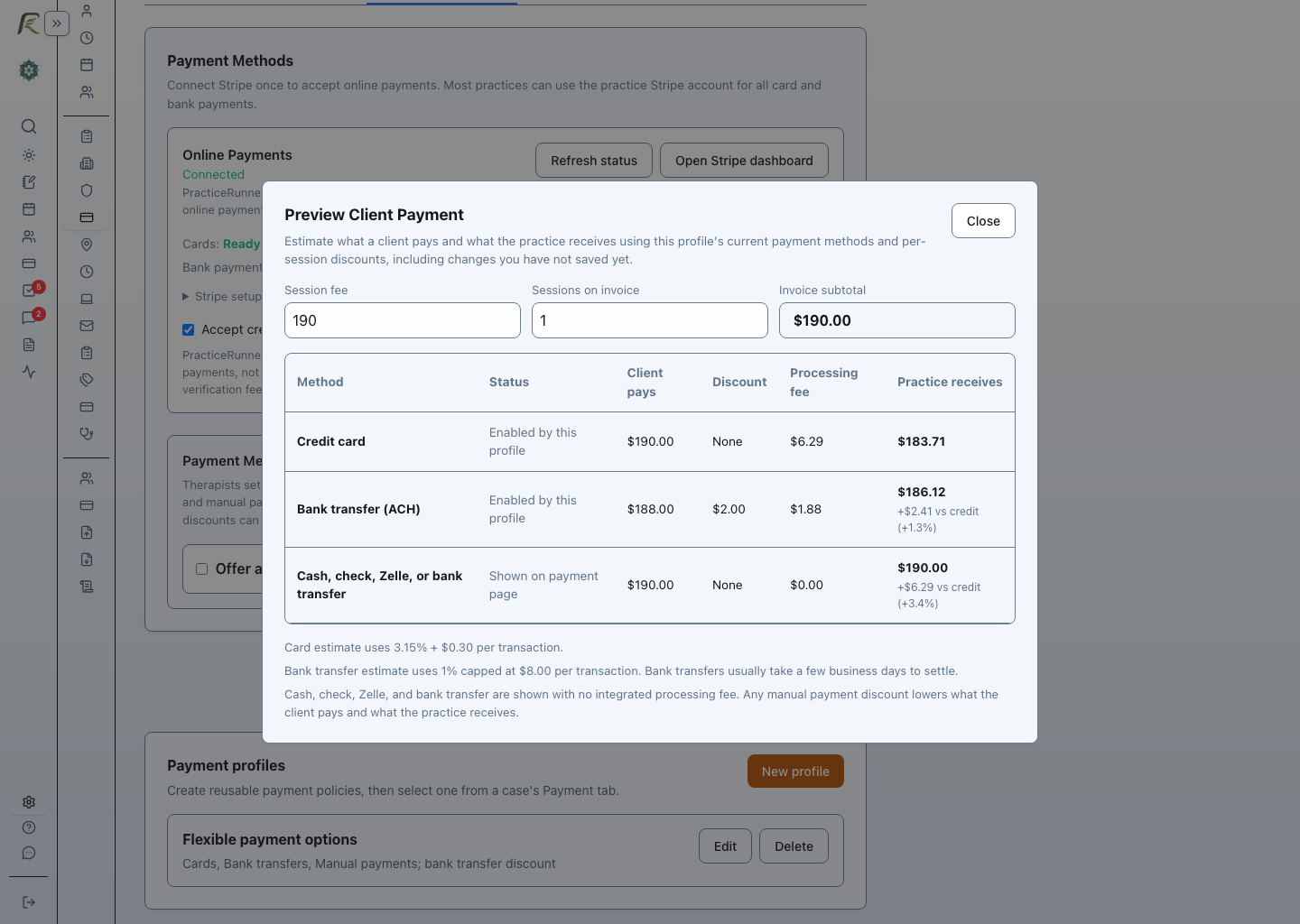
The payment profile and collection schedule are separate. The profile controls how the case can pay. The collection schedule controls when invoices go out and whether the billing contact pays independently or is charged automatically. Saved payment methods remain attached to the billing contact, not the case.
The client discount and the payment-processing fee are separate:
- The discount changes the session price under the practice’s financial policy.
- The processing fee is what the payment processor charges the practice for collecting an online payment.
- Zelle, check, cash, and other manual payments are recorded in PracticeRunner but collected outside the software.
Explain the payment options and any discounted session price clearly in the practice’s financial agreement and client communication.
Saved Payment Methods and AutoPay
PracticeRunner can store one or more saved payment methods for a client and mark one as preferred for automatic charges.
- Saved methods are scoped to the Stripe account that will actually collect payment. If billing is routed to a different connected account, the client may need to save the payment method again for that account.
- A preferred saved method is required for session AutoPay or monthly AutoPay.
- The client’s Billing / Payments tab shows which saved method is preferred and whether it needs attention.
Billing contacts
Billing can be handled by someone other than the person receiving care when the case calls for it. For example, a parent may pay for a child’s treatment, one partner may handle payment for a couple, each group participant may be billed separately, or a sponsoring organization may pay for a consultation group.
Use billing contacts to keep invoices, payment methods, statements, and payment follow-up tied to the person or organization responsible for payment. Billing access should stay separate from forms, scheduling, messages, or broader portal access unless the practice grants those separately.
For details, see Representatives, Billing Contacts, and Approved Helpers.
For the specific therapy-group boundary between participant invoices, superbills, and CMS-1500 claims, see Group Therapy Attendance, Participant Billing, Superbills, and Claims.
Pending and Failed Bank Transfers
Bank transfers behave differently from cards after a charge is submitted.
- A successful submission may still show as
bank transfer pendinguntil Stripe confirms final settlement. - While a bank transfer is pending, PracticeRunner avoids creating duplicate charges for the same invoice.
- If a saved bank account or card fails during automatic collection, PracticeRunner can mark that payment method as needing attention and pause further automatic charges.
- Common bank transfer failures include insufficient funds, a closed account, revoked authorization, or bank-side verification problems.
If the account is awaiting verification, use the verification steps below. For another payment-method problem, follow the displayed instructions, save a replacement, or choose a different usable method before AutoPay resumes.
Externally Recorded Payments
Not every payment happens through PracticeRunner. Staff can record outside payments so invoice balances and payment history stay accurate.
Common outside payment examples include:
- cash
- check
- Zelle
- other manual or externally collected payments
Good Faith Estimates
A Good Faith Estimate is a client-facing estimate of expected charges for care that will not be billed through insurance claims. It is usually appropriate for self-pay clients or other clients who will not submit insurance claims or receive superbills for the care covered by the estimate.
Send a Good Faith Estimate through Share Documents & Forms. PracticeRunner asks you to preview and save the estimate before sending so the client receives a locked snapshot.
Use invoices to request payment, receipts to document payment, superbills for client-submitted out-of-network reimbursement, and CMS-1500 claim exports for insurance claim form preparation. Do not use a Good Faith Estimate as a substitute for a superbill or claim document.
Generating Superbills
If you are an out-of-network provider, your clients may need a Superbill to seek reimbursement from their insurance.
- Go to the Billing section of a client’s profile.
- Choose the date range you want to include.
- Choose Create Superbill.
- Review the private draft, including services, diagnosis, provider details, and amount. Correct appointment details first, then use Refresh on the draft if needed.
- Choose Make available in portal to approve without a notification, or Approve and send to approve and notify the client.
Staff-created superbills always start as private drafts. In Settings → Billing → Invoices → Superbills, Require manual approval before sharing Superbills is enabled by default. It also holds automatically generated superbills as drafts for review. Turning it off allows new automated superbills to become available immediately, but does not publish existing drafts.
Once available or sent, a superbill is finalized and cannot be refreshed or deleted. Review it before approval.
For the drafting, approval, and monthly generation workflow, see Superbills for Insurance Reimbursement.
CMS-1500 Claims and Insurance Payments
Practices that prepare insurance claims can turn on claim forms in Settings → Billing. Once enabled, case-specific Billing pages and eligible invoices provide claim actions.
PracticeRunner builds a numbered claim snapshot from client demographics, saved insurance, the client or identified patient’s active diagnoses, appointments, service lines, provider details, locations, and practice billing settings. Appointment place of service remains the source of truth. Staff can review the claim before downloading either a static full CMS-1500 PDF or a fields-only PDF for pre-printed CMS-1500 form stock.
After the claim is exported, staff can record a manual payer response from an EOB or remittance advice. A payment received by the practice can be allocated to the source invoices, while contractual adjustments reduce invoice charges without being added to patient responsibility. If the insurer paid the client directly, PracticeRunner records that outcome without treating it as money received by the practice.
Before a financial payer response is recorded, staff can also create a linked replacement or void claim using the payer claim/control number. PracticeRunner keeps the original claim and its export history. Post-payment corrections and recoupment accounting are not supported.
This workflow does not electronically submit claims or automatically receive payer responses. For a full walkthrough, see CMS-1500 Claims and Payer Responses.
Refunds
To issue a refund:
- Find the paid invoice.
- Choose Refund.
- Select full or partial refund.
- The funds will be returned to the client’s original payment method.
Appointment descriptions and saved documents
In Settings → Billing, find Appointment descriptions on invoices and statements. Choose Show service names or Use a general description, then enter wording such as Professional Services. A case can override the inherited description; provider overrides depend on the practice’s billing configuration.
The description applies to new documents and eligible drafts you explicitly regenerate. It does not change saved documents silently, imported PDFs, manually entered items, superbills, or insurance claims.
Saved invoices, statements, and superbills preserve their displayed details against later profile or settings changes. Payment status and balances can still update. Where Regenerate is available, review the confirmation before replacing the displayed version; the previous saved version is retained. Older imported or legacy documents may need support review.
Voiding an invoice
- Open the invoice and choose Void invoice.
- Enter the reason and review how any existing payment should be handled.
- Review the linked sessions. Eligible sessions can have their fee waived or be canceled; sessions on claims, superbills, or other billing may require separate calendar review.
- Confirm the void. If you selected a refund, complete the separate refund review and confirmation, or return an outside payment through its original method.
Voiding alone does not return money. Canceling the refund step leaves the invoice void and the refund outstanding. A pending payment must finish or be canceled before the invoice can be voided.
Verifying a bank account
If Stripe requires microdeposit verification, the client can open the invoice payment page or the portal’s saved payment methods and choose Verify Bank Account when shown. Stripe’s verification page opens in a separate tab. Follow its instructions, then return to PracticeRunner and check the account’s status.
An account awaiting verification cannot be used as a ready payment method. If no verification link is available, follow the on-screen instructions or contact the practice for help. Verification is separate from payment settlement; a submitted bank transfer can still take several business days to complete.
Related articles
- Setting Up Stripe for Card and Bank Transfer Payments
- Payment Disputes and Chargebacks
- Representatives, Billing Contacts, and Approved Helpers
- Group Therapy Attendance, Participant Billing, Superbills, and Claims
- Using the Client Portal
- Client and Case Workflow Summary
Advance payments and superbill timing
Clients may be able to pay for eligible sessions before they occur, but advance payment does not make a future session eligible for a superbill. Wait until the appointment has ended and confirm the services actually delivered. Review your cancellation and refund policy, payer restrictions, and applicable Good Faith Estimate requirements before offering advance payment.
See Advance Payments and Superbill Timing for the portal setting, date safeguards, and guidance for your practice.
Review billing activity and balance changes
For an invoice that needs investigation, open it and choose Explain invoice balance changes. Review the charges, retained revisions, payments, credits, and corrections alongside the previous and resulting balances. Recording dates and payment dates are shown separately. Earlier edits or reallocations may not be fully retained, and imported paid documents without original payment transactions do not establish an amount due.
Use Reports → Payment Details, Unapplied Payments & Credits, or Refund Register to investigate payment activity across invoices. Owners and admins can use Monthly Payments & Deposits to compare recorded collections with confirmed bank deposits, with expected Stripe payouts shown separately. See Understanding PracticeRunner Reports for filters, date rules, imported-data limitations, and CSV downloads.