
AI Assistant Settings
Enable optional AI tools, manage personal guidance in Preferences, and choose session preparation directions and note history.
AI Assistant is the name of the settings section that brings together PracticeRunner’s optional tools for appointment preparation and clinician-reviewed documentation. It includes Session Brief as well as tools that can prepare or revise note drafts.
The guidance controls described below are new and may look different if your practice is using an earlier version.
AI Assistant does not write or save notes automatically. The practice decides which features are available, and the clinician decides when to use an enabled feature. Clinicians review, edit, and save any resulting note draft.
What AI Assistant includes
AI Assistant is divided into two groups. Archive is read-only and does not include these tools.
Included with your plan:
-
Session Brief for a short appointment-preparation summary based on selected recent saved note history and, for eligible clinical cases, the active treatment plan. A Session Brief is preparation material and is not part of the clinical note.
-
Revise note for preparing a clearer or differently structured draft from text the clinician has already written.
-
Source text for note drafts for using pasted transcripts, rough notes, or text from another tool as source material.
-
Draft notes from attachments for extracting text from supported documents, scans, or photos, including a photo of a handwritten paper note taken with a phone or computer camera, and preparing a draft for review. Temporary extraction uploads are deleted after extraction, with cleanup for unfinished uploads. Ordinary saved attachments remain retained; see Notes and Source Material.
-
Draft treatment plans for proposing field changes from selected eligible clinical records. The clinician reviews each proposal; activation and supervisor approval remain separate. See Treatment Plans.
Recording and transcription:
- Record and transcribe sessions for recording appointment audio or uploading audio or video, creating a transcript, and preparing a clinician-reviewed note draft. Recording and transcription are included during PracticeRunner’s early stage, with no separate transcription charge today. PracticeRunner will explain any future allowance or charge before it applies.
Clinicians can create personal guidance under Settings → Preferences → AI guidance. Separate sections cover note writing, treatment-plan drafting, and session preparation. Saving guidance does not turn on an AI Assistant feature by itself.
Recording and transcription support the AI Assistant workflow, but recording does not create or save a final clinical note by itself.
Enable AI Assistant features
An owner or authorized admin can control these options for the practice.
- Open Settings.
- Go to General.
- Find AI Assistant.
- Turn on the features the practice wants to make available.
- Select Save Settings.
If recording and transcription are unavailable, go to Settings → General → AI Assistant and select Review membership options.
Find personal AI guidance
Open Settings → Preferences, then select the AI guidance tab. Preferences now has three tabs: Appearance, External actions, and AI guidance.
Practice-wide feature switches remain under Settings → General → AI Assistant. The AI guidance tab holds your personal instructions for enabled tools:
| Section | What it controls |
|---|---|
| Note writing preferences | General writing choices for drafting and revising notes, such as brevity or preserving your wording. |
| Treatment-plan drafting | Personal guidance for new AI treatment-plan proposals. |
| Session preparation | Your default approach for Session Brief. |
Each section appears only when the corresponding tool is enabled and available to your practice. If none is available, the tab says No AI guidance tools are enabled for this practice. Personal guidance is managed by owners, providers, and associates in their own account context; it is not managed through administrator or delegated provider access.
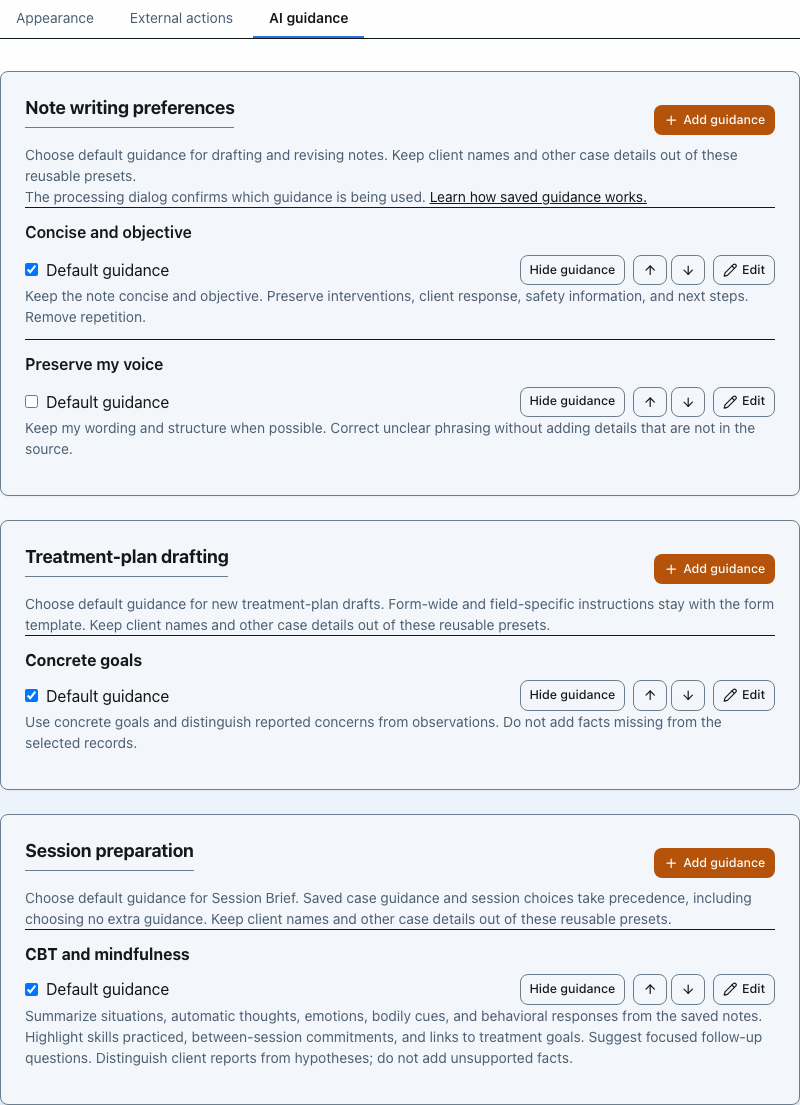
Each tool has its own saved guidance and default. Select the image to view it full size.
Set up saved note writing guidance
- Open Settings → Preferences → AI guidance.
- Under Note writing preferences, select Add guidance.
- Choose a suggested example or enter a short Name and Writing guidance.
- Edit the instruction to match how you write notes, then select Save preference.
- Check Default guidance if this should be your starting choice for note drafting and revision.
You can save up to five note writing preferences. Keep names and other client-specific details out of reusable guidance. For example: “Keep the note concise and objective. Preserve interventions, client response, safety information, and next steps.”
The same manager is available from Note tools → Saved guidance → Add or edit saved guidance in an editable appointment note. The processing dialog names the guidance being applied. See Notes and Source Material for per-draft choices and note-template behavior.
Save treatment-plan and session-preparation guidance
- Open Settings → Preferences → AI guidance.
- In Treatment-plan drafting or Session preparation, select Add guidance.
- Enter a Name and reusable Instructions, then select Save guidance.
- Check Default guidance to use that preset as your starting choice for that tool.
For treatment plans, an instruction might be: “Use concrete goals and distinguish reported concerns from observations. Do not add facts missing from the selected records.” For session preparation: “Highlight follow-up commitments and questions to revisit. Keep suggestions brief.”
Each section has its own default. A note-writing default does not become your treatment-plan or session-preparation default. In a treatment-plan draft, use Saved drafting guidance to select another preset or None, and Drafting instructions (optional) for directions specific to that request. Form-wide and field-specific instructions remain with the treatment-plan form. See Treatment Plans.
Review, reorder, or archive guidance
Use View guidance or Hide guidance to expand or collapse the instructions. Use the up and down controls to reorder choices, or Edit to change a preset. To remove a preset from your available choices, open Edit, then Archive; note writing preferences also ask you to confirm Archive preference.
Check Default guidance on a different preset to switch the default, or uncheck it to clear the default. Default and ordering changes save when you make them. Use Save preference or Save guidance for changes in the editor; there is no separate Save Preferences step on this tab.
Editing or archiving guidance does not rewrite existing notes, proposals, or generated briefs. Review the selected guidance before generating new content.
Choose guidance and history for Session Brief
- Open the appointment’s Session Brief section.
- Beside Guidance, select Change.
- In Preparation guidance, choose a Preset and add any Additional directions for the case or session.
- Under Notes to include, choose the last 3, 5, or 10 notes, Last year, All previous notes, or Since current treatment plan became active when available. New history preferences start at five notes; existing saved choices remain in effect.
- Under Apply to, choose This session only or, when available, Save for my future sessions with this case.
- Select Apply guidance, then Generate brief or Refresh brief to use your choices.
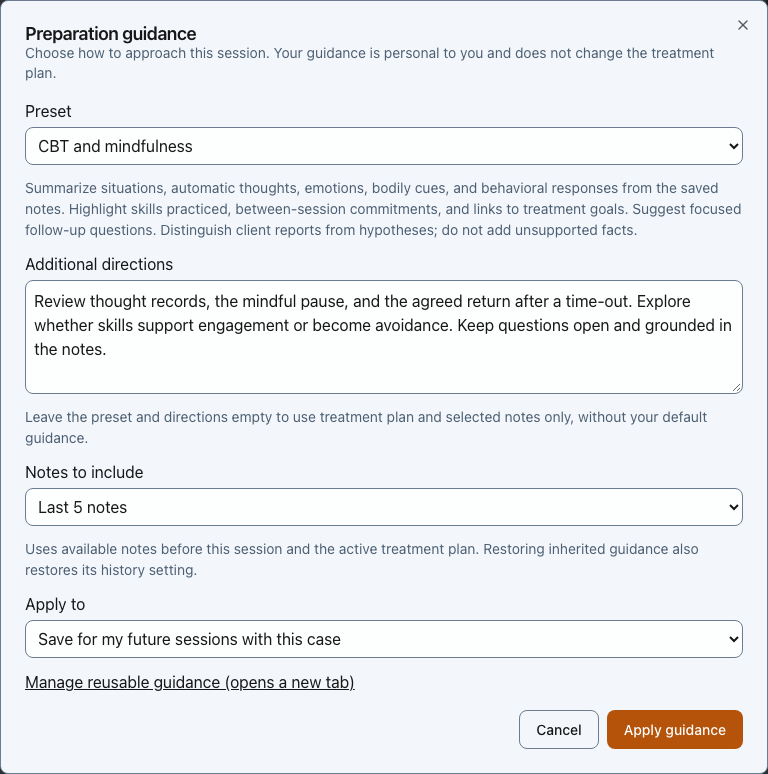
Choose directions, note history, and where the guidance applies. Select the image to view it full size.
PracticeRunner uses available saved notes before the appointment, including saved notes that are not yet signed. It may find fewer notes than requested. For eligible clinical cases it also uses the active treatment plan; consultation preparation does not use a therapy treatment plan. Expand the history line beneath a generated brief to see the note dates used. Longer ranges end before the appointment. If the history is too large, the latest five notes are kept in full and older notes are selected across the time span; the brief discloses that sampling. For therapy groups, plan context is the active shared group plan. See Session Brief for history coverage, refresh behavior, and group preparation.
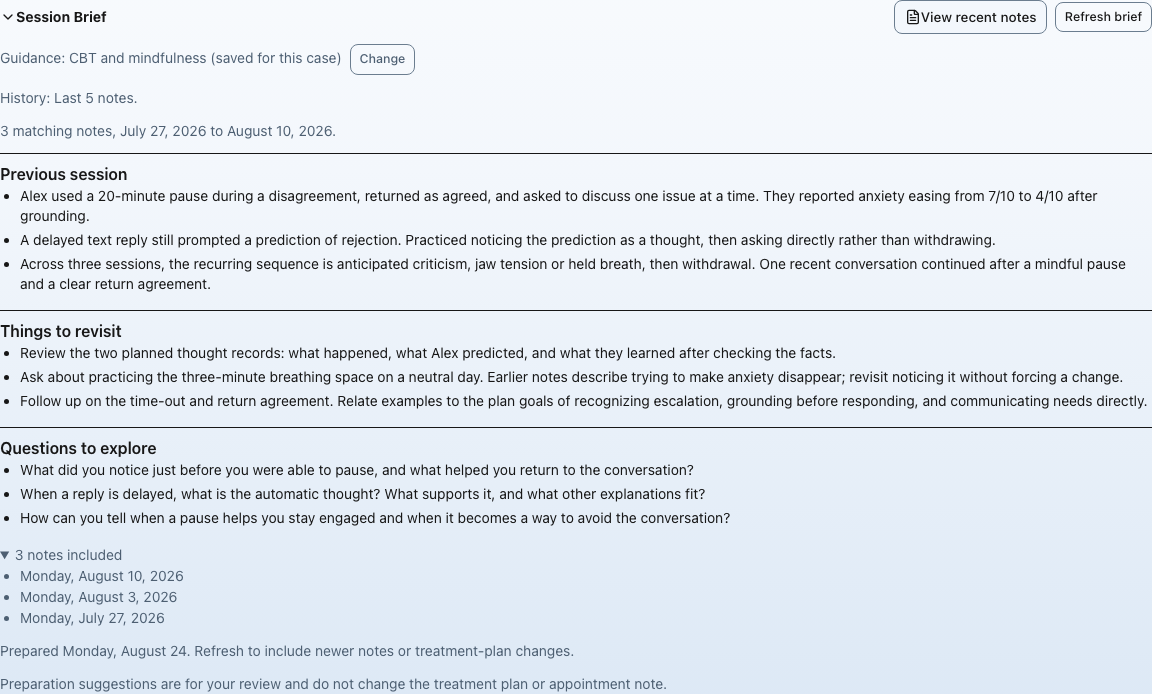
This example uses synthetic notes. Three saved notes were available within the requested five-note limit. Select the image to view it full size.
A session-specific choice takes precedence over your saved case guidance, which takes precedence over your personal default. Case guidance is personal to you. To use preparation without extra guidance, choose No preset, leave Additional directions empty, and apply that choice to the session or case.
To remove a session override, choose Use saved case guidance or my default (or Use my default guidance when no case is available). To clear your saved case guidance, choose Reset this case to my default guidance. Restoring inherited guidance also restores its history setting.
Changing directions or history does not regenerate a brief automatically. A message tells you when the displayed brief uses previous guidance. Select Refresh brief after changes, or to include newer notes or treatment-plan updates. Preparation suggestions do not change the appointment note or treatment plan.
What clinicians should expect
Enabling a feature makes it available in the supported appointment or note workflow. It does not run in the background and does not require a clinician to use it.
- Session Brief appears as an optional appointment-preparation tool.
- Note drafting and revision actions prepare drafts for clinician review.
- Source material remains separate from the final note until the clinician uses it, edits the note, and saves or signs it.
- Recording requires appropriate consent under the practice’s policies, professional rules, client agreements, and applicable law.
Privacy and control
AI Assistant features are off by default and controlled at the practice level. When enabled, supported processing runs under PracticeRunner’s HIPAA and BAA safeguards. Client information is used only to provide the requested feature and is not used to train shared AI models or improve AI for other practices.
The clinician remains responsible for deciding what belongs in the clinical note, correcting errors, removing unnecessary detail, and confirming that the final documentation reflects the services provided.