
AI Note Assistant
Draft or revise an appointment note from reviewed source material, choose writing guidance and a format, then review before saving or signing.
Open the appointment’s Session Workspace to draft from source material, or open an editable note to revise text you have already written. AI note tools prepare text for your review. You decide what to keep, edit, save, and sign.
An owner or authorized admin enables the relevant features under Settings → General → AI Assistant. Revise note, Source text for note drafts, Draft notes from attachments, and recording/transcription are separate options. Enabling one does not enable every source workflow.
Draft from session material
- Open the appointment and choose Open workspace.
- Under Start note from, choose Paste source text, Upload document, Take photo, Use existing attachment, or Record or upload audio, as appropriate and available.
- Review the pasted, extracted, or transcribed text. Correct speaker attribution, names, chronology, and extraction errors before using it. Use Edit source text → Save changes to correct saved pasted material.
- Choose Generate progress note when the reviewed source is ready and drafting is enabled. For a transcript, use View transcript to inspect it first.
- Read the resulting draft in the note editor. Correct it, remove unnecessary detail, and check interventions, response, safety information actually assessed, and next steps.
- Save or sign through your usual note workflow. Generating text does not sign the note or complete supervisor review.
See Notes and Source Material for supported document formats, camera capture, and the different retention rules for extraction uploads and ordinary saved attachments. See Session Workspace and Record Audio for recording, consent, transcript review, and media deletion.
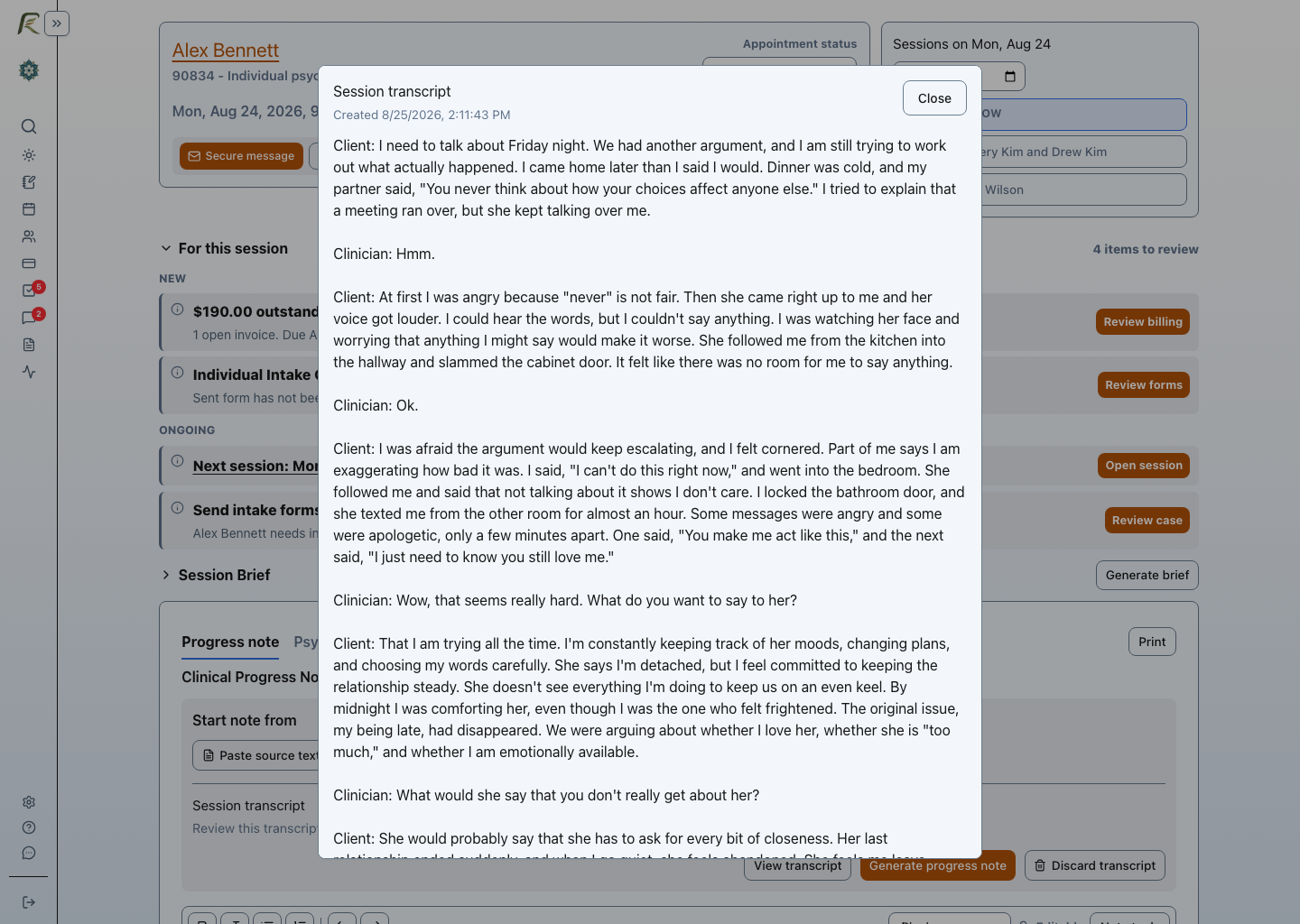
Synthetic transcript shown before note drafting. Review the source rather than accepting a summary that loses uncertainty or safety concerns. Select the image to view it full size.
Revise an existing note
Add text to an editable note, then choose Revise note or open Note tools for guidance and format choices. Revision starts from your current note. It should preserve the clinical meaning; compare the result with your original text before saving.
Use Saved guidance to choose a personal preference, None, or Add or edit saved guidance. You can also manage up to five note-writing preferences under Settings → Preferences → AI guidance → Note writing preferences. The default is used for supported drafting and revision actions; the processing dialog names the guidance being applied.
Use an explicitly selected note template or Rewrite as SOAP or Rewrite as DAP when you need that structure. A selected template or explicit rewrite action takes priority over a conflicting format in saved guidance. One-time instructions in Note tools apply only to the current note-editor session. Treatment-plan and Session Brief guidance have separate defaults.
Example: preserve uncertainty and mixed progress
The following fictional source excerpt illustrates the level of detail worth reviewing before drafting:
Alex reported using a 20-minute pause during an argument and returning at the agreed time. They described lower anxiety after grounding, but continued to interpret delayed replies as rejection. Sleep was disrupted during a week of caregiving demands. In session, we reviewed a thought record, rehearsed a direct request, and examined when a pause supports engagement versus withdrawal. Alex described feeling cornered during an earlier conflict; further assessment of relationship safety remains necessary. Two thought records were agreed for the next session.
A useful draft preserves the reported improvement, ongoing difficulty, interventions, and follow-up. It should not turn “further assessment remains necessary” into “no safety concerns,” diagnose the partner, or claim that the relationship pattern has resolved. Include a risk assessment only when it was actually completed and documented in your source material.
A suitable reusable preference is: “Separate reported experiences from observations. Preserve uncertainty, interventions, response, and follow-up. Do not add missing assessment findings.” Put this case’s specific directions in the current request rather than in a preset used for other clients.
Group and consultation notes
For therapy groups, review shared session content separately from participant-specific observations and responses. A discussion about conflict repair may be a shared theme, while one participant’s bereavement, another’s caregiving stress, and a quieter member’s response belong in the appropriate individual documentation. Check attribution and confidentiality before saving; do not assume that a shared generated note completes every participant’s individual documentation.
For individual consultation and consultation groups, use consultation notes describing the professional service. Review any therapy-specific wording introduced by a generic source or template. Do not add diagnoses, treatment plans, or insurance-claim language to a consultation note by default.
When a tool is unavailable
Check that the relevant practice feature is enabled, your access allows editing, the note is editable, and the required source or note text is present. Signed or locked notes can limit editing. Follow the practice’s authorized correction workflow rather than using AI revision to bypass a lock.
AI drafts can omit context or introduce unsupported wording. Review against the source and your clinical judgment before saving or signing. Saved guidance supplies instructions for the request; it does not train a model on your notes. For processing and privacy details, see AI Assistant Settings.