
Notes and Source Material
How to use the Session Workspace for source material and note drafting, then review, edit, save, and sign notes.
Notes in PracticeRunner are designed to start where clinicians already are: with the material from the session, the clinician’s judgment, and the format the practice uses for documentation.
Use the Session Workspace for the usual work around a session, including direct note writing, source material, recording when enabled, and note drafting. Source material can include pasted rough notes or an external transcript, an uploaded document or image, photos of handwritten material, appointment audio or an uploaded audio or video file when transcription is enabled, or an attachment that is already on the appointment.
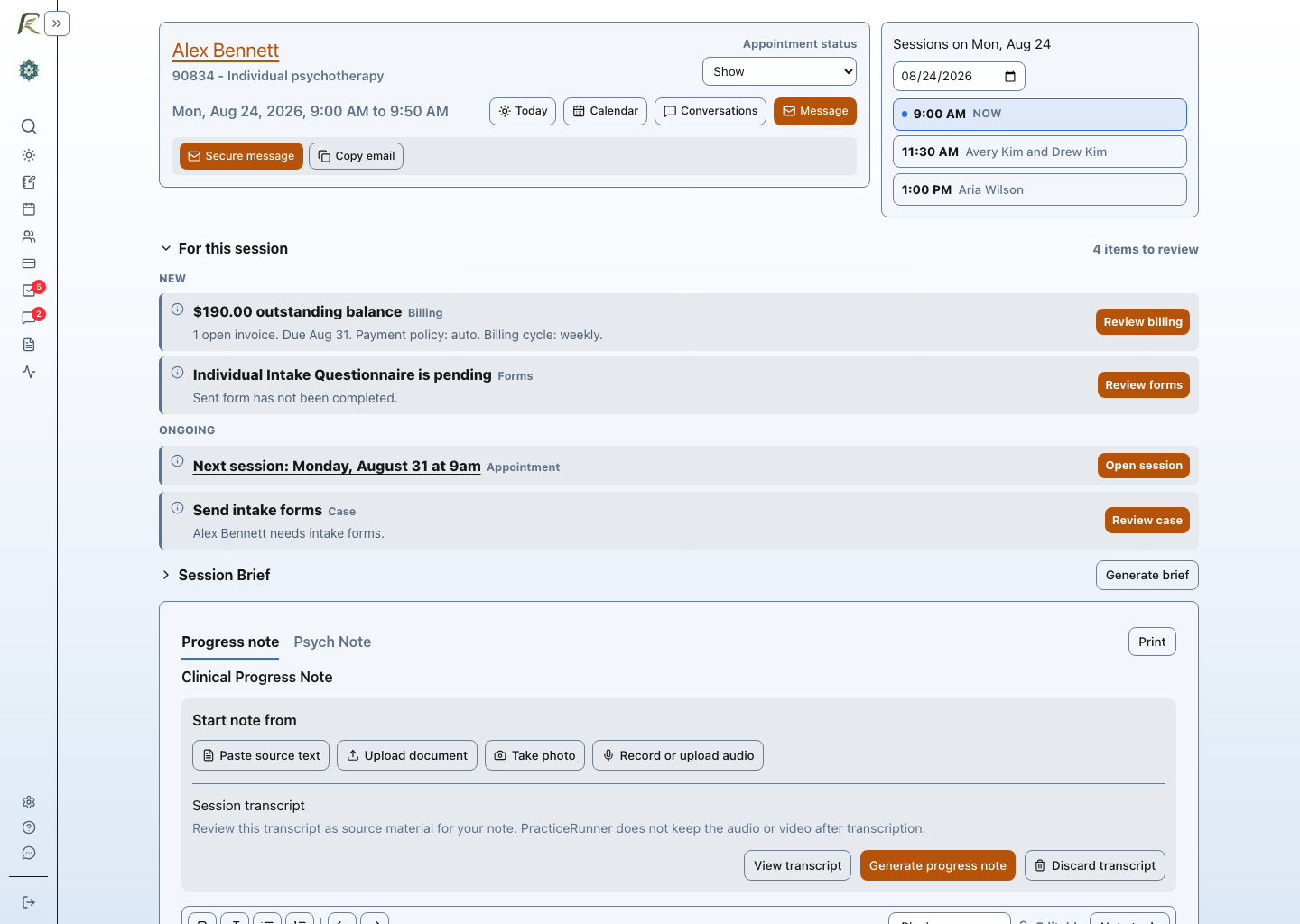
Use the focused notes page or note dialog when you want a simpler surface for quick review, editing, saving, signing, printing, or unlocking a note when your workflow allows it. You may reach this editor from a documentation task or the client’s appointment history, and you can return to the full workspace from there. Source material is meant to help you prepare the note. It is not the final clinical note until you review, edit, and save or sign the note yourself.
Progress notes and psychotherapy notes
Use Progress note for your reviewed documentation of the session, including the information needed to document care and progress.
Use Psychotherapy note for therapist reflections kept separately from the progress note. These are also called process notes. Keep information needed for treatment and billing in the progress note.
The ? beside Psychotherapy note opens this explanation in a new tab.
Starting a note
Open the appointment, then choose Open workspace. Expand Start note from… to bring in outside material. Once you have written a note, this section is called Add source material:
- Paste source text when you have a transcript, rough notes, or other text from outside PracticeRunner.
- Upload document when the material is in a PDF, image, DOCX, RTF, ODT, TXT, Markdown, CSV, or TSV file.
- Take photo when you want to capture a handwritten paper note or a printed page with the camera on your phone or computer.
- Record audio or Upload audio or video when your practice has enabled transcription and has obtained appropriate consent.
- Use existing attachment when the appointment already has a document attached.
If you do not need source material, you can write directly in the workspace. The focused notes page or note dialog remains available when you want to review, edit, save, sign, or print without reopening the rest of the session workflow. A clinician may start with a blank note after a routine session, paste a transcript after a consultation, upload a document from another system, or photograph handwritten notes after an in-person visit.
Using pasted text
Pasted source text in the Session Workspace is useful when you have material from somewhere else and want it available while writing the note. This may include a transcript, a rough outline, previous system notes, or brief session reminders.
When clinician-controlled note drafting tools are enabled, pasted text can also be used as source material for a draft or rewrite. When those features are not enabled, you can still paste material and use it as a reference while writing manually.
To correct saved pasted material, choose Edit source text, make your changes, and choose Save changes. This updates that source rather than adding another copy. It does not silently rewrite a note already drafted from the earlier text.
Uploading documents and taking photos
Uploaded documents and images in the Session Workspace can be used as source material for the appointment note. If a file already contains usable text, such as a DOCX, ODT, RTF, TXT, Markdown, CSV, TSV, or text-native PDF, PracticeRunner can use that text directly. Scanned pages and photos may need OCR text extraction first.
Legacy .doc files are not readable for note drafting yet. Save those files as DOCX, PDF, RTF, ODT, or TXT before uploading them as source material.
The photo option uses the camera on your phone or computer and can capture more than one page into a single PDF. When the browser exposes more than one camera, the capture dialog lets you choose which camera to use. This is a quick way to bring a handwritten paper note into a draft without retyping it: photograph the page, and PracticeRunner extracts the text. Files uploaded specifically for text extraction are temporary. PracticeRunner deletes them after you finish reviewing the extracted source, or after 24 hours. Deletion can take longer if a retry is needed. Before uploading or taking photos, select Keep the original file as an appointment attachment if you need to retain the original. This option starts unchecked. Saved appointment attachments are retained, including when you later use Use existing attachment to draft from them.
Simple markdown formatting
The note editor supports simple markdown-backed formatting for common clinical note structure:
- bold
- italic
- bulleted lists
- numbered lists
The editor shows the formatted note while keeping the stored text simple. Printed notes render the same basic formatting, so bold section labels and lists appear cleanly on the printed page.
Using AI Assistant for note drafting
AI Assistant is the section under Settings -> General that brings together optional Session Brief, note drafting, note revision, source-material, recording, and transcription controls. An owner or authorized admin can enable the features the practice wants to make available.
Note revision, drafting from source text or attachments, and Session Brief are included with Starter, Professional, and Group plans. Recording and transcription are included during PracticeRunner’s early stage, with no separate transcription charge today. PracticeRunner will explain any future allowance or charge before it applies. Every AI Assistant tool remains optional and must be enabled by the practice before clinicians can use it.
All AI-assisted features are disabled by default. Your practice chooses whether to enable them and can turn them off at the practice level. Clinicians choose whether to use an enabled feature in supported workflows. Processing runs under PracticeRunner’s HIPAA and BAA safeguards. Client information is used only to provide the requested feature and is not used to train shared AI models or improve AI for other practices.
Saved guidance supplies instructions for the requested draft; it does not train a model on your notes.
These tools are meant to reduce drafting friction, not replace clinical review. The clinician remains responsible for deciding what belongs in the note, correcting errors, removing unnecessary detail, and confirming that the final note fits the care provided.
Depending on what is enabled for your organization, these tools can help:
- prepare a Session Brief from recent saved note history before an appointment
- revise the note you have already written
- draft a note from workspace source material, such as pasted text, a transcript, extracted document text, or OCR text from a scanned attachment
- rewrite a note into a selected format, such as SOAP, DAP, or a custom note template configured by the practice
Revise note creates a revised draft from the current note. It can improve wording, organization, and note structure while preserving the clinical meaning and source level of detail. Review the result before saving or signing.
Saved note writing guidance
Saved guidance is a personal, reusable instruction for how you want PracticeRunner to prepare note drafts. You can save up to five preferences and mark one as the default.
The most direct way to manage guidance is from the note editor:
- Add text to an editable note, then open Note tools.
- Open the Saved guidance menu.
- Select Add or edit saved guidance.
- Select Add guidance, edit an existing preference, or choose Default guidance. Save additions and edits with Save preference.
You can also manage the same options under Settings → Preferences → AI guidance → Note writing preferences. That section is shown only when the practice has enabled an available AI note-drafting feature.
The default guidance is applied automatically when you:
- select Revise note above an existing note
- select Prepare draft from source after adding pasted source text
- generate again from pasted source text that was saved with the appointment
The draft dialog shows the name of the saved guidance while the request is being processed. If it shows Saved guidance: None, no saved preference was applied. Open Note tools when editing an existing note if you want to choose different guidance, use None for that draft, or manage the available options.
Saved guidance shapes wording and presentation. A clear request to use a single configured format, such as “Use SOAP,” can use the practice’s matching note template for drafting. An explicitly chosen template or a Rewrite as SOAP or Rewrite as DAP action takes priority over a conflicting format in saved guidance. Guidance does not add missing facts, save the draft, or replace clinical review. A one-time instruction entered in Note tools applies only to the current note-editor session.
Use View guidance to read a saved instruction, the up and down controls to reorder choices, and Edit → Archive to remove a preference from the available list. Confirm Archive preference when prompted. Existing drafts are unchanged. Treatment-plan and session-preparation defaults are managed separately in the same AI guidance tab; see AI Assistant Settings.
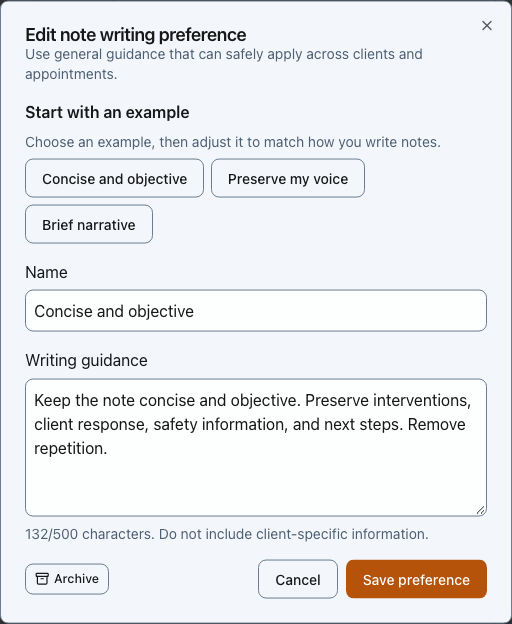
Save general writing instructions that you can reuse across appointments. Select the image to view it full size.
Suggested guidance examples
Start with a general instruction that can safely apply across appointments. Do not include client names, appointment details, diagnoses, or other client-specific information. You can select these examples in Settings → Preferences → AI guidance and edit them before saving.
Concise and objective
Keep the note concise and objective. Preserve clinically relevant details, interventions, client response, risk or safety information, and next steps. Remove repetition.
Preserve my voice
Keep my wording and structure when possible. Correct grammar and unclear phrasing without making the note sound generic or adding details that are not in the source.
Brief narrative
Use brief narrative paragraphs with clear, professional language. Separate observations from interpretation, preserve uncertainty, and keep follow-up items easy to find.
Use a note template when you need a consistent structure such as SOAP, DAP, or a practice-specific format. Use saved guidance for broader preferences such as brevity, tone, and how closely a revision should preserve your wording.
Signing and review
Before saving or signing a note, read it as you would any other clinical documentation. Source material can include transcription errors, irrelevant details, duplicated text, or information that should not be included in the final record.
Once a note is signed or locked by your practice workflow, editing may be limited. Make sure the final note reflects your professional judgment before you complete it.
Related articles
Keep an original document
Under Appointment attachments, choose Attach document to save a file with the appointment. Use View, Download, or Delete beside a saved file. Deleting a saved attachment requires confirmation and also removes its extracted text; your saved note stays in place. Saved appointment attachments are separate from case documents and are not automatically copied into the case document list.
Use this option for a document your practice needs to retain. A scan of a clinical document does not become disposable just because you used it to prepare a note. Pasted text and transcripts remain temporary drafting sources; include necessary information in the reviewed note or save an appropriate document separately.
Temporary source cleanup
Transcripts, pasted source text, extracted document text, temporary generated drafts, and Session Briefs are removed after the note receives its final therapist signature, or become eligible for cleanup 30 days after they were created if the note remains unsigned. Submitting an associate’s note for review does not count as the final signature. Before final signing, PracticeRunner asks you to confirm removal when temporary sources remain. The saved note, saved appointment attachments, saved guidance, and original clinical documents are kept.
The 30-day period is PracticeRunner’s source cleanup policy. Your practice must decide which information and original documents it needs to retain under its own documentation and preservation requirements. Do not rely on a temporary source as the only copy of a document you need to keep.
If remaining sources need to be preserved, open Temporary source retention and choose Pause source cleanup before they are deleted. PracticeRunner preserves remaining text and document originals for that appointment until cleanup resumes. The pause does not retain audio or video recordings and cannot restore material already deleted. It also prevents individual transcript or attachment deletion while active. Choose Resume source cleanup when appropriate; after confirmation, sources from finally signed notes and expired sources can be deleted.