
Treatment Plans
Create case treatment plans, review optional AI proposals, submit plans for supervision, and manage revisions and review dates.
Open an eligible clinical case and choose Treatment plans to create a plan or review its history. Consultation and workshop cases do not use therapy treatment plans by default.
Create a draft
- Under Create treatment-plan draft, choose a Treatment-plan form. If none is available, an authorized practice user must configure an internal treatment-plan form in Settings → Forms.
- Select the Applicable participants and, where appropriate, the Identified client.
- Set the effective date, review due date, and review interval as needed.
- Choose Create draft, complete the fields, and select Save draft.
A saved draft is not an active plan. When the plan is ready, use the available activation or supervision action for your role.
Group treatment plans
Open the therapy group’s Treatment plans page. Group plans separate the shared approach from each participant’s individual clinical needs. These controls may look different in earlier app versions.
| Plan | What belongs in it |
|---|---|
| Shared group plan | The group’s therapeutic approach, common goals, interventions, and schedule. Keep individual clinical details out of it. |
| Participant addendum | One participant’s goals, progress measures, and adaptations, together with a referenced version of the shared plan. |
| Full participant plan | A complete individual treatment plan for one participant when an addendum is not sufficient. |
- Choose a Treatment-plan form, set the dates, and select Create shared draft. Complete and activate the shared plan, or submit it for supervision when required.
- Under Participant plans, find the participant and choose Add individual goals to create an addendum, or Create a full plan.
- In the dialog, choose a customizable Treatment-plan form, set that participant’s dates, and select Create draft.
- Complete the individual content, then save and activate it or submit it for review.
Each participant plan or addendum has its own approval and review date. Activating the shared plan does not approve every participant’s individual goals. You need an active shared plan before creating an addendum; a full participant plan can stand on its own.
When a new shared plan becomes active, approved addenda keep the shared version they were approved with. A The shared group plan has changed message prompts you to review it. Use Revise addendum, open Review current shared plan, and choose Adopt current shared plan in the editable draft. Review the participant’s individual goals before activating or submitting the revision. The new shared content is not silently substituted into an approved addendum.
Example: shared approach, different individual needs
In a fictional interpersonal process group, the shared plan covers recognizing withdrawal and escalation, practicing direct requests, and repairing conflict after misunderstandings. One participant is returning to work after bereavement and tends to leave conversations when feeling criticized. Their addendum tracks remaining engaged long enough to name a need, distinguishing grief-related fatigue from avoidance, and reviewing workplace interactions in session. Another participant is managing caregiving strain and overcommits to helping others; their goals focus on setting a boundary and tolerating disagreement without immediately reversing it.
The shared plan describes the approach that supports both participants. Their histories, individual measures, and adaptations belong in their own addenda or full plans. Review shared free-text content before distributing a participant’s copy so it does not disclose another participant’s private information.
Optional AI field proposals
An owner or authorized admin can enable Draft treatment plans under Settings → General → AI Assistant. Manual plan editing remains available without AI.
- Save your work in the draft, then select Draft with AI.
- In Draft from selected records, choose Notes to include: the last 3, 5, or 10 eligible session notes, all session notes for the case, or, on a revision when available, All since the previous plan became effective.
- Open Review included notes and uncheck any notes you want to exclude. Select intake, assessments, or other eligible submitted forms under Additional records (optional). Check the selected count and date range. The previous treatment plan is included automatically for a revision.
- Under Saved drafting guidance, choose a personal preset or None. Your treatment-plan default from Settings → Preferences → AI guidance is selected initially. Use Manage AI guidance to add or edit reusable presets.
- Add directions specific to this request in Drafting instructions (optional), then choose Generate proposals.
Eligible saved clinical notes, including unsigned notes, and completed forms are available for plan drafting. Check note status and source content before relying on them. Psychotherapy notes, transcripts, and scratch material are excluded. Group sources follow the plan’s scope: a shared plan uses shared group material; participant drafting uses the selected participant’s eligible material rather than another member’s individual documentation.
Template instructions are separate from your personal guidance. In Settings → Forms, a treatment-plan form can have Treatment-plan drafting instructions for the whole form and a Drafting instruction (Optional) for each eligible field. Form-wide instruction changes apply to newly created treatment-plan drafts; they do not update an existing draft automatically.
In Review AI draft, compare each proposal with Current plan or Previous plan when shown, read the cited sources and explanation, and edit the proposed answer directly. Choose Skip this answer to leave that field unchanged; Undo brings it back. Select Use draft to apply the reviewed answers, or Discard draft to discard the proposals. Use Return to plan to return to the editor.
Applying proposals does not activate the plan. Review the complete plan, including dates and required fields, before taking the separate activation or supervision action. AI cannot approve a plan, confirm a diagnosis, or fill gaps in the clinical history reliably.
Example drafting directions
For a fictional client managing anxiety, recurrent partner conflict, disrupted sleep, and caregiving demands, a useful request might be:
Revise goals using the selected notes. Preserve the distinction between reported experiences and clinician observations. Track early signs of escalation, grounding before responding, and whether agreed pauses lead to a return to the conversation. Reflect the uneven progress during caregiving disruptions. Do not infer safety, a partner’s motives, or a new diagnosis from missing information.
Check whether the proposals preserve both progress and unresolved concerns. A successful pause in one session does not establish that conflict or safety concerns have resolved.
Submit and review
When supervisor review is required, select Submit for review. The plan shows that it is awaiting review. The assigned reviewer can choose Approve and activate or return it for changes. If changes are requested, revise and submit again.
Clinicians with permission to activate their own plans can use the activation action directly. The available buttons depend on the plan’s state and your permissions.
Revise an active plan
From Plan history, choose Draft revision for the active plan. Review the copied information, update the draft, and complete activation or supervisor review. Prior versions remain in plan history; the new active version supersedes the previous plan for its scope.
Download a plan
Open a plan and choose Download PDF. A participant addendum’s PDF includes its referenced shared plan and that participant’s individual content. Check the plan status and version before using the download: a draft PDF does not mean the plan has been approved.
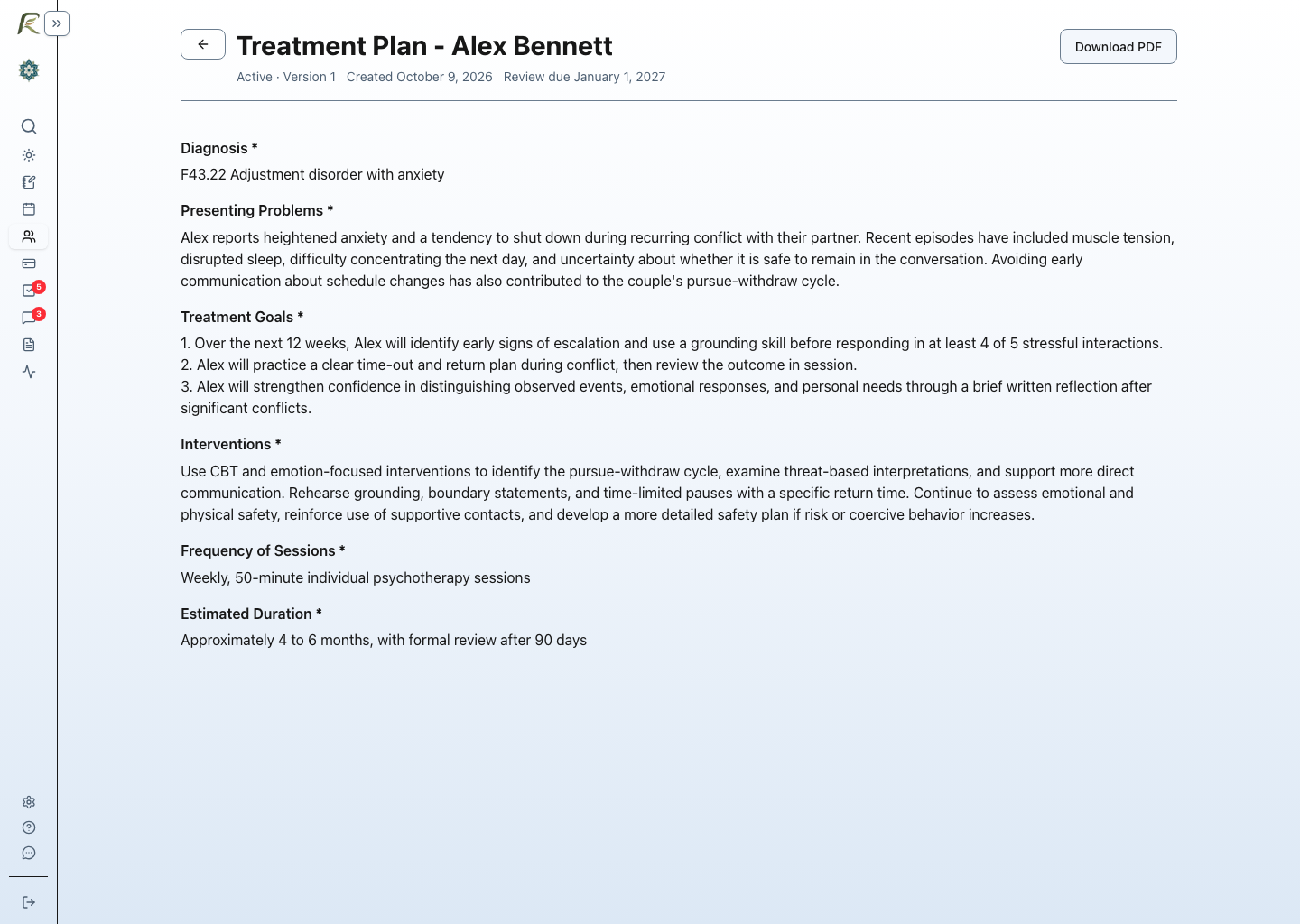
Fictional individual case example. The active-plan view shows the clinical content; drafting and group controls can differ in newer versions. Select the image to view it full size.
Review reminders
Treatment-plan reminders default off at the practice level. Practice settings set the default review interval and reminder lead time; provider and case settings can override the supported defaults. When enabled, follow-up appears in Tasks. A due-for-review status or reminder does not automatically revise or activate a plan.