
The screen you use throughout the day should work well in the setting where you use it. PracticeRunner includes fixed light and dark palettes, plus adaptive choices that follow the appearance setting on your computer, tablet, or phone.
The setting is personal to each staff account. One clinician can use a bright workspace while another uses a dark palette, without changing the practice for everyone else. Open Settings → Account → Preferences, select a theme to preview it, then save your choice.
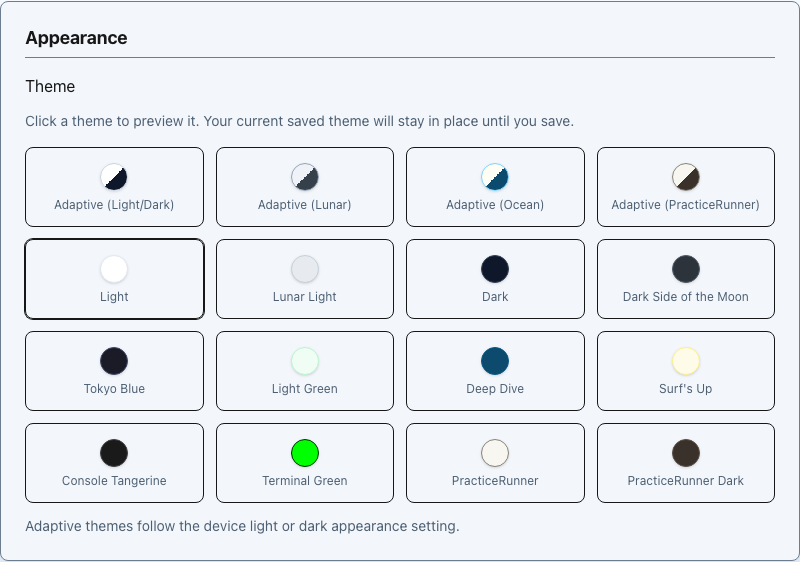
Adaptive themes follow light and dark appearance
An adaptive theme chooses a coordinated light or dark palette from the device setting. Adaptive (Ocean), for example, uses the light Surf's Up palette during light appearance and the dark Deep Dive palette during dark appearance. The content and controls stay in the same place. Only the visual palette changes.
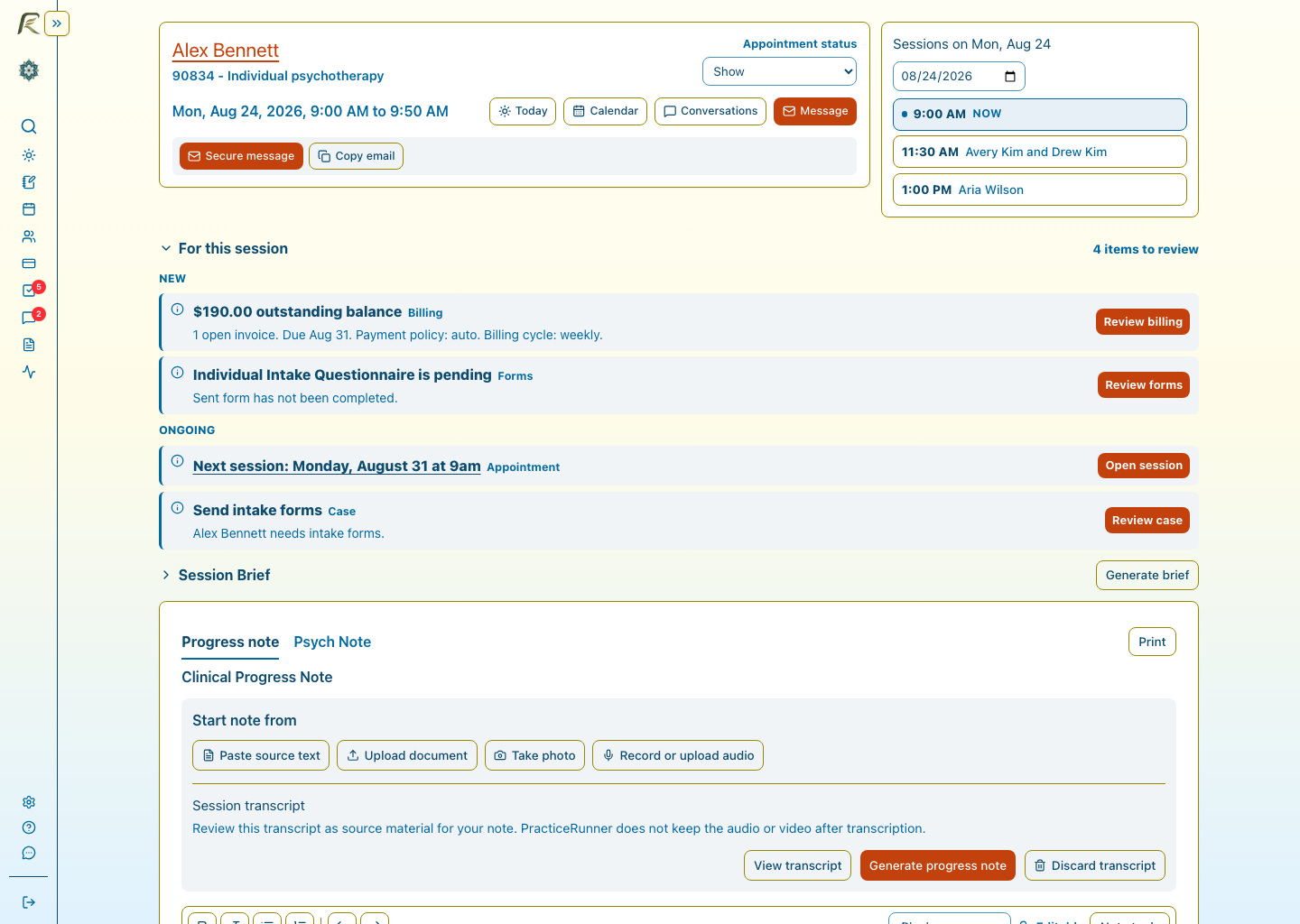
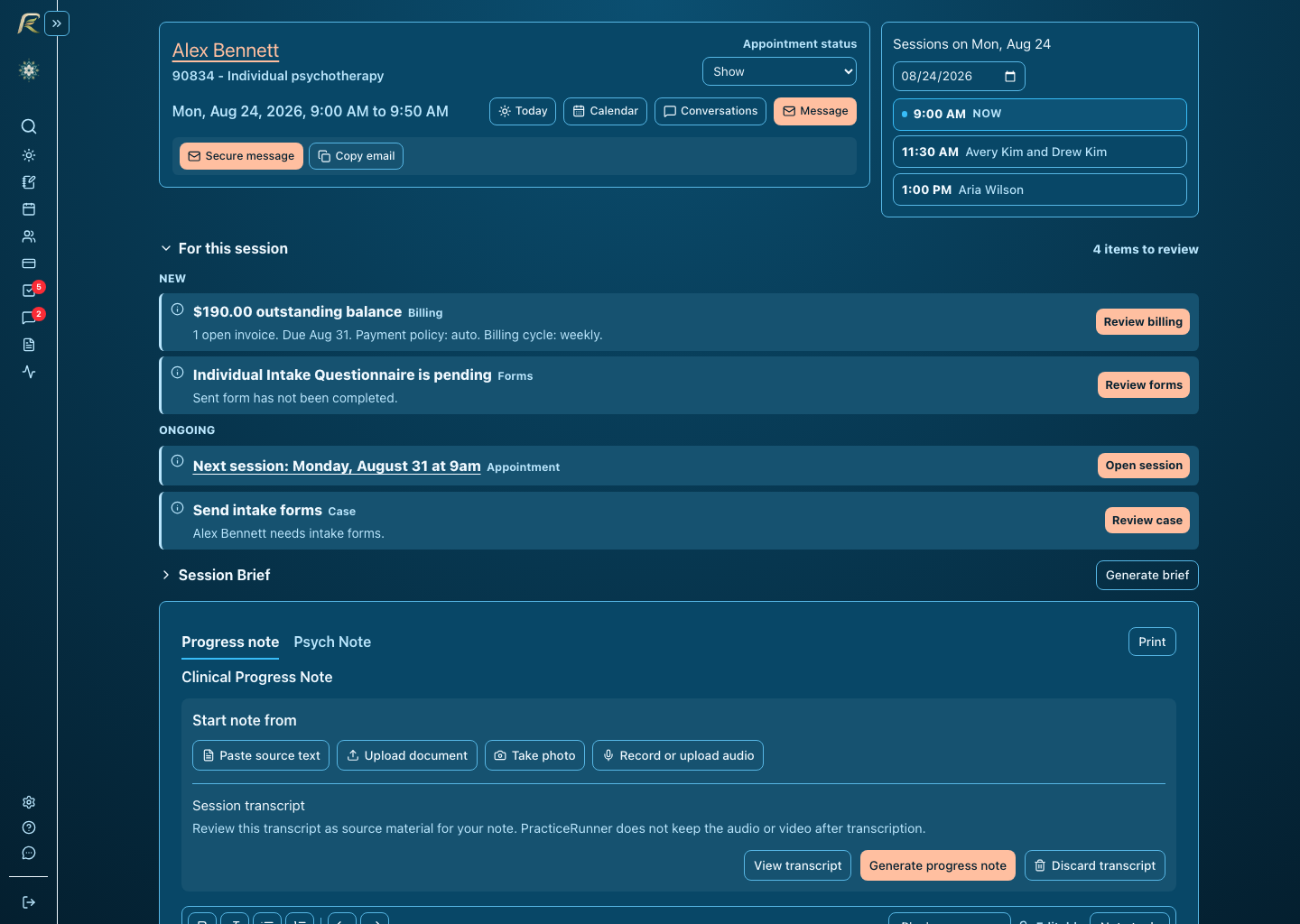
Prefer one look? Keep it.
The other adaptive choices pair the standard Light and Dark themes, the Lunar palettes, or the PracticeRunner palettes. If you prefer the screen to stay consistent all day, choose any fixed theme instead. Your staff workspace choice is separate from the client portal theme, which the practice configures independently.
Dark feelings are not always a color problem
A theme can make an EHR easier on your eyes, but dark mode cannot repair a strained relationship with the software. That takes flexible workflows, clear information, fewer repeated decisions, and meaningful control over how the practice works.
The color theme help guide lists every pairing and walks through changing the setting.