
Choose a Color Theme
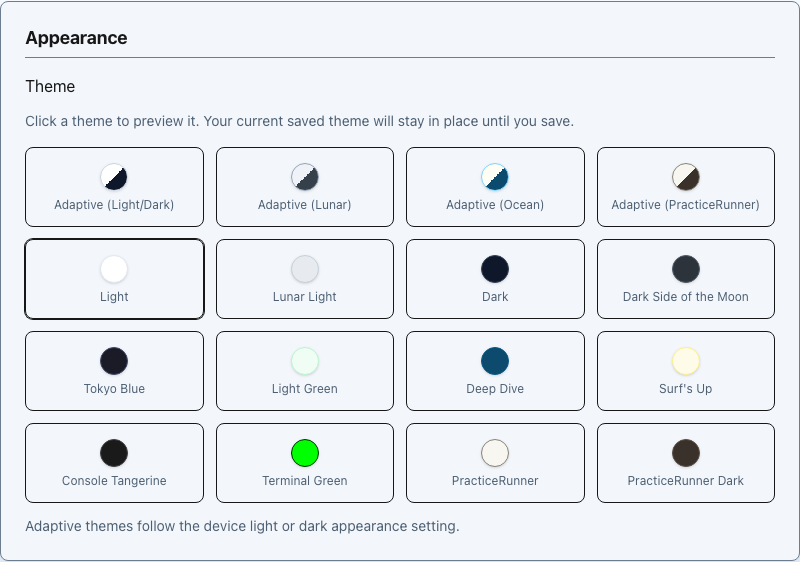
Choose a fixed PracticeRunner workspace palette or an adaptive theme that follows your device's light and dark appearance setting.
Your PracticeRunner theme is a personal preference. Each staff member can choose the palette they want without changing the workspace for anyone else in the practice.
Choose and save a theme
- Open Settings → Account → Preferences.
- Find Appearance.
- Select a theme to preview it immediately.
- Choose Save Preferences to keep the selection.
If you leave the page without saving, PracticeRunner restores your previously saved theme.
How adaptive themes work
An adaptive theme follows the light or dark appearance setting on your computer, tablet, or phone. You make one selection in PracticeRunner, then the palette changes when the device setting changes.
| Adaptive choice | Light appearance | Dark appearance |
|---|---|---|
| Adaptive (Light/Dark) | Light | Dark |
| Adaptive (Lunar) | Lunar Light | Dark Side of the Moon |
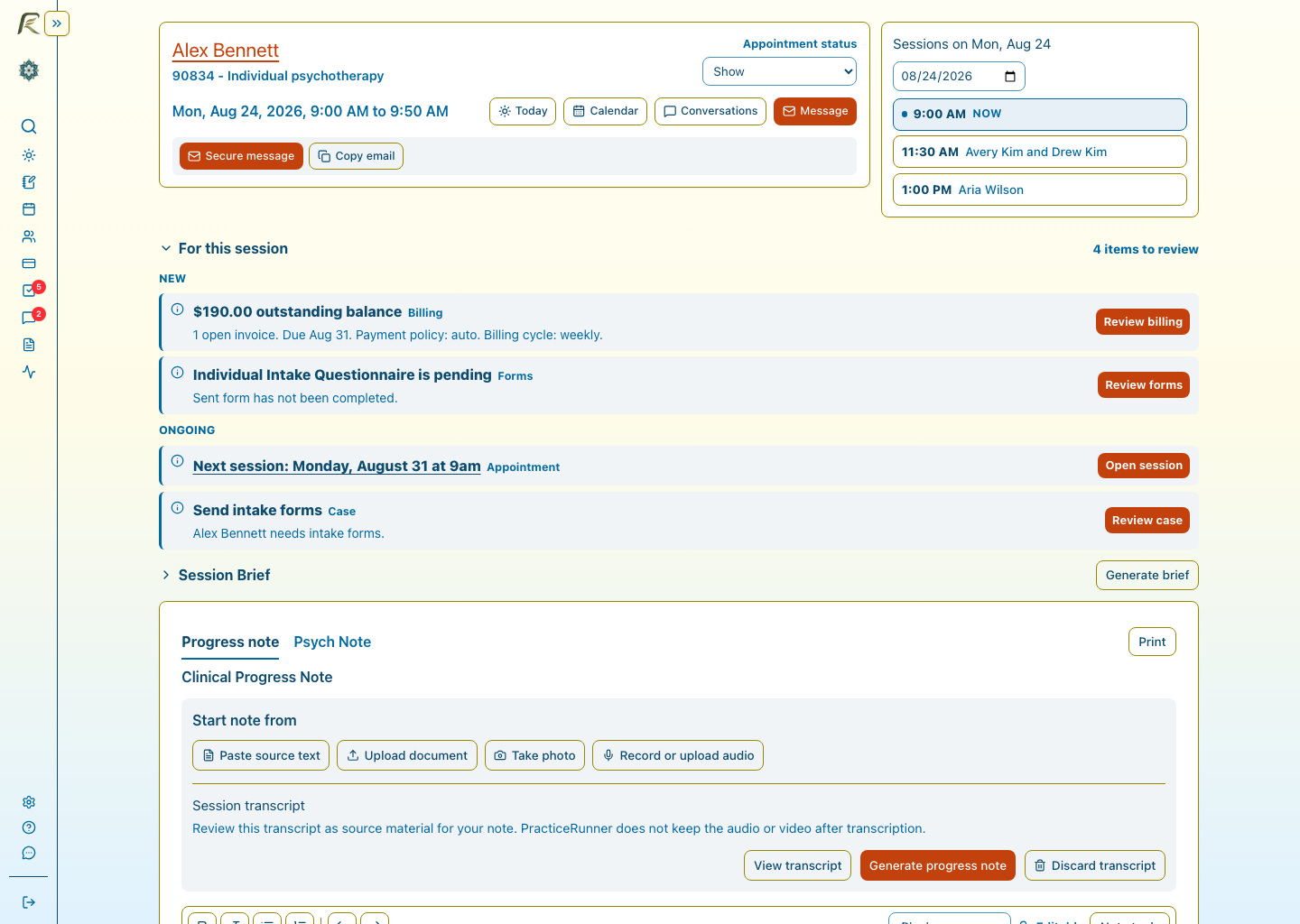
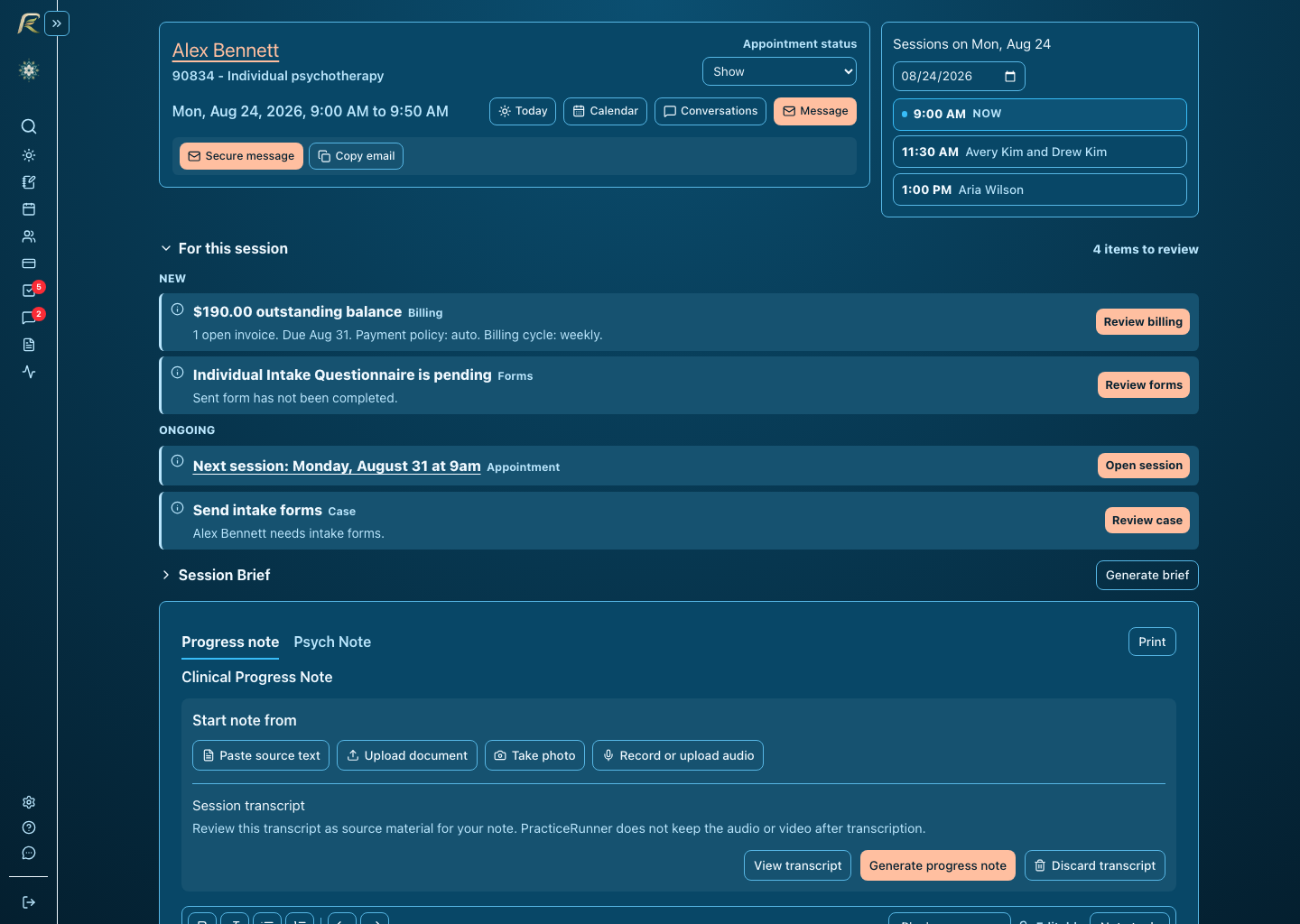
| Adaptive (Ocean) | Surf’s Up | Deep Dive |
| Adaptive (PracticeRunner) | PracticeRunner | PracticeRunner Dark |
The two images below show the same Session Workspace with Adaptive (Ocean). The first uses the light Surf’s Up palette. The second uses the dark Deep Dive palette.
Use a fixed theme instead
Choose any theme without the word Adaptive when you want PracticeRunner to keep the same palette regardless of the device setting. Fixed choices include Light, Lunar Light, Dark, Dark Side of the Moon, Tokyo Blue, Light Green, Deep Dive, Surf’s Up, Console Tangerine, Terminal Green, PracticeRunner, and PracticeRunner Dark.
Your workspace preference does not change the client portal’s appearance. A practice owner or authorized administrator can configure the portal theme separately under the portal settings.