
CMS-1500 Claims and Payer Responses
How to create, review, export, and manually reconcile CMS-1500 insurance claims in PracticeRunner.
PracticeRunner can help you prepare CMS-1500 claim PDFs, keep the exported claim with its billing lines, and manually record what the insurer reports on an EOB or remittance advice. If the insurer pays the practice, PracticeRunner can apply that payment and the contractual adjustment to the invoices connected to the claim.
This is still a manual insurance workflow. PracticeRunner does not submit claims electronically or automatically import payer responses.
CMS-1500 claims are intended for psychotherapy and other insurance-billable clinical services. They are hidden by default for consultation cases, where diagnosis, insurance claims, treatment plans, and superbills do not usually apply.
Turn On Claim Forms
- Open Settings → Billing.
- Turn on Use insurance claim forms.
- Save billing settings.
When claim forms are enabled, the case-specific Billing page and eligible invoices provide claim actions. Provider settings also include CMS-1500 billing details such as NPI, taxonomy code, tax ID, and billing address.
Set Up Claim Information
Before creating a claim, review the information the payer expects. This commonly includes:
- client name, date of birth, sex, address, and phone number
- primary insurance, member ID, group number, plan name, claim insurance type, and relationship to the insured
- insured name, address, and phone number when the insured is someone other than the client
- secondary health-plan information when another plan applies
- active diagnoses and diagnosis pointers
- service dates, CPT codes, modifiers, fees, and place-of-service codes
- billing and rendering provider name, NPI, taxonomy code, tax ID, address, and phone number
- authorization or referral details when required
- condition dates, including related hospitalization dates when they apply
PracticeRunner draws these details from the client profile, saved insurance, active insurance treatment episode, appointments, invoices, provider settings, locations, and practice billing settings. Payer requirements vary, so confirm coding and claim rules with the payer.
The prior authorization number is saved with the claim’s insurance information. It is not an insurance treatment episode default.
Create a Claim
From a case-specific Billing page:
- Choose Create insurance claim.
- Select a month or custom date range.
- Review the eligible sessions and invoices.
- Create the claims.
PracticeRunner creates separate claims when the selected services have different providers, service locations, or appointment place-of-service codes, or when more than six service lines would be required. Eligible invoice pages can also open or create the related claim.
Each claim receives its own PracticeRunner claim number. This is the practice’s internal claim number, similar to an invoice number. It is not the insurer’s claim/control number or the insurer’s check number.
Review the Claim
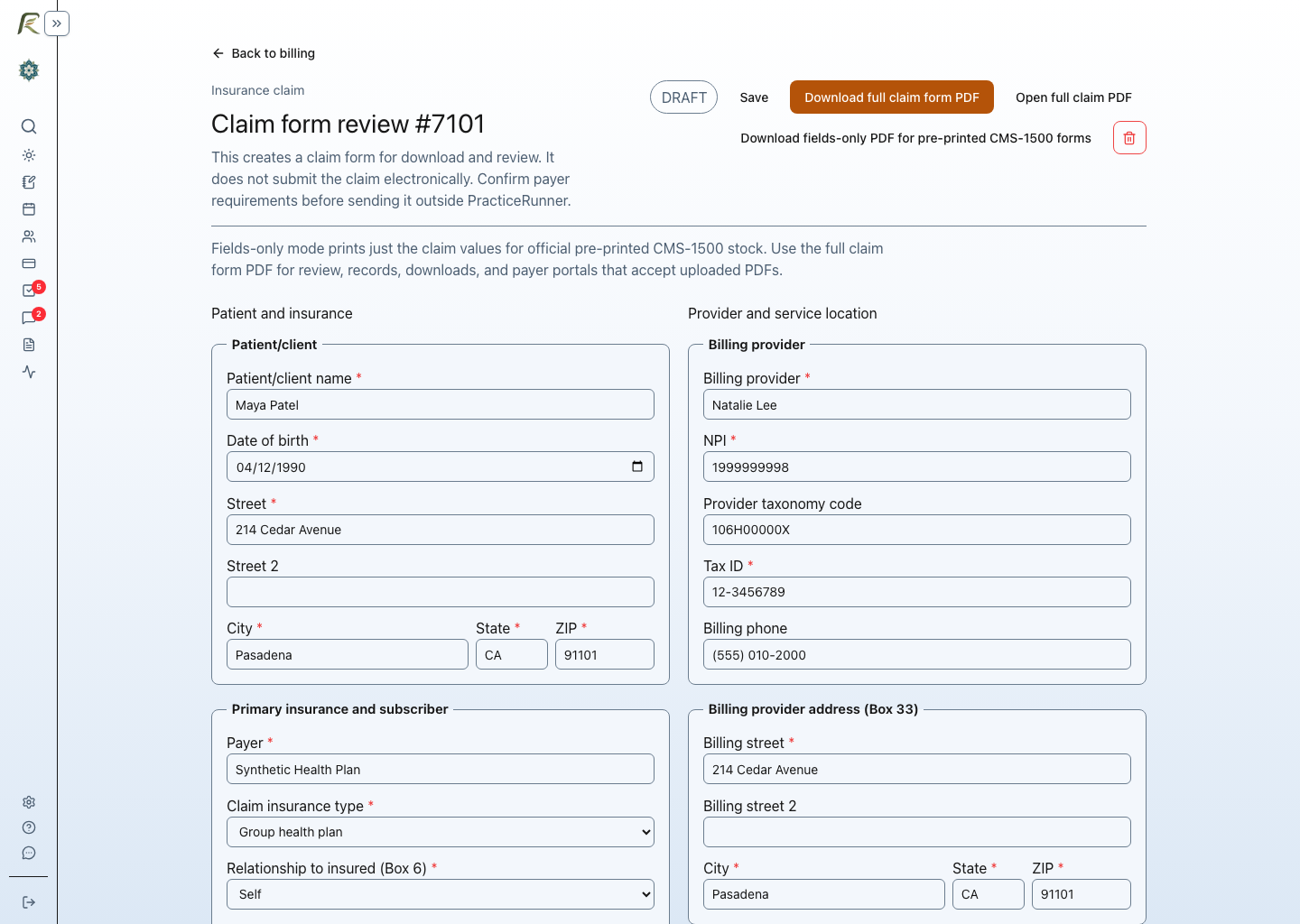
The claim review page shows the saved values that PracticeRunner will place on the CMS-1500 form. Correct required fields before export and review recommended details that may matter to the payer.
Important review areas include:
- claim insurance type at the top of the form
- patient and insured contact information
- relationship to insured
- primary and secondary plan information
- condition, accident, unable-to-work, and related-hospitalization details
- diagnoses and line-level diagnosis pointers
- referring, ordering, supervising, or other provider information when applicable
- billing provider, rendering provider, service facility, NPI, taxonomy, and tax ID
- assignment and signature attestations
Choose diagnoses from the client’s active diagnoses. For a couple, family, or group case, PracticeRunner uses the identified patient’s active diagnoses. Available diagnoses are prepopulated when the claim is created, and Add diagnosis adds another diagnosis selection.
Place of service comes from each appointment and cannot be changed on the claim. The claim-level and service-line place-of-service controls show the saved appointment value but are read-only. To correct it, delete the draft claim, update the appointment, and create the claim again.
Insurance Treatment Episodes
The episode selector appears at the top of Condition and accident details. Select an episode to see which defaults are in use. Loading a different episode asks for confirmation because it replaces the corresponding condition, accident, and other-provider values on the claim.
Choose Edit Insurance Episodes to add, edit, close, or select an episode for the case. An episode can be deleted only when no claims are attached and it has not been used to generate claims.
The other-provider details support one referring, ordering, or supervising provider on a claim. Select the role that applies to that provider.
For hospitalization dates, select Related hospitalization (Box 18) and enter the dates only when the services are related to an inpatient stay. If an admission date is already present, PracticeRunner shows that option as selected.
Saving Review Changes for Later Claims
A claim is a saved snapshot. Editing it does not automatically rewrite the client profile, invoice, or every future claim.
When reviewed values differ from the saved profile or selected insurance episode, PracticeRunner asks whether you also want to save those changes for later claims. Depending on what changed, the prompt can offer either or both of these choices:
- Update the active insurance treatment episode with these details for future claims in this case.
- Sync profile changes: save patient/client demographic and insurance edits to the client profile and, when the claim has a billing provider, save its taxonomy code to that provider’s profile.
Leave a choice off when the edit should apply only to the current claim. PracticeRunner does not show the prompt when the corresponding saved values have not changed.
Signature Attestations
Select a signature option only when the corresponding authorization or signature is actually on file:
- Box 12: the patient or authorized person signed the release authorization
- Box 13: the client or insured authorized the health plan to pay the practice directly
- Box 31: the provider or authorized representative’s signature is on file
When selected, PracticeRunner prints SIGNATURE ON FILE in the corresponding box. For Box 31, the claim signature date defaults to today. Select Specify claim signature date only when a different date should be used.
Whether a payer accepts a signature-on-file attestation depends on the authorization you retain, the payer’s instructions, and applicable requirements. PracticeRunner records the attestation but does not determine whether the underlying authorization is sufficient.
Export the CMS-1500 PDF
PracticeRunner supports two PDF modes:
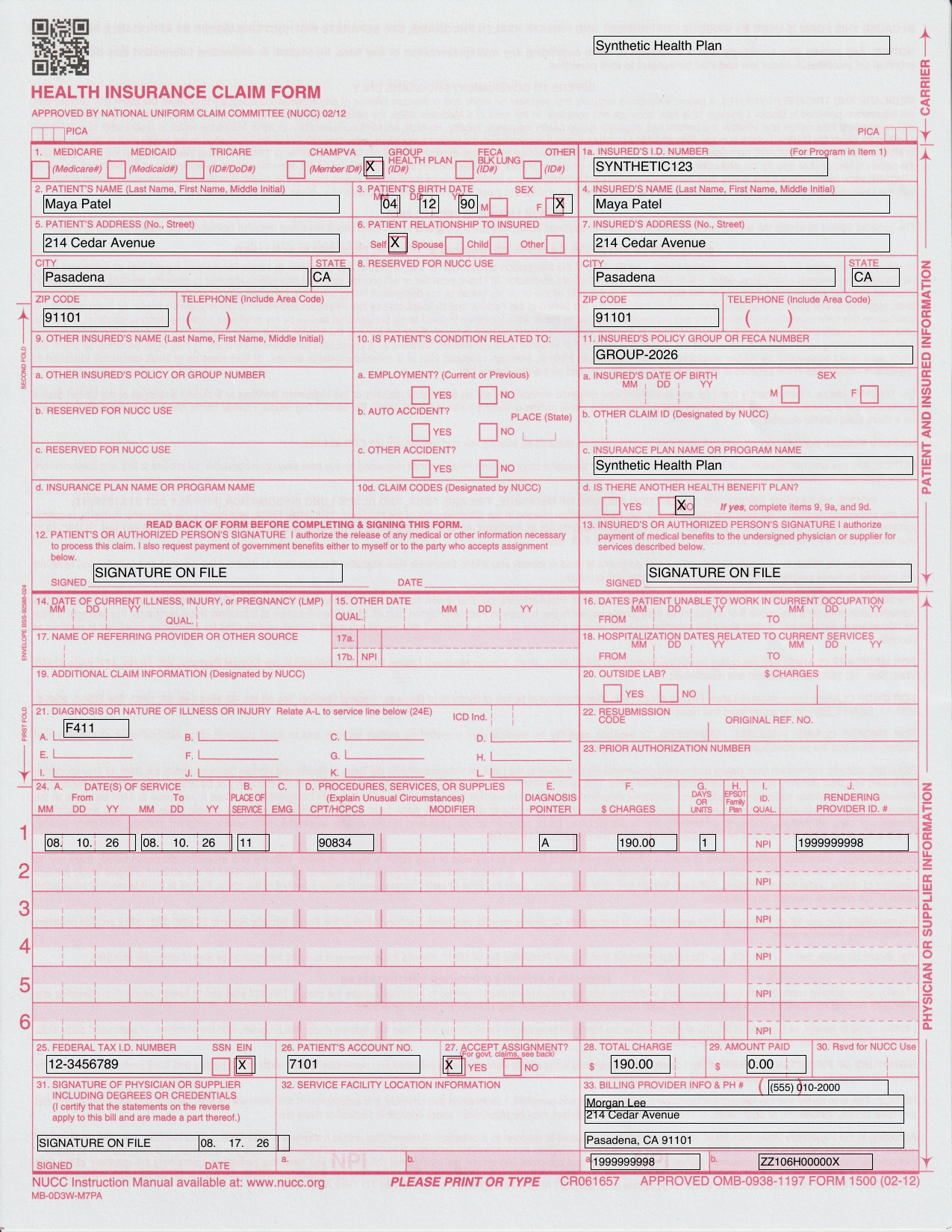
- Full CMS-1500 PDF: includes the form layout and claim values. Use it for review, records, or a payer portal that accepts an uploaded PDF.
- Fields-only PDF: prints only the claim values on the CMS-1500 coordinate plane. Use it with official pre-printed CMS-1500 form stock.
Both exports are static, print-ready PDFs. They do not contain interactive form widgets or rectangular field outlines. The full PDF retains the official form artwork; the fields-only PDF contains only the positioned claim values.
For paper submission, follow the payer’s form-stock and printing requirements. A copy printed on ordinary paper may not meet OCR color or scale requirements.
After export, the claim summary keeps the exported values, billing lines, PDF link, and export history. The PracticeRunner claim number appears in Box 26 and in the PDF filename.
An exported claim can still be reopened for editing until a payer response is recorded. Once any payer response has been recorded, the claim becomes read-only so the claim details remain consistent with its adjudication and invoice activity.
Record a Payer Response
When an EOB or remittance advice arrives:
- Open the exported claim.
- Choose Record payer response.
- Select Paid to practice, Paid to client, Denied, or Pending.
- Enter the response date.
- Enter the insurer’s payer claim/control number when available.
- If the practice received money, enter the payment method and the separate check or trace number under Payment reference.
- For each billing line, enter the allowed amount, payer-paid amount, and patient responsibility shown by the payer.
- Review the calculated contractual adjustment and record the response.
The identifiers serve different purposes:
- PracticeRunner claim number: your practice’s internal claim number
- Payer claim/control number: assigned by the insurer to the processed claim
- Payment reference: the check, trace, or other identifier for money sent to the practice
Do not enter a check number as the payer claim/control number.
How the Response Affects Billing
Paid to Practice
PracticeRunner applies the insurer payment to the source invoices represented by the claim lines. It also reduces those invoices by the contractual adjustment, which is the difference between the billed amount and the payer’s allowed amount.
Patient responsibility stays separate from the contractual adjustment. The contractual adjustment is not transferred to the client balance.
If part of the payment cannot be connected to an invoice, or exceeds the available invoice balance, PracticeRunner records it as unapplied so the practice can investigate, credit, or refund it rather than silently forcing it onto an invoice.
Paid to Client
PracticeRunner records the payer’s adjudication and the amount paid to the client. It does not mark the practice’s invoice as paid because the practice did not receive that money. It also does not currently apply the recorded contractual adjustment to the invoice for this outcome. Review the related invoice and make any required adjustment before collecting the remaining client responsibility, then use the normal client-payment workflow when the client pays the practice.
Denied or Pending
A denied or pending response records what the payer reported without creating a practice payment or contractual adjustment. A later final paid response can still be recorded.
Corrected Claims
PracticeRunner can prepare a linked replacement or void CMS-1500 before a financial payer response has been recorded. Open the exported claim, choose Correct claim, and select either a replacement claim (Box 22 code 7) or a void claim (Box 22 code 8). Enter the payer claim/control number assigned to the original claim, then review and export the new claim.
The original claim and its export history remain available, and the new claim shows its correction relationship. Denied and pending responses do not block this workflow because they do not change invoice or payment balances.
After creating a correction, record any later payment or patient responsibility on the active corrected claim. PracticeRunner continues to allow pending or denied updates on the original, but prevents a financial response from being applied through both claims.
PracticeRunner does not yet support corrected claims after a paid-to-practice or paid-to-client response. Those corrections may require recoupments or changes to payments, contractual adjustments, patient responsibility, and unapplied amounts. Follow the payer’s correction process outside PracticeRunner when financial activity has already been recorded, and do not duplicate a paid claim as a workaround.
What PracticeRunner Does Not Do Yet
The current claim workflow does not:
- submit professional claims electronically
- verify insurance eligibility or benefits
- receive or automatically post ERA files
- automatically check claim status with the payer
- calculate payer-specific coding, coverage, medical necessity, or contract rules
- manage post-payment corrected-claim, recoupment, appeal, or secondary-claim workflows
Related Guides
- Setting Up Services, Fees, and Procedure Codes
- Superbills for Insurance Reimbursement
- Managing Invoices, Payments, and Flexible Billing
- Managing Diagnosis Codes and Client Diagnoses
- One Workflow for Therapy, Consultation, and Group-Based Care
For official form guidance, consult the NUCC 1500 Claim Form Reference Instruction Manual and the payer’s own instructions. Medicare-specific guidance is available in the CMS Medicare Claims Processing Manual, Chapter 26.