
Managing Diagnosis Codes and Client Diagnoses
How to search ICD-10-CM codes, manage the practice diagnosis list, assign diagnoses to clients, and review diagnosis details used for billing.
PracticeRunner includes ICD-10-CM lookup to help your practice find diagnosis codes and keep a shorter practice diagnosis list for day-to-day use. The full ICD-10-CM code set remains searchable when you need it, while the practice diagnosis list keeps common selections easier to find.
Diagnosis tools are intended for clinical and insurance-related workflows where diagnoses are appropriate. Consultation cases hide diagnosis, treatment-plan, claim, and superbill workflows by default.
How the Practice Diagnosis List Works
The practice diagnosis list is the set of diagnosis codes your practice uses most often. It can include:
- default diagnoses seeded by PracticeRunner
- ICD-10-CM codes added from search
- custom diagnoses added manually
- imported diagnoses from historical data
The list belongs to your organization. It is separate from the full ICD-10-CM code set and separate from any diagnosis already stored on a specific client.
Search ICD-10-CM Codes
Open Settings → Diagnoses to search for diagnosis codes.
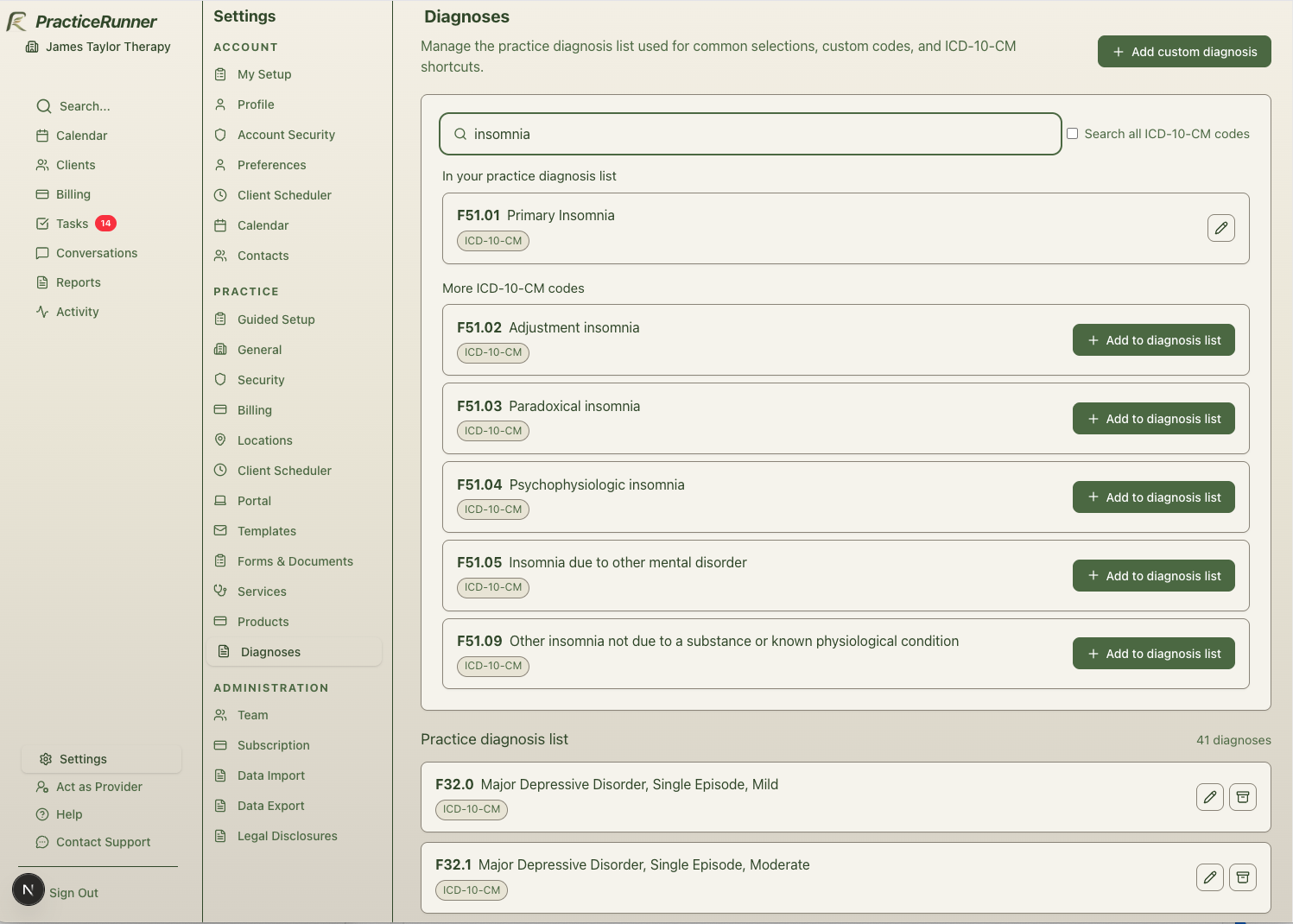
By default, search prioritizes behavioral-health-relevant ICD-10-CM codes. Use Search all ICD-10-CM codes when you need to search the broader code set.
Search can match:
- exact codes, such as
F41.1 - normalized codes, such as
F411 - partial codes
- diagnosis names or descriptions
ICD codes originate from the World Health Organization. In the United States, ICD-10-CM is the clinical modification published by CMS and updated annually. PracticeRunner uses CMS-published ICD-10-CM code sets so practices can search current codes while preserving historical diagnosis records.
Add Codes to Your Practice List
When you find an ICD-10-CM code you use regularly, select Add to diagnosis list. PracticeRunner copies the code and description into your practice diagnosis list.
Only billable diagnosis codes can be added from ICD-10-CM lookup. Parent categories, such as F43 Reaction to severe stress, and adjustment disorders, are shown in the official hierarchy but are not offered as addable diagnoses. Add a specific billable code instead, such as an appropriate F43.xx code.
You can also add a custom diagnosis manually when needed. This is useful for legacy, imported, or practice-specific entries that should remain available even if they do not link to the current ICD-10-CM code set.
Archive a Diagnosis
Archive a diagnosis when you no longer want it offered for new selections.
Archived diagnoses:
- stay in PracticeRunner for historical records
- remain linked to existing client diagnoses where applicable
- are hidden from normal new-selection workflows
- can be restored later
Archiving is safer than deleting because a diagnosis may already appear on client records, superbills, claims, or imported history.
Restore an Archived Diagnosis
If your practice needs to use an archived diagnosis again, restore it from Settings → Diagnoses. Restored diagnoses return to the active practice diagnosis list and can be selected again.
If you add an ICD-10-CM code that already exists in your practice list as archived, PracticeRunner restores the matching practice diagnosis entry instead of creating a duplicate.
Historical Client Diagnoses
Client diagnoses keep their code and name as a historical snapshot. This means a client record can still show the diagnosis that was used at the time, even if:
- the practice diagnosis list entry is archived later
- the annual ICD-10-CM code set changes
- a diagnosis description is updated in a newer code set
- an imported diagnosis does not match the current ICD-10-CM set
PracticeRunner may also link client diagnoses to the practice diagnosis list when codes match. These links help with lookup and organization, but they do not rewrite the historical code or name stored on the client diagnosis.
Assign a Diagnosis to a Client
After adding the needed code to the practice diagnosis list:
- Open the client.
- Open the Clinical tab.
- In Diagnoses, select Add diagnosis.
- Choose a diagnosis from the practice list.
- Enter the date the diagnosis became applicable. For a client’s first diagnosis, Set to first meeting date can use the first appointment that has a coded service.
- Add an end date when the diagnosis applies only through a specific date. Leave it blank while the diagnosis remains active.
- Save the diagnosis.
If the new date overlaps an existing diagnosis, PracticeRunner asks whether to end the prior diagnosis the day before the new one begins or allow the diagnoses to overlap. Choose the option that reflects the clinical record. Multiple diagnoses may be active when clinically appropriate.
Select an existing diagnosis to edit its code or dates. Removing a client diagnosis deletes it from the client’s diagnosis history, so use an end date instead when the record should show that the diagnosis applied during an earlier period.
Diagnosis tools do not appear for consultation cases by default.
Diagnoses on Superbills and Claims
Active client diagnoses can be used when PracticeRunner prepares insurance-related billing documents. Superbills can include diagnosis details and diagnosis pointers when available. CMS-1500 claims preserve diagnoses and line-level pointers in the claim snapshot for review before export.
Review the diagnoses and pointers on each document. Changing a client diagnosis does not automatically rewrite a billing document that has already been generated or exported. Regenerate a superbill when its saved details need to reflect an update, and review claim-specific edits according to the claim workflow.
Important Limits
ICD-10-CM lookup helps you find and organize diagnosis codes. It does not determine clinical appropriateness, payer coverage, medical necessity, reimbursement, or claim acceptance.
Confirm diagnosis selection, documentation, and payer requirements according to your clinical judgment, licensure, contracts, and payer rules.