
Superbills for Insurance Reimbursement
How to create superbill drafts, review and approve them, and configure automatic generation for client insurance reimbursement.
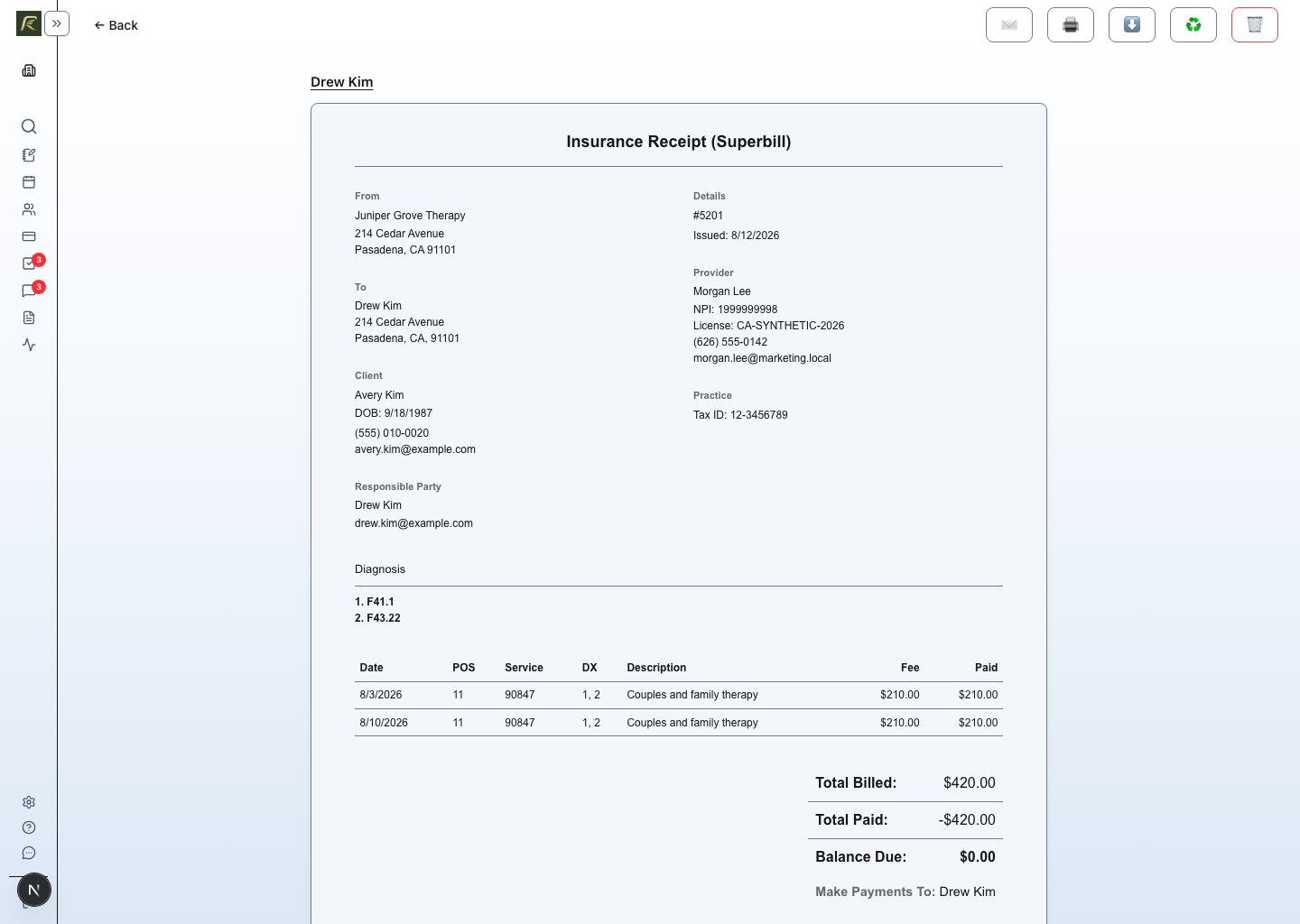
Superbills help clients request out-of-network reimbursement from their insurance plan. PracticeRunner can create a superbill from completed appointments, client demographics, diagnosis details, service codes, provider billing information, and recorded payments.
Superbills are different from invoices and CMS-1500 claim forms:
- Invoices request payment from a client or billing contact.
- Superbills document services and payments so the client can submit reimbursement paperwork to their insurer.
- CMS-1500 claim forms prepare a claim PDF for practices that need the standard insurance claim form format.
- Good Faith Estimates estimate expected charges for clients who will not use insurance claims for the care covered by the estimate.
Before Creating Superbills
Check that the billing and clinical details are complete before creating a superbill:
- Go to Settings → Billing and confirm your practice billing details, tax ID, and invoice footer details are accurate.
- Add provider billing identifiers where needed, including NPI, license, taxonomy, and provider tax ID or SSN if your practice uses provider-specific billing details.
- Confirm the client’s demographics and diagnosis information.
- Confirm that appointment services have the correct CPT codes and fees.
- Confirm each location’s place-of-service code and modifier-code defaults in Settings → Locations.
- Record any payments that should appear on the superbill.
For a couple or family case, choose the Identified patient in the case settings before turning on Make superbills available for this case. The identified patient is the person whose clinical and insurance details apply to the reimbursement document. PracticeRunner does not allow superbills to remain enabled for a couple or family case without that selection.
The identified patient and billing contact serve different purposes. The identified patient supplies the patient context for the superbill. The billing contact is the person who receives billing communication and the superbill link. They may be the same person, but they do not have to be. The billing contact can also be a relative or other third party outside the case. When designated as the responsible party, that person appears under To and receives the billing documents and notifications; the clinical client or identified patient remains unchanged.
For a routing diagram, PDF addressing examples, and the review needed when a group participant has another payer, see Who a Superbill Is For and Who Receives It.
For service categories, procedure-code setup, and insurance-service approval, see Setting Up Services, Fees, and Procedure Codes. For ICD-10-CM lookup and assigning diagnoses to clients, see Managing Diagnosis Codes and Client Diagnoses.
Consultation cases do not use superbills by default. Consultation work usually uses invoices and receipts instead of psychotherapy reimbursement documents.
If a client will not use insurance claims or receive superbills for this care, a Good Faith Estimate may be the more appropriate document to send before or near the start of care. Send it through Share Documents & Forms so PracticeRunner can create a saved estimate snapshot.
Place of Service and Modifier Codes
Place-of-service and modifier codes can appear on both superbills and CMS-1500 claim forms. PracticeRunner normally uses the defaults from the appointment location.
To use different codes for one appointment:
- Open the appointment from the calendar.
- Find Insurance billing.
- Select Use a different place of service, then choose the appropriate labeled code.
- Select Use different modifier codes when needed. Enter up to four codes, using one two-character code in each box.
- Save the appointment.
Use appointment-specific overrides only when the service was delivered differently from the location defaults or when a payer requires different reporting. Confirm coding requirements with the payer. If the superbill is still a draft, correct the appointment and use Refresh on the superbill to update its saved document. Once a superbill is available in the portal or has been sent, its service and billing details are protected from further edits.
Creating a Superbill
To create a superbill manually:
- Open the client’s profile.
- Go to the client’s Billing section.
- Choose the date range to include.
- Click Create Superbill.
PracticeRunner includes eligible paid, attended sessions in the selected date range. Chargeable late-canceled sessions can still be invoiced, but they are not included on superbills.
A superbill you create starts as a Draft, awaiting review, regardless of your practice’s automatic approval setting. Drafts are private to practice staff. Clients cannot see them in their portal or open their PDF links until you approve them. You can preview or download the PDF before approval.
Reviewing and Approving a Draft
- Open Superbills awaiting review in your task list, then choose Review Superbill, or open the draft from the client’s Billing section.
- Review the services, dates, diagnosis, provider details, and amount in the saved PDF.
- If a service needs correction, edit the appointment first, then return to the draft and choose Refresh. Review the updated PDF before sharing it.
- Choose how to approve the draft:
- Make available in portal makes it accessible to the client without sending a notification.
- Approve and send makes it accessible and sends a notification according to your practice’s email and secure-message settings.
Approving a draft completes its review task. Available in the client portal and Notification sent are separate states: a document can be available without a notification. If notification delivery fails, the superbill stays available; use Send to try again.
Correcting or Deleting a Draft
Use Refresh after correcting appointment status, place of service, modifiers, or other service details. Refresh keeps the same superbill number, retains the previous saved version, and sends no notification. Canceled or non-attended services are excluded; a draft with no eligible charges cannot be approved.
You can delete an unwanted draft, which also resolves its review task. Imported PDFs cannot be refreshed.
Review carefully before approval. Once a superbill is available or sent, it is finalized and cannot be refreshed or deleted. Its source appointments also cannot be deleted or have their service and billing details changed. Unrelated appointment notes remain editable.
Practice Approval Setting
Go to Settings → Billing → Invoices → Superbills and find Require manual approval before sharing Superbills.
- Enabled (the default): Automatic generation creates private drafts and review tasks. Staff approve each draft before the client can access it.
- Disabled: Newly generated automated superbills become available without staff review and follow the automatic notification process.
Changing this setting does not publish existing drafts. Superbills created directly by staff always start as drafts, even when this setting is disabled.
Monthly Superbill Automation
Enable Provide Superbills for the eligible case. For therapy groups, enable it for each participant who needs superbills; the group-wide preference does not enable every participant. Individual, couple, family, and therapy-group cases can qualify. Consultation cases and workshop groups do not use this monthly workflow.
The case’s effective payment collection mode determines what happens:
- Manual billing: After staff record or apply a qualifying payment, PracticeRunner can offer Create Superbill for a fully paid, closed service month on that invoice. Confirming creates a private draft for review; canceling creates nothing.
- Invoice-only or automatic billing: PracticeRunner checks for a monthly superbill after payment settles and during the daily billing run. It checks the immediately previous calendar month, and waits until the eligible services are paid and settled and the clinical and billing details are complete.
Partial payments, bank transfers still processing, missing diagnoses, or services awaiting billing review can delay generation. The practice approval setting determines whether an automatically generated superbill waits as a private draft or becomes available immediately.
Existing monthly superbills are preserved rather than silently updated. Correct a draft using Refresh before approval. Automatic generation checks the previous month only; for an older month, use Create Superbill directly and review the draft.
If an automatically generated superbill is ready and does not require approval when a payment receipt is sent, its link can be included in the same receipt notification. If approval is required, the receipt is sent without the draft. Choose Approve and send later to notify the client separately.
What Clients Receive
When a superbill is sent, the client receives a link to view or download the superbill PDF. The PDF includes service and reimbursement details such as appointment dates, CPT codes, diagnosis pointers when available, provider information, paid amount, and billing details.
If secure portal messages are enabled, the superbill can be sent through the portal. If secure messages are off, PracticeRunner sends the email directly and keeps a copy in Conversations when supported.
When to Use CMS-1500 Instead
Use a superbill when the client is responsible for submitting reimbursement paperwork to their insurer.
Use a CMS-1500 claim when the practice needs to prepare the standard insurance claim form PDF and track the payer’s response. Claim actions are available from case-specific Billing pages and eligible invoices when claim forms are enabled in Settings → Billing. See CMS-1500 Claims and Payer Responses for the claim and manual reconciliation workflow.
Use a Good Faith Estimate when the client will not use insurance claims for the care covered by the estimate, such as self-pay care. Do not use it as a reimbursement document.
Advance payments and superbill timing
Clients may be able to pay for eligible sessions before they occur, but advance payment does not make a future session eligible for a superbill. Wait until the appointment has ended and confirm the services actually delivered. Review your cancellation and refund policy, payer restrictions, and applicable Good Faith Estimate requirements before offering advance payment.
See Advance Payments and Superbill Timing for the portal setting, date safeguards, and guidance for your practice.