
Searching PracticeRunner
How to use app search to find clients, cases, appointments, billing documents, settings, and help articles without leaving your current workflow.
PracticeRunner search helps you move directly to the record, document, setting, or help article you need. It is meant for the ordinary moments when you know what you are looking for but do not want to click through several sections first.
Open Search from the main menu, or press Cmd+K on Mac and Ctrl+K on Windows. On smaller screens, use the search icon in the mobile header or open the menu and choose Search.
What search can find
Search can return:
- Clients and contacts
- Cases, including couple, family, group, and individual cases
- Appointments and calendar dates
- Invoices, superbills, and statements
- Settings
- Help articles
Results are grouped by type so you can tell whether you are opening a client record, a billing document, a setting, or a help article.
Common ways to search
Use the words, names, dates, or numbers you already have.
Examples:
- A client or contact name
- A client, couple, family, group, consultation group, or workshop group name
- An invoice, superbill, or statement number
- A calendar date, such as
June 15or6/15 - A setting name, such as
portal,billing,availability, orreminders - A help topic, such as
autopay,calendar feed, orsecure messages
For best results, type at least two characters. Search updates as you type.
Search by client or contact name
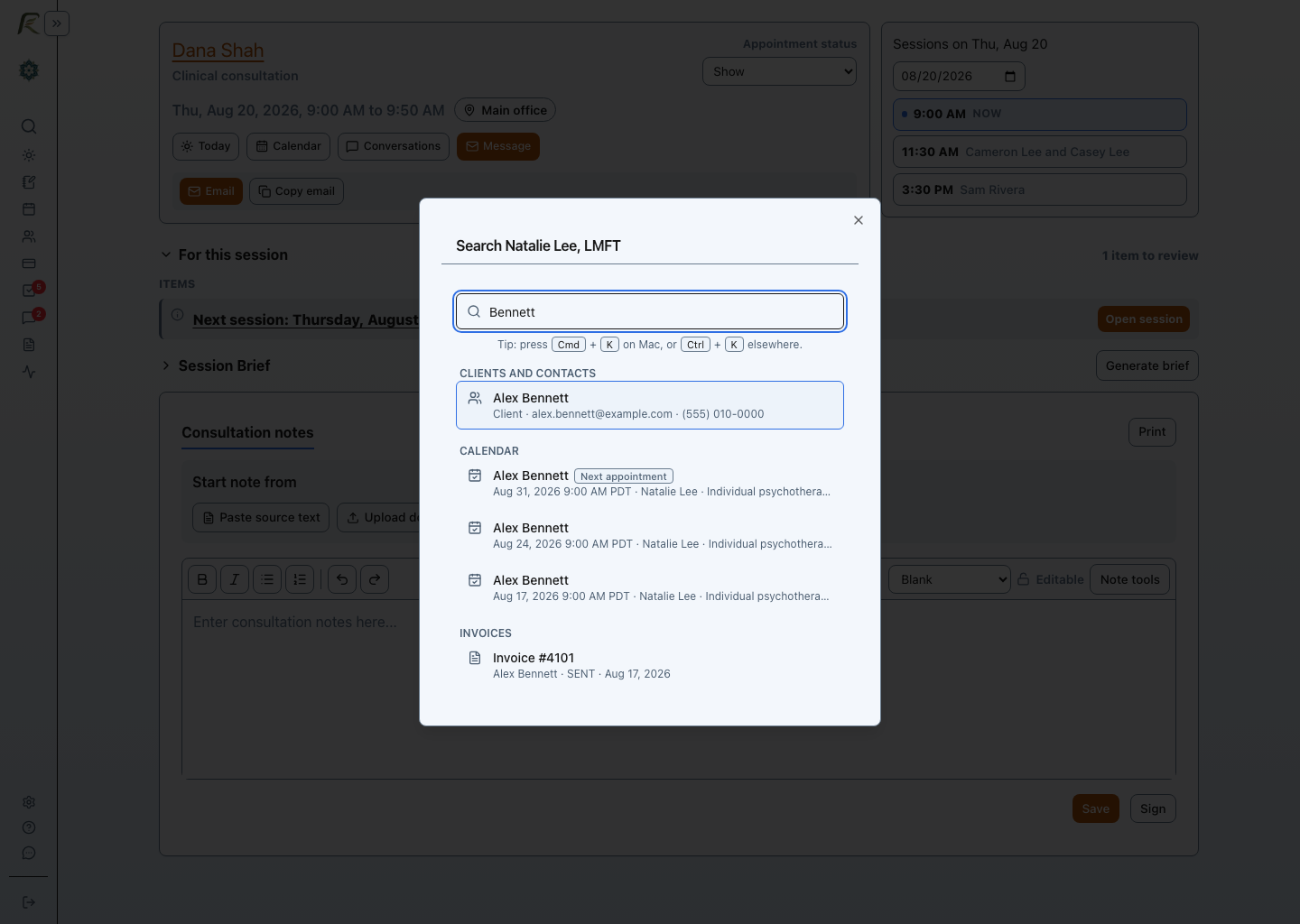
Enter a full or partial name. A matching client or contact appears first, followed by related appointments and other records you can open directly.
Search by billing document number
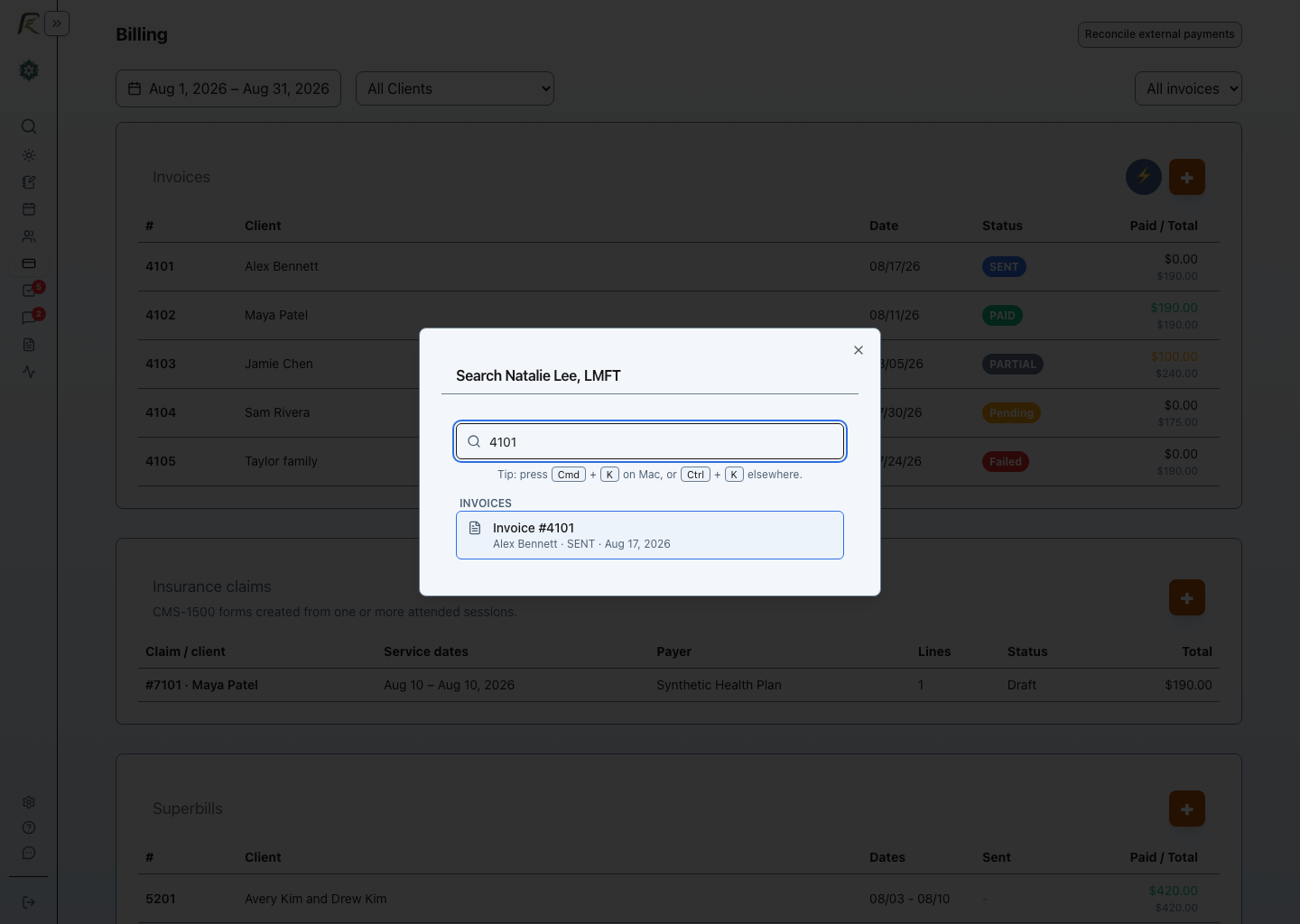
Enter the number shown on an invoice, superbill, or statement. You can include or omit a number sign. For example, searching 4101 finds Invoice #4101.
Search by phone number
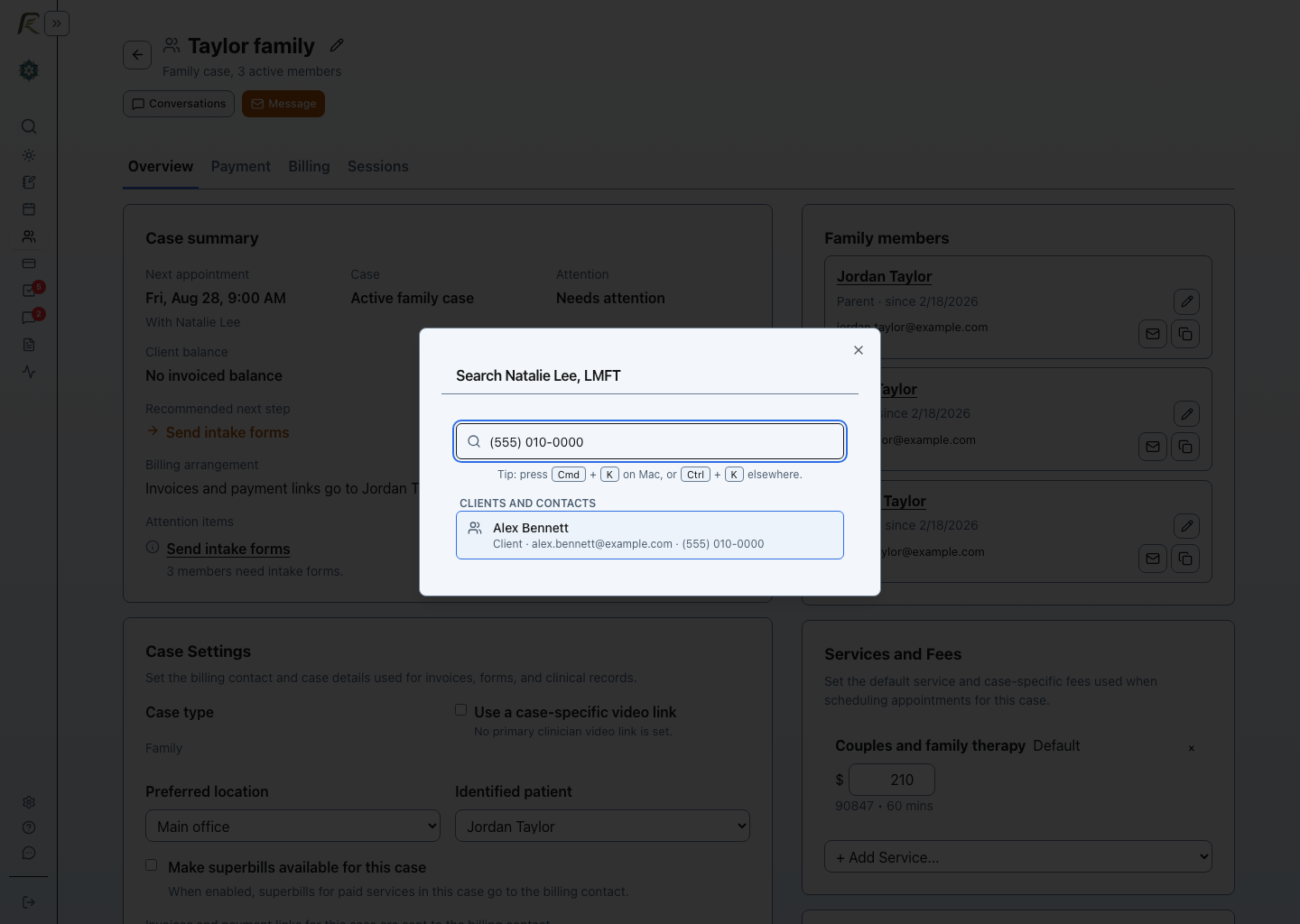
Enter a client’s or contact’s phone number in the format you have available. Search recognizes common phone-number punctuation and returns the matching person.
Search across settings and help
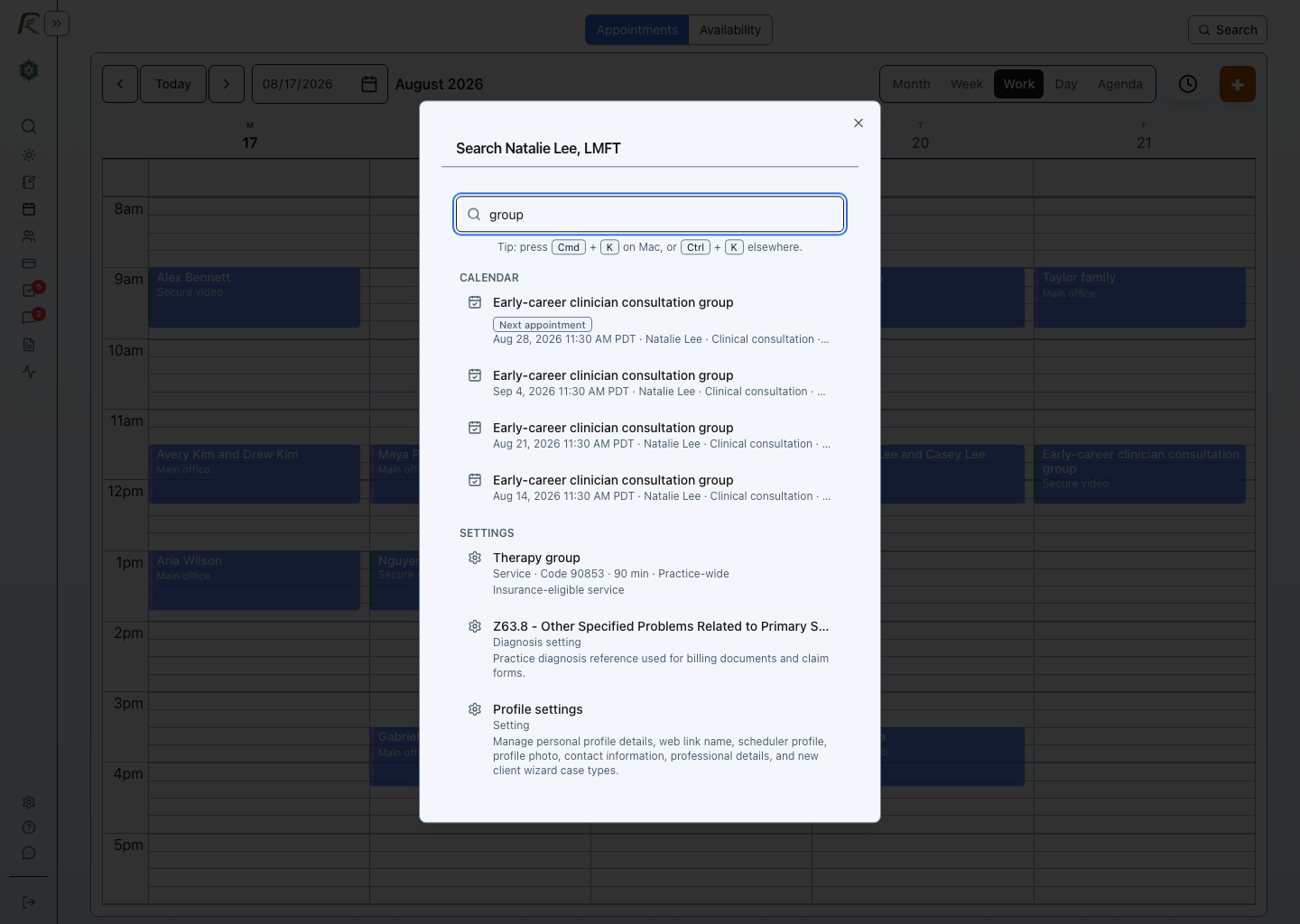
Use a broad workflow term such as group, portal, or billing when you need to configure something or find instructions. Settings and help articles appear in separate sections so you can choose between changing the practice and reading the guide.
Opening a result
Click a result to open it. You can also use the arrow keys to move through results and press Enter to open the highlighted result.
When you open a result, PracticeRunner takes you directly to that page. For example:
- a client result opens the client record
- a case result opens the case page
- a billing document result opens the invoice, superbill, or statement
- a settings result opens the relevant settings page
Provider scope
In places where a provider scope applies, search follows that scope. This helps associates, supervisors, admins, and owners see results that fit their role and the current operating context.
If you cannot find something you expected to see, check whether you are searching under a provider filter or delegated provider context.
When search is most useful
Search is especially useful when you are moving between related work:
- opening a case while reviewing an invoice
- finding a client from a secure message
- jumping to portal or billing settings during setup
- opening a help article while configuring a workflow
- finding a billing document by number during a client call
Use search when the next step is clear, but the fastest path is not the menu.