
Secure Messaging with Clients
Choose email or secure delivery, switch the message badge, understand delivery labels, and manage where replies and email copies go.
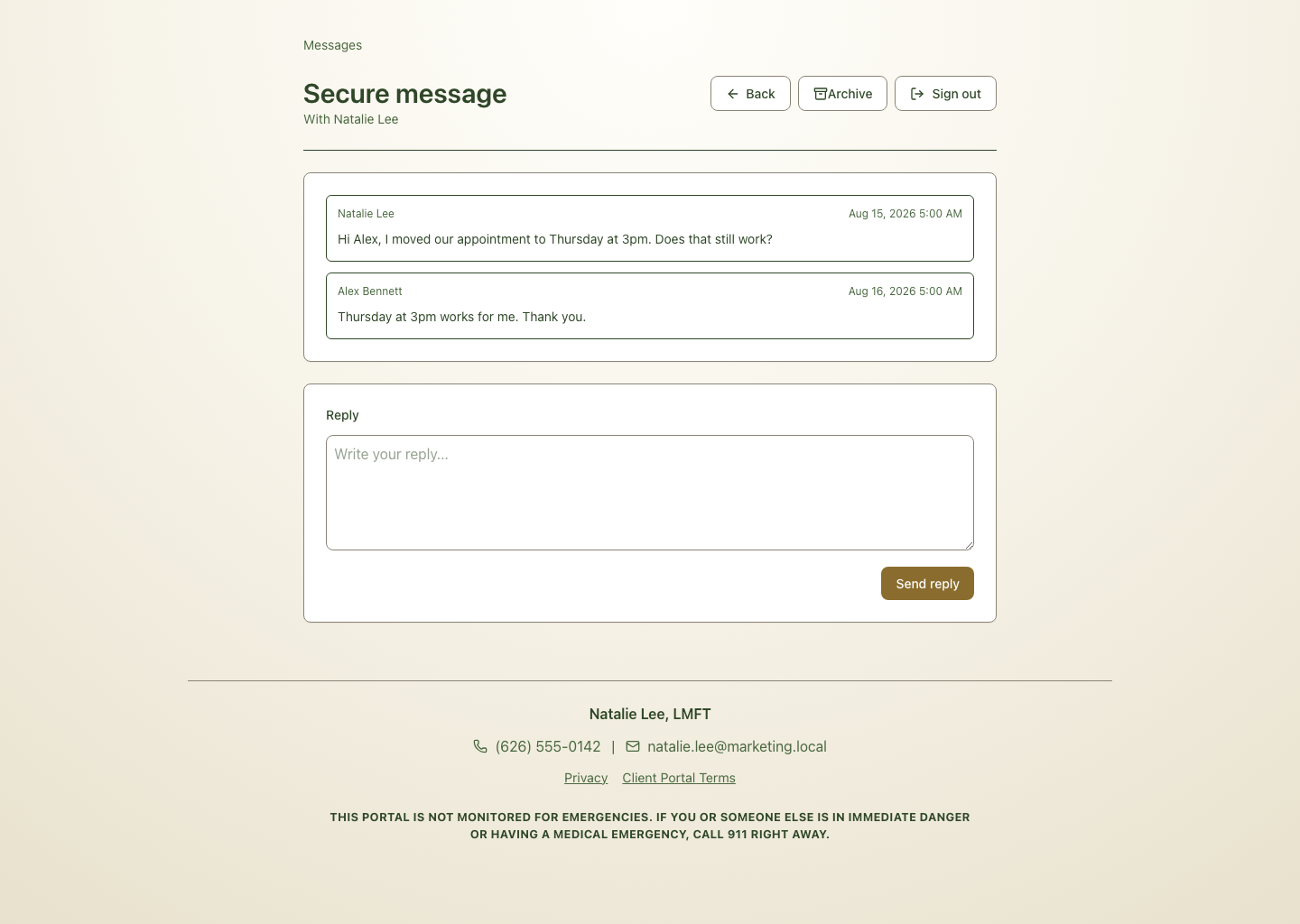
Secure messaging lets your practice send and receive client messages inside PracticeRunner. Clients can open messages from the client portal or from a secure message link.
The main goal is simple: support HIPAA-conscious communication by keeping client-specific message content in PracticeRunner, not in ordinary email.
Choose email or secure delivery before sending
- Open Conversations and start a new message or compose a reply. Inquiry replies open Reply to inquiry.
- Check the delivery badge above the message. It shows Email or Secure message.
- To change the method, click or tap the badge. Each click switches to the other method; there is no separate delivery dropdown. With a keyboard, focus the badge and press Enter or Space.
- Review the recipients, message, and any attachments, then send. The message uses the method displayed on the badge.
| Delivery method | What the recipient receives |
|---|---|
| The message content in ordinary email. Supported message attachments are included in the email. A copy of the sent message stays in Conversations. | |
| Secure message | The message in PracticeRunner, with a generic email notification when notifications are available. The recipient opens the portal or secure message link to read it and download any attachments. |
What “default” means
(default) identifies the starting delivery method for that message. It reflects the practice’s delivery settings, the recipient’s preferences, and the message context. For example, prospect inquiries normally start with email delivery.
Switching the badge changes this message only. It does not change the practice default, the client’s saved preferences, or messages already sent. If you switch back to the default method, (default) appears again. Check the badge each time you compose a message.
Practice defaults are managed in Settings → Portal. Client-specific messaging preferences are managed on the client’s profile. Your own Settings → Profile → Messaging Preferences controls where replies and copies reach you; it is separate from the delivery choice for a message you are sending.
When the badge cannot switch
If a selected recipient has turned off message emails and requires portal-only delivery, the message stays secure and the badge is disabled. You cannot use the badge to override that restriction. Switching is also disabled while the message is being sent.
The toggle is available in new messages, conversation replies, and inquiry responses that offer a delivery choice. Other dialogs, including appointment and billing workflows without a delivery choice, show an informational badge based on their delivery rules. Badges such as SMS, Email + SMS, or Email + secure messages describe delivery; they are not two-method toggles.
Understand delivery labels in Conversations
Labels beside messages describe how those individual messages were sent or received:
- Sent as email means the outgoing message used ordinary email delivery.
- Secure message identifies a secure message sent by the practice.
- Received by email means a reply arrived through email, even if an earlier message in the same conversation was secure.
- Automated identifies a system-created message. It describes who sent it, rather than offering a delivery choice.
These history labels are read-only. A conversation can contain both secure messages and email exchanges. Changing the delivery badge for your next reply does not change the labels or delivery of earlier messages. A generic email notification about a secure message does not make the secure message itself an email message.
If a message shows Sent as email when you expected secure delivery, review that specific message and the delivery choice before sending another reply. Changing a setting afterward cannot recall an email or move its content out of the recipient’s mailbox. The label describes the delivery method; it does not confirm that the recipient read the message.
What clients receive by email
When your practice sends a supported client message as a secure portal message, the client receives a generic email notification that tells them a secure message is waiting.
The notification should not include:
- the message body
- clinical notes
- diagnosis details
- billing details
- appointment details
- attachments
- other sensitive client information
The client opens PracticeRunner to read and reply.
How clients read and reply
Clients can use:
- the portal messages area at
https://portal.practicerunner.com/o/[practice-link-name]/messages - a secure message link from an email notification
Secure links may ask the client to verify basic information before showing message content. If a link expires, send a new message or ask the client to sign in through the client portal if they already have access.
Replies appear in Conversations for the practice. From there, clinicians or staff can read the conversation, reply, assign the conversation, or archive it when follow-up is complete.
Client portal attachments are off by default. Enable Allow clients to attach files to portal messages in Settings → Portal to show Attach files in client messages and replies. This setting does not affect email attachments or files already shared. See Message Attachments.
Use Search messages in this view to find text within the conversations included by the current inbox filters. Automated emails and system-created messages carry an Automated label so staff can distinguish them from messages written directly by a person.
Clients have their own organization controls in the portal. They can mark a conversation as read, archive it from their inbox, and restore it from View archived. A client archive action does not delete the conversation or remove it from the practice’s records.
Message the members of a case
For a couple, family, therapy group, consultation group, or workshop group, open the case and select Message. PracticeRunner shows the active members who have an eligible email address and are allowed to receive email.
When secure portal messaging is enabled, PracticeRunner creates a separate secure conversation for each eligible member. Members do not join one shared group conversation and cannot see one another’s replies. The practice can review each resulting thread in Conversations.
When secure portal messaging is not enabled, Message opens the configured email workflow addressed to the eligible members. Review the recipient list and message before sending, especially when the case includes several people.
Client email preferences
Clients can choose Portal only or turn off individual email categories in Preferences → Email preferences in the client portal. Turning off secure-message notifications alone does not stop billing emails. Billing emails and payment-problem emails have separate controls, and a practice’s automatic sending settings cannot override a client’s opt-out. See Choose Which Billing Emails Clients Receive for the settings and examples.
Choose your email routing preferences
Open Settings → Profile → Messaging Preferences, make your selections, and save your profile.
You have two independent choices: where clients reply to ordinary emails you send, and whether you receive email copies of messages received in PracticeRunner. You can receive ordinary replies directly in your inbox and still receive copies of secure messages through PracticeRunner.
Replies to emails you send
- Save replies in PracticeRunner (default): Client replies go through PracticeRunner and are saved in the conversation history. Use the email-copy setting below to choose what reaches your inbox.
- Send replies directly to my inbox: Client replies go straight to your verified message email address, or your account email if you have not verified a custom address. The original email sent from PracticeRunner is saved, but direct replies and follow-up emails exchanged outside PracticeRunner are not saved here.
This choice applies to ordinary outgoing email. Secure-message notifications continue to direct clients to the portal and use PracticeRunner for email replies when available.
Changing this setting affects emails sent after you save. It does not change the reply address in emails already delivered. A client replying to an older email still uses that email’s reply address.
Email copies of messages received in PracticeRunner
| Choice | What you receive |
|---|---|
| Notification with a link (default) | An email linking to the conversation, without the message content. |
| Full message content | An email copy with the message content and supported attachments. Requires Allow message content in email. |
| No email | No message notification or copy. Open PracticeRunner to check messages. |
These messages remain saved in PracticeRunner. This setting applies to secure messages and ordinary email replies received through PracticeRunner. It does not control replies that clients send directly to your outside mailbox.
When the notification or copy invites you to reply, you can respond from the mailbox that received it. Your reply passes through PracticeRunner and is saved. Replies to secure messages are delivered in the client portal; ordinary email exchanges follow the client’s current preferences. If email replies are unavailable, the notification tells you to open PracticeRunner instead.
Appointment request emails follow this preference and link to the conversation. Open PracticeRunner to approve or decline a request.
Choose the combination that fits your workflow
- Keep email exchanges in the conversation history: Select Save replies in PracticeRunner and Full message content after allowing message content in email. You can work from your inbox while replies pass through PracticeRunner.
- Handle ordinary email outside PracticeRunner and receive secure-message copies: Select Send replies directly to my inbox and Full message content. Ordinary direct replies are not saved here. Secure messages and replies sent through their PracticeRunner email copies are saved.
- Handle ordinary email outside PracticeRunner and read secure messages in the app: Select Send replies directly to my inbox and Notification with a link or No email. Choosing No email does not stop direct client replies from reaching your inbox.
Set the receiving email address
Select Customize your message email address and display name to enter an optional address. Save your profile and open the verification link sent to that address. Until verification is complete, PracticeRunner keeps using your current verified address, or your account email if no custom address is verified.
The active address receives both PracticeRunner email copies and direct client replies when you choose them. Leaving the custom address blank uses your account email.
Changing the address resets permission to include message content and switches full-message copies to notifications. After verifying the new address, confirm Allow message content in email again and select Full message content. The permission applies to copies sent by PracticeRunner, not to messages clients send directly to your inbox.
Recommended workflow
Use secure messaging for client-specific communication whenever possible.
For a steady practice workflow:
- Send client-specific messages through PracticeRunner.
- Let the email notification stay generic.
- Review replies in Conversations.
- Use search or the current inbox filters when you need to find an earlier message.
- Keep follow-up in the same conversation when possible.
- Move scheduling changes, forms, or billing tasks into the appropriate PracticeRunner area when action is needed.
This keeps the communication thread easier to review and reduces the chance of sensitive details being copied into regular email.
Portal settings that affect messages
Practice owners can choose the default delivery method for supported client messages. This is managed in Settings → Portal.
When secure portal messages are enabled, supported client messages are saved in PracticeRunner and the email notification stays generic. This supports a HIPAA-conscious workflow without relying on regular email for message content.
When ordinary email is used for a workflow, avoid putting sensitive clinical or billing details in the message body.
Privacy notes
Keep message content focused on what the client needs to know. Avoid including diagnoses, clinical notes, billing details, or unrelated sensitive information unless it is necessary for the communication.
For sensitive files, use secure portal messages, forms, or another workflow approved by your practice. Files attached to ordinary email travel through email. See Message Attachments for file limits, the portal upload setting, saving received files to profiles, and deletion.
Common questions
Do clients need a full portal account to read a secure message?
Not always. A secure message link can open a specific conversation after verification. Clients with portal access can also sign in through the portal and open messages there.
Does the email sent to a client include the secure message?
No. The email notification should only tell the client that a secure message is waiting. The message body stays in PracticeRunner.
Can clients reply?
Yes. Clients can reply from the secure message page or portal messages area, and the reply appears in Conversations.
Where do appointment requests and inquiries appear?
They appear in Conversations. Appointment requests include request details when available, while general inquiries appear as standard conversations.
Replies sent by email
When email replies are enabled for your practice, a client can reply to a secure-message notification from the same email address that received it. An accepted reply appears in the original Conversations thread as an email message. This depends on your practice’s setup; portal replies remain the usual way to respond securely.
An email reply travels through ordinary email. The secure notification does not make its reply confidential in the same way as a message written inside the portal. Use the portal for sensitive content. Accepted email replies can include supported PDF, PNG, JPEG, and plain-text attachments, up to ten files and 7 MB total. Unsupported attachments can cause the reply to be rejected. A reply from another address or one that fails delivery checks may be rejected; use the portal or contact the practice if it does not arrive.