
Managing Inquiries, From First Contact to Active Client
How to move a prospect from an initial inquiry through consultation, intake, active-client status, or a clear closed outcome.
PracticeRunner keeps the steps between a first inquiry and an active client connected. You can respond in Conversations, schedule an initial consultation, send intake, record what happened, and use optional tasks to catch prospects who do not have a next step.
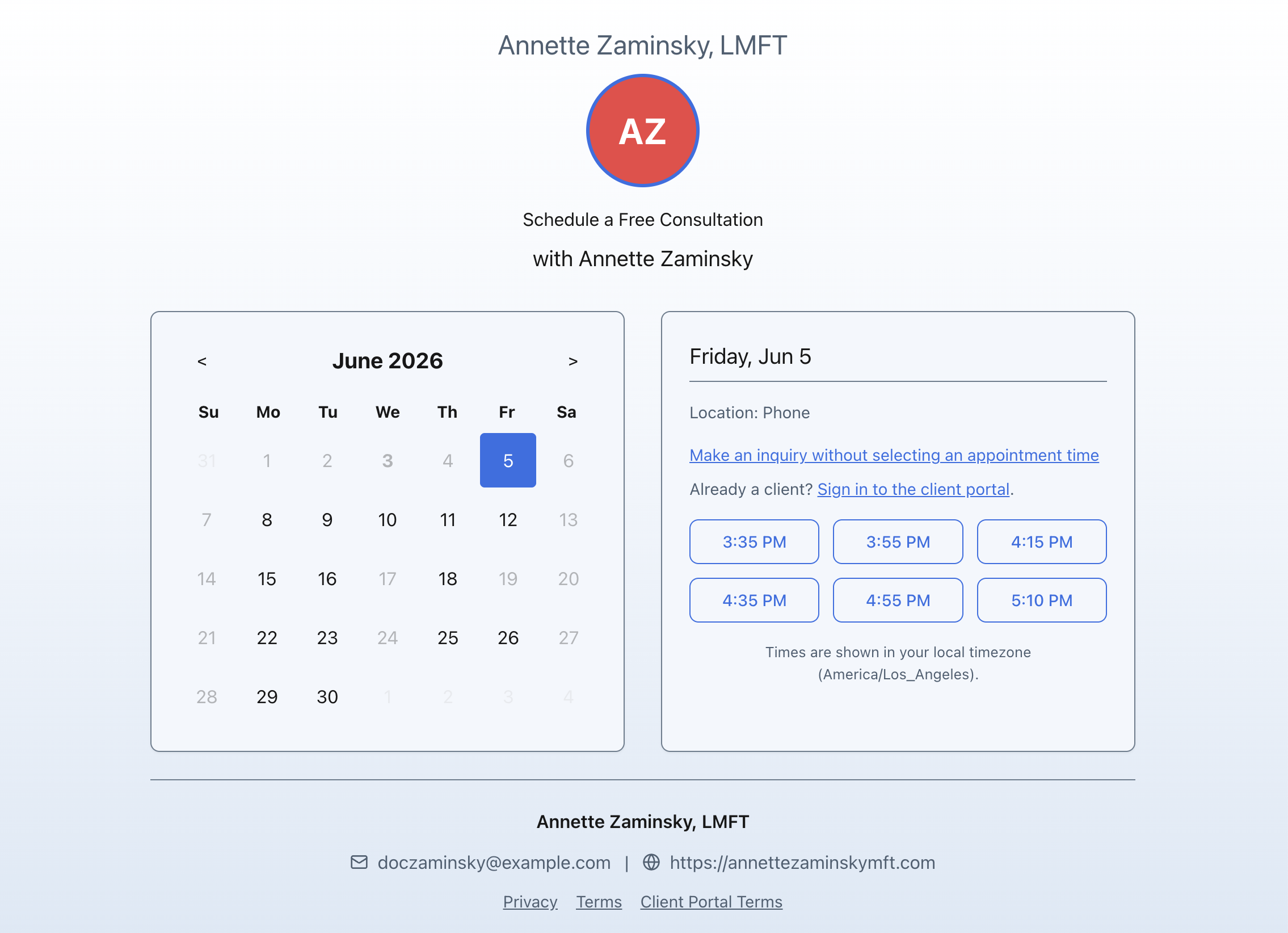
The goal is not to require the same process for every practice. It is to make the next action visible while leaving decisions about follow-up, fit, and clinical appropriateness with the therapist. You can keep track of who’s still waiting to hear back and what happened with each inquiry, without extra admin work.
How a prospect moves toward becoming a client
A common workflow is:
- Initial inquiry: A prospect contacts the practice online, by phone, by email, through voicemail, or from a referral.
- Review and respond: The practice replies, asks questions, offers times, or decides that the inquiry is not a fit.
- Consultation scheduled: The practice accepts an appointment request or books an initial consultation.
- Initial consultation: The therapist meets with the prospect and considers the next step.
- Continue onboarding: The practice books another appointment, sends intake, or both.
- Active client or closed prospect: The practice marks the person active when services are beginning, or closes the prospect case with an outcome.
Not every prospect will move through every step. For example, you may send intake before the first appointment, or close an inquiry without scheduling a consultation.
Start with an inquiry
Online inquiries and appointment requests appear in Conversations. Use the Inquiries filter to focus on prospect threads.
When someone contacts the practice outside PracticeRunner, use Conversations → Add inquiry. This is useful for phone calls, email, voicemail, and referrals. You can enter the information you have, assign a clinician, record the inquiry source, and add notes about the next step.
Keeping these contacts as inquiries makes it easier to:
- see which prospects still need a response
- keep messages and scheduling context together
- record how the person found the practice
- understand what happened when the inquiry is closed
Accept or schedule the consultation
When you accept a prospect’s appointment request, PracticeRunner records that a consultation was scheduled. If automatic acceptance is enabled, the same update happens when an eligible online request is confirmed automatically.
Scheduling a consultation does not make the prospect an active client. The prospect remains in the onboarding workflow until you decide that services are beginning.
You can continue the conversation, offer another time, or send a booking link from the inquiry thread when needed.
Choose the next step after the consultation
After a prospect’s initial consultation ends, the session workspace shows Choose the next step. The available actions include:
- Book next appointment
- Send intake
- Mark active client
- Review or close prospect
Choose the action that matches what actually happened. Booking an appointment with a fee or an insurance-eligible service completes the prospect-to-client transition automatically. Scheduling a fee-free consultation with a non-insurance service or sending intake keeps the prospect moving through onboarding without marking the case active.
If the prospect did not attend, the same area prompts you to decide whether to contact the person or close the prospect case.
Choose the case arrangement before services begin
Open the prospect’s case and select Prospect setup → Choose case arrangement. The initial inquiry does not have to determine the eventual form of therapy. Someone who contacts you individually may go on to couple or family therapy, or join a group. A couple may inquire together and decide that one person will continue in individual therapy.
You initiate this change intentionally. Opening the prospect case or viewing an option does not change its arrangement; you must choose the arrangement and complete the required setup.
- Under This prospect will become, choose the arrangement that matches the agreed next step.
- Complete the details for that arrangement:
- A couple case or A family case: choose Continue, then select an existing person or enter the new person’s details and complete the case setup.
- An individual therapy case or An individual consultation: if several people are in the prospect case, select Person continuing in this case, then confirm setup. The other people will no longer be active members of that case.
- A member of an existing case or group: choose the Destination case, then select Add to existing case. For a group, create the destination group first if it does not already exist.
- Review the resulting case and its participants before continuing onboarding.
Available choices depend on the case types enabled for your practice and the eligible destination cases. Choosing individual, couple, family, or individual consultation setup changes the prospect case in place and leaves it at prospect status. Joining an existing case moves the prospect’s appointments and conversations to that case and removes the provisional case from previous-treatment history. It does not leave an extra individual treatment case to clean up.
This setup flow is for prospects without existing clinical or billing history. PracticeRunner blocks reshaping when the case has clinical charts, invoices, statements, superbills, claims, or insurance treatment history. It is not a way to convert an established course of couple therapy into individual therapy.
Choosing the case arrangement is separate from deciding when services begin. The activation rules below still apply, including automatic activation when you book a qualifying appointment.
Send intake
Use Send intake when you are ready to send the practice’s standard onboarding materials. Depending on your setup, intake may include profile details, questionnaires, consent documents, policies, acknowledgements, and payment information.
Sending intake does not require you to mark the person active first. This lets a practice collect the required information before confirming the start of ongoing services.
For intake setup and delivery details, see Sending Intake Documents & Forms to a Client.
Mark the prospect as an active client
When you book an appointment for a prospect case, PracticeRunner completes the transition automatically if the appointment has a fee or uses an insurance-eligible service. PracticeRunner then:
- marks the case active
- marks the clients or consultation clients in the case active
- records the inquiry outcome as Became a client
- marks the prospect part of the inquiry complete
- keeps the inquiry history connected to the client
- treats related prospect and scheduling conversations as client conversations
This automatic transition does not happen when you send intake or schedule a fee-free consultation using a non-insurance service. If the practice and prospect have agreed to begin services but you are not yet booking a qualifying appointment, use Mark active client from the session workspace, prospect profile, or case workflow.
For help choosing between insurance-eligible services, paid consultations, and free intake calls, see Setting Up Services, Fees, and Procedure Codes.
Close a prospect who is not moving forward
If services will not begin, review or archive the prospect case and choose the outcome that best describes what happened.
Available outcomes include:
- Practice declined
- Prospect declined
- No response
- Did not follow up after consultation
- Did not attend initial appointment
- Not a fit
- Duplicate
- Spam
- Other
Use Did not follow up after consultation when the initial meeting occurred but the prospect did not take the agreed next step or respond afterward. Use No response when the person stopped responding earlier in the inquiry process.
An optional note can provide short, useful context, such as “Needed evening availability” or “Referred to a clinician with the requested specialty.” Avoid adding more sensitive detail than the practice needs for operational follow-up.
Turn on optional follow-up tasks
PracticeRunner can prompt the therapist when an initial consultation has ended and no next step is recorded.
To configure this:
- Open Settings → Scheduling.
- Find the consultation request settings.
- Turn on Prompt for a next step after an initial consultation.
- Choose how many business days PracticeRunner should wait.
- Optionally turn on Include initial no-shows.
- Save the settings.
The task is created only when the prospect still has no future appointment, intake activity, reply, active-client status, or recorded closure. It is assigned to the case’s primary clinician or the appointment provider when available.
The task asks the therapist to decide what to do. It does not send a message to the prospect automatically. This keeps decisions about whether and how to follow up with the clinician.
When a next step is recorded, the related open task is completed automatically.
See how inquiries are turning into clients
These numbers describe what’s happening operationally. They are not a judgment about whether a therapist should accept every inquiry. Fit, scope of practice, availability, and the prospect’s preferences remain important reasons an inquiry may not become an active client.
Open Reports → Inquiry Outcomes Report to review:
- new inquiries
- open or pending inquiries
- scheduled consultations
- prospects who became clients
- prospects who declined or were declined by the practice
- no response
- no follow-up after consultation
- initial appointment no-shows
- inquiries that were not a fit
Referral-source reporting uses the same inquiry and outcome data. Consistently recording sources and closure outcomes makes these reports more useful.
Existing-client scheduling requests
An appointment, reschedule, cancellation, or location request from an existing active client is treated as client scheduling work, not as a new prospect inquiry.
These requests can still appear in Conversations and Tasks when review is needed, but they do not move through the prospect workflow.