
Add PracticeRunner Booking and Inquiry Buttons to Your Website
Set up embedded booking or inquiry buttons, target a specific clinician, use your website's existing button, and give accurate instructions to a developer or AI assistant.
PracticeRunner can add booking and secure inquiry experiences to your website without sending visitors to a separate website first. You can embed the experience in a page, show a PracticeRunner button that opens a pop-up, or keep your website’s existing button and have it open PracticeRunner.
What embedded scheduling looks like
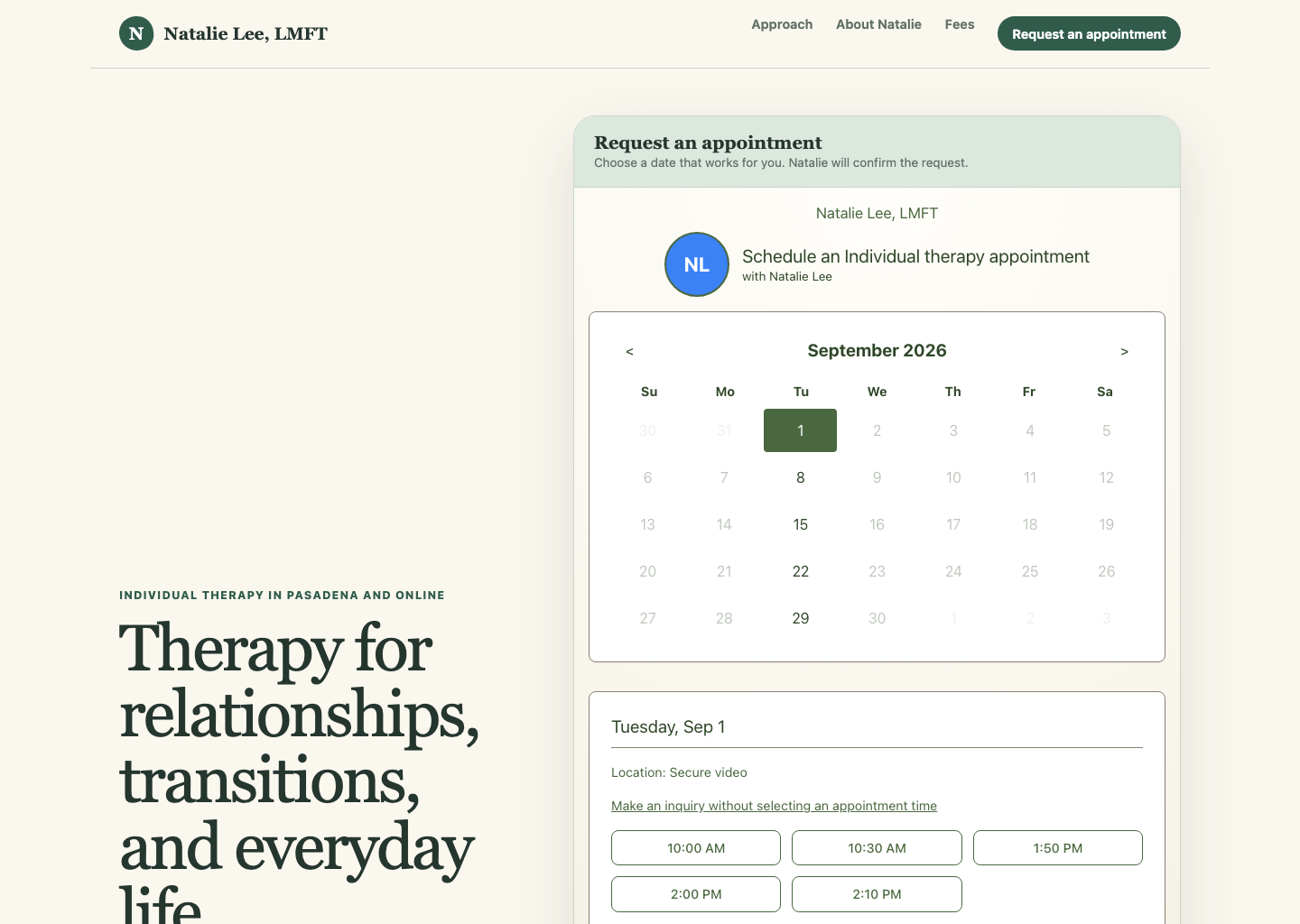
Embedded display keeps the visitor on your website while they choose an appointment date and time or send a secure inquiry. The surrounding page remains your practice website, with its own navigation, typography, colors, and introductory copy. PracticeRunner supplies the scheduling panel inside it.
The example below is a fictional therapist website using a real PracticeRunner scheduling fixture. The selected date, location, and appointment times come from the same availability rules used by the public scheduler.
The embedded scheduler also adapts to a narrow screen. Calendar controls, available times, and inquiry options stack vertically inside the practice website instead of requiring a separate mobile page.
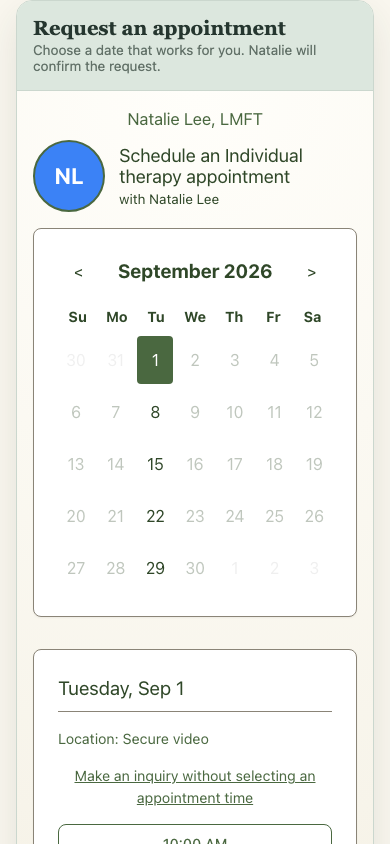
Check the page at desktop, tablet, and phone widths before publishing. The container supplied by your website should use the available width and should not impose a fixed height that clips later scheduling steps.
The fastest setup is in Settings → Scheduling:
- Turn on Enable the website scheduling widget.
- Choose the default widget experience and display.
- Add each website that is allowed to show the widget.
- Save your settings.
- Copy the widget code, or select Copy instructions for website or AI assistant.
If someone else maintains your website, send them the copied instructions. You can also paste the instructions into an AI website builder or an AI assistant that can edit your website.
Choose what the button does
Each button can have its own action:
- Booking lets a visitor choose a clinician when needed and request an available appointment time.
- Inquiry opens the secure inquiry form without asking the visitor to choose a date.
Use data-action="book" for booking and data-action="inquiry" for an inquiry.
<script
  src="https://portal.practicerunner.com/embed.js"
  data-practice="harbor-therapy"
  data-action="inquiry"
  data-display="popup"
  data-label="Make an inquiry"
  async>
</script>
Replace the example script URL and practice slug with the exact values shown in your PracticeRunner settings. Do not copy the example values into a live website.
Target a specific clinician
On an individual therapy or clinician biography page, add data-provider with the clinician slug shown in Settings → Scheduling. The clinician must be active, enabled for online scheduling, and publicly listed.
<script
  src="https://portal.practicerunner.com/embed.js"
  data-practice="harbor-therapy"
  data-action="book"
  data-provider="jane-smith"
  data-display="popup"
  data-label="Request a consultation with Jane"
  async>
</script>
Change the action to inquiry when the button should send a secure inquiry to that clinician without selecting a calendar date.
If a clinician slug is invalid or the clinician is not publicly available for scheduling, PracticeRunner does not silently send the visitor to someone else.
Use your website’s existing button
Add data-button="false" to load PracticeRunner without generating another button. Then call PracticeRunner.open from the click handler for your existing button.
<button id="therapy-inquiry" type="button">Ask about therapy</button>

<script
  src="https://portal.practicerunner.com/embed.js"
  data-practice="harbor-therapy"
  data-display="popup"
  data-button="false"
  async>
</script>

<script>
  document.getElementById("therapy-inquiry").addEventListener("click", function () {
    window.PracticeRunner.open("harbor-therapy", {
      action: "inquiry",
      provider: "jane-smith"
    });
  });
</script>
This approach keeps the website’s existing button markup and styling.
Customize the generated button
The generated button has the stable class pr-widget-button. A website can style that class with ordinary CSS. It can also set these CSS custom properties:
--pr-widget-btn-bg--pr-widget-btn-color--pr-widget-btn-border--pr-widget-btn-radius--pr-widget-btn-font
Example:
.therapy-page {
  --pr-widget-btn-bg: #355c52;
  --pr-widget-btn-color: white;
  --pr-widget-btn-border: 1px solid #29483f;
  --pr-widget-btn-radius: 999px;
  --pr-widget-btn-font: 600 1rem/1.3 system-ui, sans-serif;
}
Supported script attributes
| Attribute | Supported values | What it controls |
|---|---|---|
data-practice |
Practice slug | Required. Identifies the PracticeRunner practice. |
data-action |
book, inquiry |
Chooses appointment booking or an inquiry without a date. |
data-provider |
Clinician slug | Targets one publicly listed scheduling clinician. |
data-display |
popup, embedded |
Opens over the website or renders within the page. |
data-label |
Plain text, up to 60 characters when saved in PracticeRunner | Sets the generated button text. |
data-title |
Plain text | Sets the accessible scheduling frame and dialog title. |
data-button |
false |
Prevents PracticeRunner from generating a button. |
When data-action, data-display, or data-label is omitted, the embed uses the saved widget setting. Existing embeds without the newer attributes continue to work.
Give the setup to an AI assistant
In Settings → Scheduling, select Copy instructions for website or AI assistant. The copied text includes:
- the correct PracticeRunner script URL
- your practice slug
- your allowed website origins
- the currently selected booking or inquiry action
- the generated embed code
- publicly available clinician names and slugs
- the supported attributes and custom-button API
Paste the complete block into the assistant that is helping with your website. Tell it which page should receive the button and whether the button should book an appointment or send an inquiry. If the page belongs to one clinician, name that clinician and use the exact slug from the copied instructions.
Ask the assistant to preserve your website’s existing styles unless you want a design change. Before publishing, review the resulting code and test the button in a private browser window.
Troubleshooting
The widget does not load
Confirm that the website’s exact origin is listed under Websites allowed to show this widget. Enter the origin only, such as https://www.exampletherapy.com, without a page path.
A clinician-specific button does not load
Confirm that the clinician slug matches PracticeRunner exactly. The clinician must also be active, enabled for online scheduling, and publicly listed.
The button opens the wrong experience
Check data-action. Use book for calendar booking or inquiry for the secure inquiry form without a date. A script-level action takes precedence over the saved default widget experience.
The website shows two buttons
If you want to use the website’s existing button, add data-button="false" to the PracticeRunner script and connect the existing button with PracticeRunner.open.