
How Auto-Invoicing and AutoPay Work
A visual guide for owners and providers showing how automatic invoicing, AutoPay, saved payment methods, credit cards, bank transfers, and monthly superbills fit into flexible billing workflows.
PracticeRunner’s billing automation does more than just create invoices. It checks completed appointments, follows your billing schedule, decides whether to email or charge, applies account credit, and can also send monthly superbills.
Billing automation works alongside your payment-method settings. Practices can set practice defaults, optionally set provider defaults, and give a case its own collection schedule when needed. Each case can use manual billing, automatic invoicing, or AutoPay, while its assigned payment profile controls the payment methods, discounts, and instructions offered for that case.
Practices can also offer a small per-session discount for bank transfers or recorded manual payments such as Zelle, check, or cash. This provides an optional way to share part of the savings from avoiding credit-card processing with clients. The practice can set a default and create reusable payment profiles for cases that need a different arrangement.
For automatic invoice and receipt emails, client opt-outs, and portal-only delivery, see Choose Which Billing Emails Clients Receive. Email delivery depends on both the practice settings and the recipient’s preferences.
The Big Picture
Completed sessions
      |
      v
┌──────────────────────┐
│ Auto-invoice checks  │
└──────────┬───────────┘
           |
           +--> Create invoice now for cases using daily AutoPay
           |
           +--> Create batched invoices on the case's effective schedule
           |
           +--> Review open invoices for email / charge / recovery
           |
           +--> Generate monthly superbills when enabled
What Can Happen After a Session?
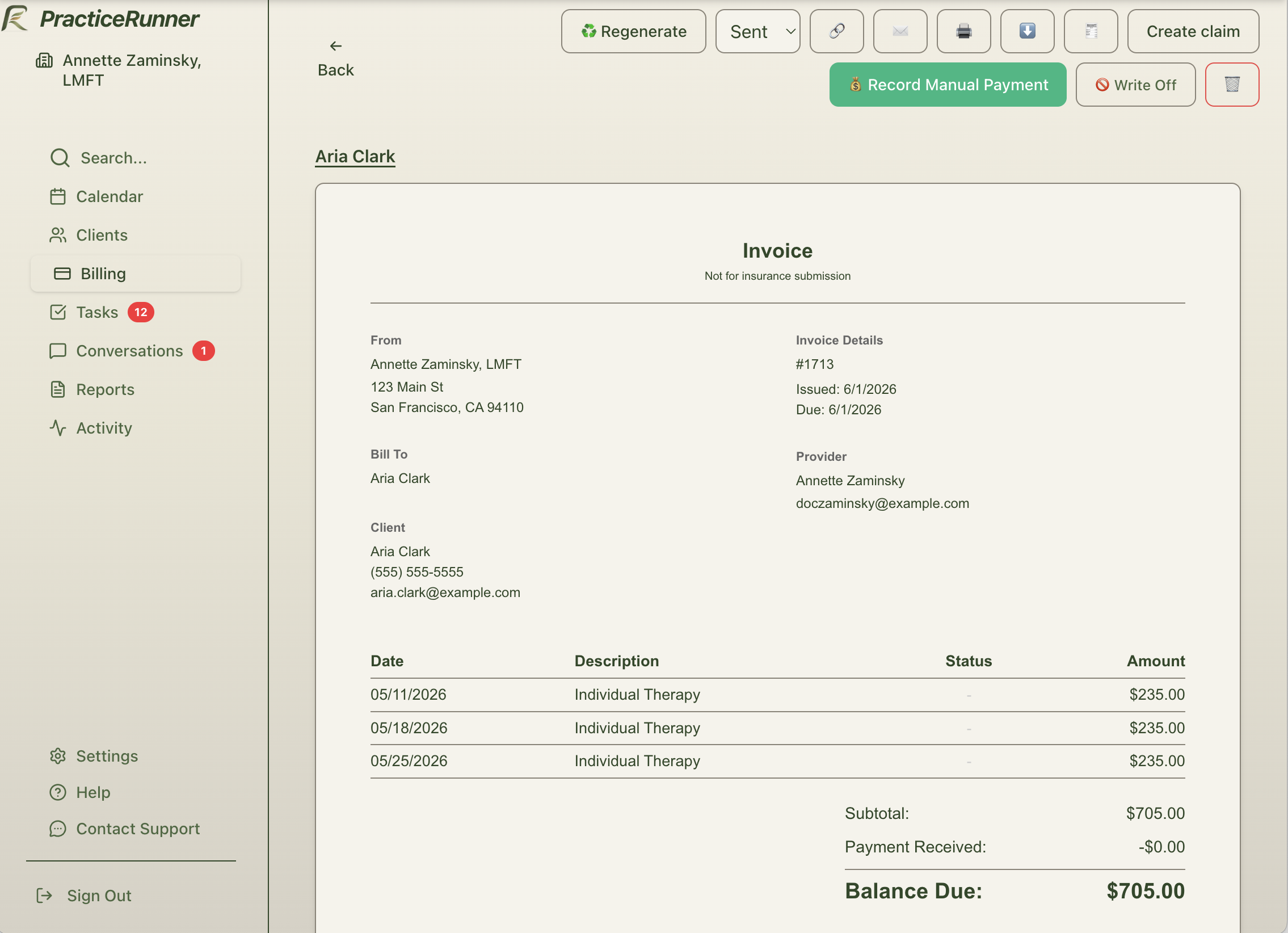
Appointment ends
  |
  v
Does this case use daily AutoPay?
  |
  +--> No  -> wait for regular billing schedule
  |
  +--> Yes
         |
         v
   Create invoice for that appointment
         |
         +--> Review delay configured?
         |       |
         |       +--> Yes -> make invoice available; email if permitted
         |
         +--> No saved payment method available?
         |       |
         |       +--> Yes -> send payment request
         |
         +--> Saved payment method available?
                 |
                 +--> Yes -> charge when eligible
The Four Billing Outcomes
1. Invoice is created and emailed
This usually happens when:
- you want clients to review invoices before payment is attempted
- the client does not have a usable saved payment method
- automatic collection is not available for the routed Stripe account
2. Invoice is created and later auto-charged
This happens when:
- the payment mode allows automatic charging
- the waiting period has passed
- the client has a saved chargeable card or bank account
- the saved payment method belongs to the correct connected account
If a practice chooses to limit online payment methods to bank transfers in some cases, automatic charging will only use an eligible saved bank account for those clients.
3. Invoice stays open as a payment request
This happens when:
- automatic charging is unavailable
- the client has not saved a usable payment method yet
- you still want the client to pay from the invoice link
AutoPay notification exception: if the case uses automatic payment but the billing contact has no usable saved payment method, PracticeRunner sends an invoice payment request even when Email invoices automatically is off. The recipient’s billing-email preferences and Portal only choice still apply. This exception does not apply to manual billing or invoice-only schedules. See Choose Which Billing Emails Clients Receive for the full notification rules.
4. Automatic payment pauses and a recovery flow starts
This happens when the client’s saved payment method needs attention. PracticeRunner will:
- stop auto-charging for now
- send a recovery email when practice and client preferences permit it
- create a follow-up task for staff
For a broader overview of task types and how they resolve, see Tasks and Needs Attention.
Failed-charge retries
When a failed automatic charge is eligible for another attempt, PracticeRunner schedules the retry for a later billing day. The retry can run on that scheduled day even if its stored timestamp falls later than the nightly billing run. Failures that make the saved payment method unusable still pause automatic charging and start the recovery flow described above.
An unpaid invoice created in advance remains eligible for its scheduled automatic collection after the appointment date has passed. Changing a case from after-session billing to advance billing also does not abandon an older unpaid invoice that is otherwise eligible for automatic collection.
Scheduled Auto-Invoicing
Owners can set practice standards, and providers can optionally use their own settings.
Schedule logic
Which collection schedule applies to this case?
  |
  +--> Use the case's custom schedule if enabled
  |
  +--> Otherwise use provider defaults if enabled
  |
  +--> Otherwise use the practice default
  |
  +--> Weekly schedule: match weekday
  |
  +--> Monthly schedule: match day of month
If the case’s effective schedule is due today, PracticeRunner:
- looks for eligible unbilled appointments
- follows the case’s billing responsibilities
- creates invoices for the appropriate billing contacts
- handles sending or charging in the later collection step
When AutoPay Actually Charges
PracticeRunner does not always charge immediately.
Daily AutoPay
Charge timing is based on the delay set for daily billing.
Daily autopay invoice created
  |
  v
Delay reached?
  |
  +--> No  -> wait
  +--> Yes -> attempt charge
Monthly AutoPay
Monthly charging waits until the end of the service month, plus any configured delay.
Latest session month ends
       |
       v
Add configured delay
       |
       v
Charge date reached?
  |
  +--> No  -> wait
  +--> Yes -> attempt charge
Monthly Pre-Billing
Monthly pre-billing creates a projected invoice for appointments currently scheduled later in the month instead of waiting for month end.
Month begins
   |
   v
Find appointments still scheduled this month
   |
   v
Create projected monthly invoice
   |
   +--> Send payment request now or after configured delay
   |
   +--> Or charge authorized saved payment method after configured delay
Important:
- the invoice is based on appointments currently scheduled for the month
- future cancellations or schedule changes are reconciled later
- any overpayment is credited or refunded
- additional scheduled sessions added later may require a later adjustment or additional invoice
Plain-language rule:
- After-service billing can still catch older sessions that were never billed.
- PracticeRunner will not automatically blast through a deep historical backlog. If uninvoiced sessions are far older than the current billing cycle, automation pauses for that client and creates a staff task instead.
- Before-appointment billing and pre-billing only look forward. They do not automatically go back and bill older sessions.
Before Any Automatic Charge
PracticeRunner first checks whether there is unapplied account credit.
Open invoice
  |
  v
Available credit?
  |
  +--> Yes -> apply credit first
  |
  +--> Remaining balance > 0 ?
          |
          +--> No  -> invoice may be fully covered
          +--> Yes -> attempt automatic charge
This means a client may be fully or partially covered by existing credit before any Stripe charge is attempted.
Monthly Superbills
If a case is set to provide superbills, PracticeRunner also checks for monthly superbills.
Case marked for superbills
  |
  v
Find prior months with `SHOW` appointments
  |
  v
Create or update one superbill per month
  |
  +--> Not sent before -> email superbill link
  +--> Already sent    -> update record only
Only completed SHOW sessions are included on a superbill. Chargeable late-canceled sessions can still be invoiced, but they are not added to superbills.
Simple Decision Map
Billing automation runs
  |
  +--> Eligible completed session?
  |       |
  |       +--> maybe create single-session invoice
  |
  +--> Provider billing day today?
  |       |
  |       +--> maybe create batched invoices
  |
  +--> Open invoice exists?
  |       |
  |       +--> send for review
  |       +--> request payment
  |       +--> apply credit
  |       +--> auto-charge
  |       +--> start payment-method recovery
  |
  +--> Client needs monthly superbill?
          |
          +--> create/update superbill and send link
What You Control
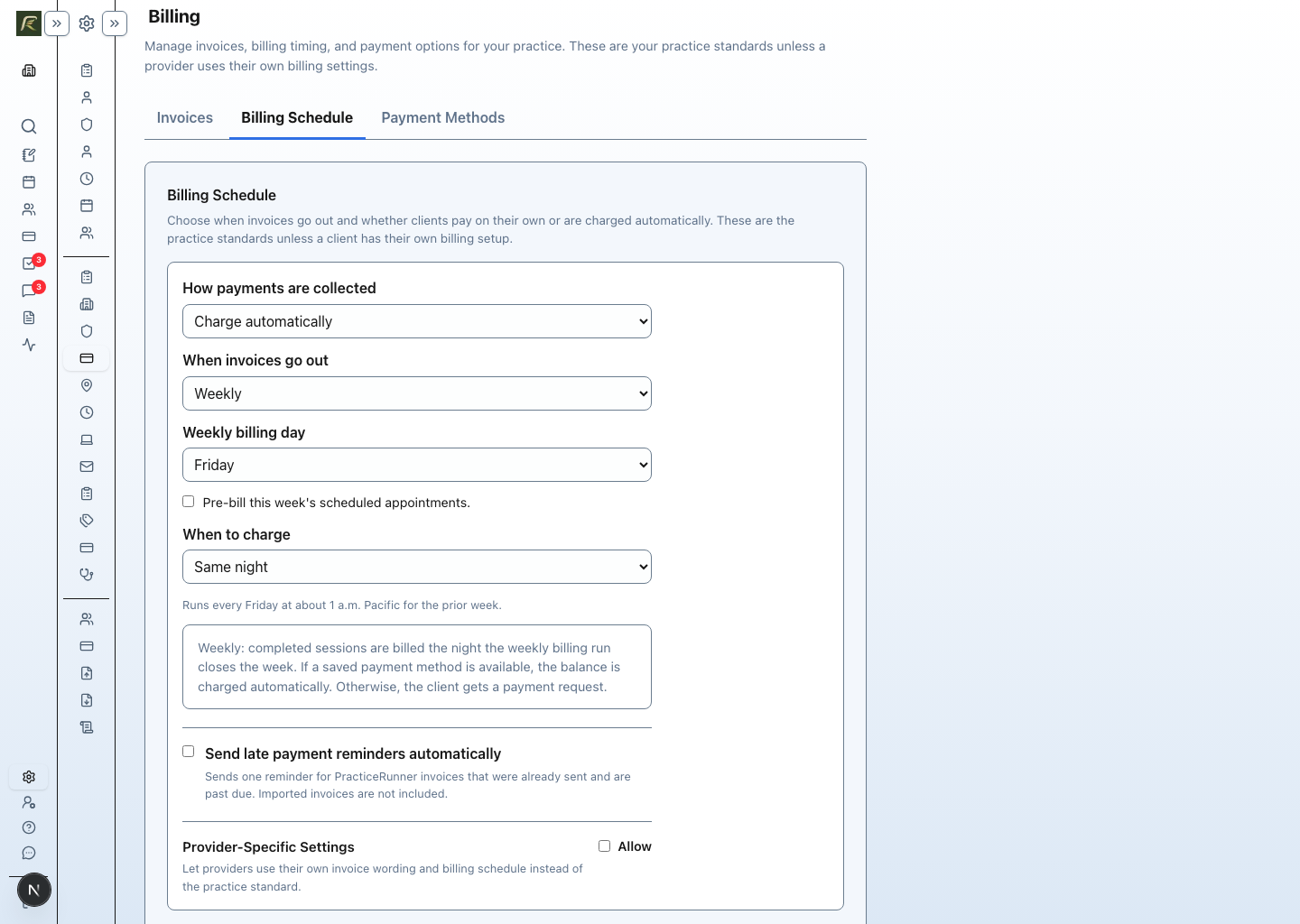
Owners and providers should think of billing automation as four related settings areas:
| Area | What it controls |
|---|---|
| Practice or provider defaults | The collection schedule a case inherits unless it has a custom schedule |
| Case collection schedule | Whether billing is manual, daily, weekly, or monthly; whether invoices are created before or after appointments; and whether the billing contact pays or is charged automatically |
| Payment profile | Which payment methods, discounts, and payment instructions the case uses |
| Saved payment methods | The cards or bank accounts available for the billing contact responsible for payment |
Why Something Might Not Happen
If you expected an invoice or charge and did not see one, the most common reasons are:
- the appointment was already invoiced
- the appointment fee was
0 - the appointment was canceled or marked no-show
- today was not the provider’s billing day
- the case’s collection schedule was manual
- the client had no usable saved payment method
- the saved payment method required recovery before charging
Practical Examples
Example A: Daily AutoPay with a review period
Session completes
  -> invoice created
  -> invoice available; emailed when permitted
  -> delay window passes
  -> PracticeRunner attempts charge
Example B: Monthly billing with no saved payment method
Provider's billing day arrives
  -> monthly invoice created
  -> client receives payment request
  -> no automatic charge is attempted
Example C: Client has account credit
Open invoice ready for collection
  -> credit applied first
  -> only remaining balance is charged
  -> if no balance remains, no Stripe charge is needed
Related Billing Behavior
This same automation pass also sends:
- invoice emails
- automatic payment receipts
- payment-method recovery emails
- monthly superbill links
If you want, support can also help you verify whether a case is set to manual billing, daily AutoPay, or monthly AutoPay, since that setting changes the entire path above.